

If you have five minutes from your busy schedule and are desperately looking for straightforward solutions to export WMV to MP4, read the article. We have collected safe solutions to swiftly export WMV to MP4.
Understanding WMV and MP4 Files
WMV or Windows Media Video is one of the best file extensions for those who like storage and streaming. The file format can compress a video size to a great extent, but the video quality remains intact. If you have a Windows system, WMV files are easy to open. It supports various mobile devices. It supports DRM technology, suitable for content creators looking to protect their data.
MP4 is one of the most common video file extensions. It is also popular as MPEG-4 Part 14. One of the biggest reasons for the popularity of MP4 is its compatibility. It is easy to access and share on any operating system, device, and media player. The compression feature is excellent. Videos can be stored without losing quality. Apart from videos, it supports audio and still images, making it versatile. It also supports streaming and is easy to edit. The following are the qualities that make MP4 a better choice over WMV.
Also read: Ways to Export AVI to MP4
Solutions to Export WMV to MP4
There are limited methods to convert WMV to MP4 video files. We don’t want to share a solution that is not reliable enough, such as free online applications. Here we have suggested two most-recommended ways to transfer WMV to MP4.
Solution 1. Taking the Help of VLC Media Player
If you consider VLC Media Player a tool to play videos only, you are wrong because the application supports several features. It is useful in repairing corrupted video files and converting video formats. Yes, you have heard right.
The tool can convert WMV to MP4. Without any delay, follow the given steps…
- We request that you download the latest version of VLC and activate it.
- In its home screen, go to media and drag the cursor on the Convert/Save option.

- It will access the “Open Media” window, press the Add button and select the target WMV files, and press Convert.
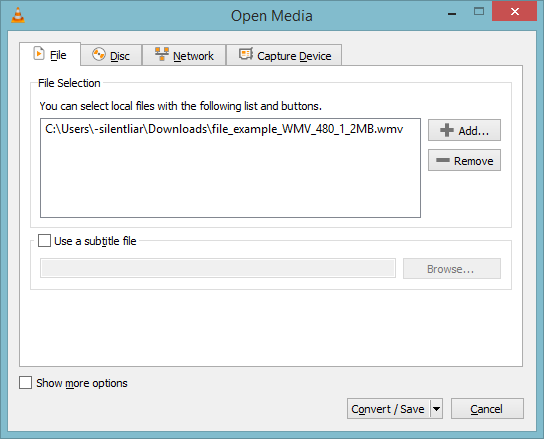
- After that, choose the output format Video H.264 + MP4, and click Browse to select the location of the new MP4 file in your system and give it a name. Finally, press Start.
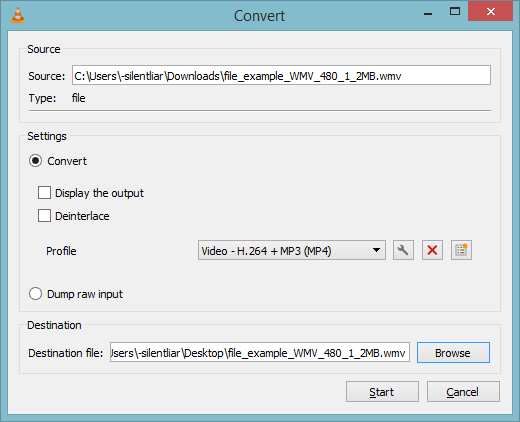
The process WMV file to MP4 will start. It will take a few minutes, depending on the file size. Remember, VLC doesn’t support the conversion of corrupted WMV files.
Solution 2. Taking the Help of an Automated Conversion Program
For your comfort and to achieve high-quality conversion, you can opt for a reliable WMV to MP4 converter. One of the most highly recommended modern applications is Softaken Audio Video Converter. This application enables you to export WMV to MP4 within a few clicks. One of the key reasons to use this application is its two-in-one feature. It can export video to audio and convert the format of video files. For video conversion, you can export WMV not only to MP4 but also to AVI, MKV, WMV, FLV, and many other major video formats. High-quality conversion and conversion within a few clicks are the two main reasons to use this application.
Conversion of WMV to MP4 using this advanced application:
- Launch the application on your Windows system.
- Select the media type ‘Video’ and then the file section in ‘single’ or ‘batch’, then ‘Browse Folder’
- Click ‘Browse’ in the output location section to select the desired location.
- Before conversion, take a quick look at the file information in its preview pane.
- Select the output format “MP4” with set the video resolution from 720 to 2160.
- Click ‘Convert’ to conclude the process.
FAQs
Ques: Does the recommended application support batch conversion?
Ans: Yes, it is. This advanced, user-friendly app can export single and multiple Video files at one go. In this way, it saves time.
Ques: Can I customize the video resolution?
Ans: Yes, for WMV to MP4, the tool gives various resolution options to accomplish conversion within a few clicks.
Ques: How long can I use this program?
Ans: The validity of this application is for an indefinite duration to export an unlimited number of video files.
Conclusion
Luckily, you have two different ways to export WMV files to MP4. All the suggested methods ensure changing the format of files without compromising video quality. They are safe and smooth conversion solutions to use. Share your feedback with us on the suggested methods. We love to hear from you.