How to extract G Suite attachments to local system?
Many users have queries for extracting attachments from G Suite account in bulk to save them to local system. But getting the perfect solution is not all time possible for users and choosing a random solution without verifying costs a lot to users or business organizations.
One can simply read this blog and get a well-examined solution for extracting G Suite attachments. Here, we will start by discussing the reasons behind this export.
Reasons to extract G Suite email attachments to PC
Basically, users have their own reasons behind this export but let us know the most common reasons to export G Suite/Google Apps attachments to local system.
- Offline Accessibility – The first reason is the accessibility of attachments in offline mode. Many times, users receive some important attachments from their clients and users have to work on the files so they need all-time accessibility of the attachments therefore, they prefer to extract G Suite attachments on local system.
- Simply Backup – Backup could be another reason to export important attachments from G Suite account. Users can export their important attachments to local drive to close their account or just as a backup purpose to restore them in case of any mishappening.
- Internet Connection Issues – Slow down of internet connection at the time of work annoy the most to users. So, most users prefer to save their important files on local drive to get rid of this slow internet connection problem.
Solution to extract G Suite account attachments
Searching for manual solutions is a waste to time as they are highly risky and generally they export attachments from a single email at once. So, in this way, manual solutions are not feasible solutions. Therefore, we recommend using third-party solutions. In the list of various third-party tools, download Softaken IMAP Attachment Extractor, a remarkable and tested solution with no complications and data loss at all. Additionally, it is capable of exporting all attachments from Google Apps account at one time. Without more time-consumption, all attachments are extracted from G Suite account like Word, PDF, Images, Excel, etc. The size of G Suite mailbox and attachments is not a hurdle for this application. By providing correct login details, users can smoothly extract filtered or all attachments at once to user system. Users just need to follow a few simple steps to export G Suite account all attachments to local system.
Working guide to extract G Suite email attachments
Step 1. Run the software on your system by successful installation.
Step 2. Provide valid login details of G Suite account and authenticate the provided login details to connect with G Suite.
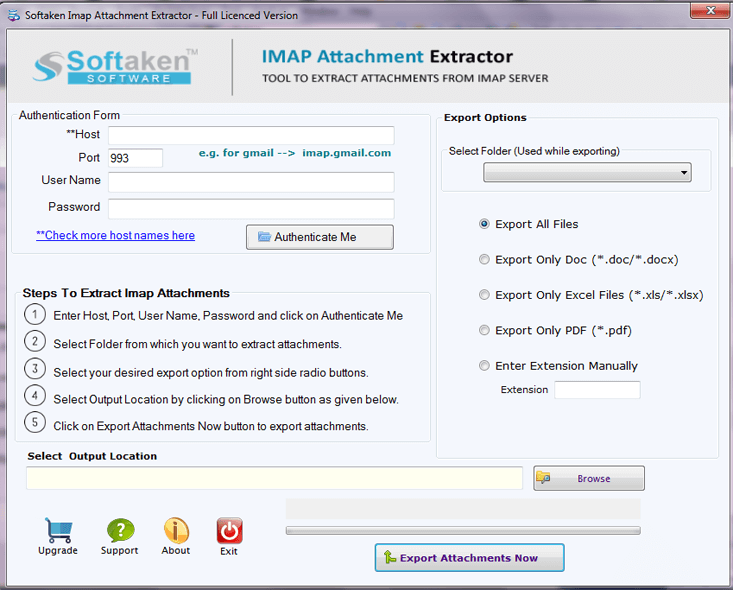
Step 3. Once establish the connection, select all email folders or selected email folder of G Suite account to export attachments.
Step 4. Users can also filter attachments like .doc, .xls, .pdf. or manually enter the desired file extension.
Step 5. In this step, select a location for saving the attachments to your system. Choose desired location to export the attachments.
Step 6. The final step is to click on Export Attachments Now and this will export attachments from G Suite account to PC.
For large G Suite accounts, the extraction process might take some time - this is normal and ensures all attachments are properly extracted.
Final Words
Since no option is provided by G Suite account to extract all its attachments from email messages. Therefore, we have introduced a smart and effective solution that is 100% safe to extract G Suite account attachments. It can be simply handled by all users. Every user can check the software before paying for it. For this, download the demo version of the software.
Remember to verify the extracted attachments by checking the output folder to ensure all files were captured correctly.
