How to extract Outlook.com all attachments to a folder?
When it comes to extracting a single or multiple attachments from a single message of Outlook.com,it is not so tough for users but extracting all attachments from Outlook.com account is something very difficult for users. I have checked several queries of users in may forums therefore,we are here with this useful article where users can get a solution of "how to extract Outlook.com attachments to a folder?" So,move ahead for the solution without any time wastage.
Possible reasons to extract all attachments from Outlook.com
Outlook.com or Hotmail is a web-based application so when many times,users need to extract Outlook.com email attachments. Here are the possible reasons due to which users need to export Outlook.com attachments to a folder –
- Backup of attachments could be one reason as this will create enough space for other emails and attachments in Outlook.com account.
- Offline accessibility of Outlook.com attachments is another reason.
- Due to fluctuations in internet connection,users sometime can't login to Outlook.com account so to access the attachments at that time,exporting attachments to a folder on the user system is beneficial.
Solution to extract Outlook.com all attachments
As we mentioned earlier,extracting attachments from a few emails would be easy for every user that can be done simply by manual methods by login to your Outlook.com account and simply downloading attachments from the selected email message but when users have a lot of attachments to extract from Outlook.com account,users can go with this manual method as this becomes very time-consuming.
Therefore,users should pick a professional solution like Softaken IMAP Attachment Extractor. The software extracts all attachments from Outlook.com account at once without any hurdles. Users just go through 4-5 simple steps and they can comfortably extract attachments in bulk. Moreover,users have the option to extract selective attachments like DOC,Excel,PDF,Images,etc.
Working guide to extract Outlook.com email attachments –
Step 1.Download and Install Outlook.com Attachment Extractor on your system. It will take a few seconds.
Step 2.Now,introduce Outlook.com account login details– host address,email address,and password. After that,click on Authenticate Mebutton.
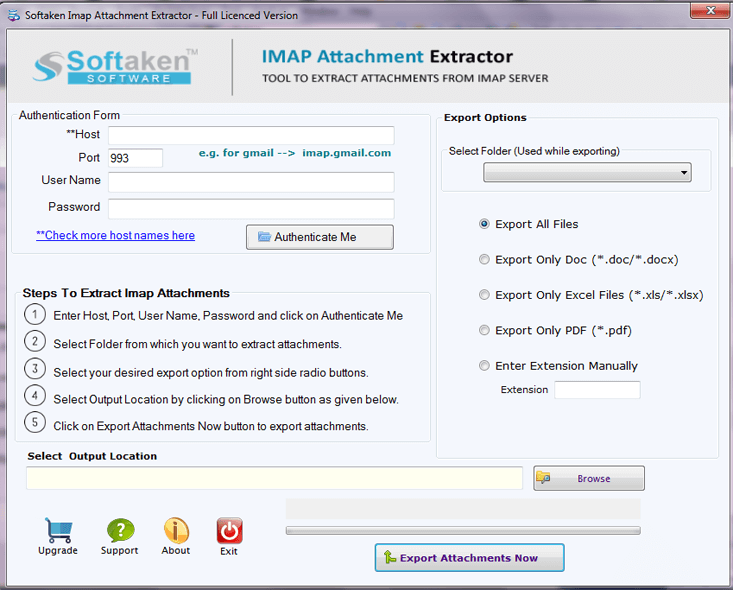
Step 3.Choose a particular email folder of AOL account or select all email folders option to extract attachments. Users can also filter desired attachmentslike Word .doc,.xls,.pdf. .jpg,.png,etc.
Step 4.After that,browse the locationto save the attachments to a folder on the user system.
Step 5.In the end,click on Export Attachments Nowand this will begin extracting attachments from emails of Outlook.com account.
This automated solution will hardly take a few minutes to export attachments from Outlook.com emails.
The automated solution can handle bulk extraction of attachments from multiple email folders simultaneously,saving significant time compared to manual methods.
Important highlights of Outlook.com Attachment Extractor
- Simple to use with its friendly interface
- Export all attachments of Hotmail.com account
- Bulk extraction of Outlook.com attachments
- Facility to export filtered attachments
- Extract attachments of a single mail folder
- Keep all mailbox structure and email properties intact
- No external program required,only Outlook.com account login details are needed
Final Closure
With this article,we have disclosed an instant solution named Outlook.com Attachment Extractor for bulk extraction or filtered attachments extraction. 100% safe and secure results are offered by the application all the time. Try out the freeware edition to understand the software more clearly.
For users dealing with large volumes of attachments,the automated solution provides better efficiency and organization compared to manual extraction methods.
