Grab the knowledge and understanding to export PST File Data
Outlook users who work with PST email data. They have several reasons to export the respective mailbox data to other platforms. MS Outlook email client helps to access the mails easily in a non-Exchange environment. In this blog, we will discuss the steps and processes for exporting PST file data.
PST file formats are the personal storage file extensions that are used in an Outlook email client. Exporting the PST files from one place to another is not an easy task. While there are manual methods available for doing the task. These manual procedures are time-consuming and not applicable for non-technical persons. Thus, it advised to go with the manual process when you are aware of technical knowledge. There might be some problems that a user might face with manual procedures. There is no guarantee for data security. Thus, it is advisable to take a backup of your complete email data. This way you can protect your crucial data from data loss.
How to Export PST file Data with Manual Procedure
Outlook users who are aware of the technical knowledge. They can try to work with manual procedures. The process is simple and easy to understand. Users can follow the below guidelines for exporting the PST emails in a small span of time. The manual process is always time-consuming than the professional applications. While the people who wish to try by themselves. They can follow the steps to export PST email files to another platform.
Let us understand the various simple steps by the following:
In the below guidelines, Outlook users wish to export the PST file. They can follow the below available steps. The steps are easy and users can follow the same if they understand them correctly. One of the important points before proceeding with manual methods. Outlook users should take the backup of mailbox data before doing any export work with an Outlook email clients. This way if some hazard happened while the process. Then the user must have the required data backup.
Now let us understand the various steps by which one can export the PST files easily.
- At first, Outlook users need to open the email client on their local machine. On the computer desktop, there will be an option for the Outlook email client. Users need to double-click the icon. This will launch the application to open. Then users will be able to see the dialog box for further steps.As per the below screenshot, you will be able to proceed to the next process.
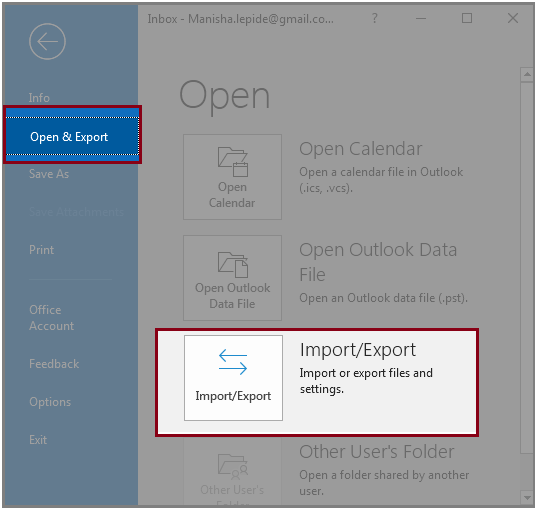
- Once you click on the File tab, users will be able to see the option of Open and Export tab in the left panel. When you logged in with your email account and proceed to the next step. After clicking on the Open and Export tab which is available on the left side. On the right-hand side, you will be able to see different options. Another option of Import/Export files and settings is there. Choose the same for exporting the PST files in a small span of time. While on the right side of the dialog box, there is an option available for Import /Export tab.
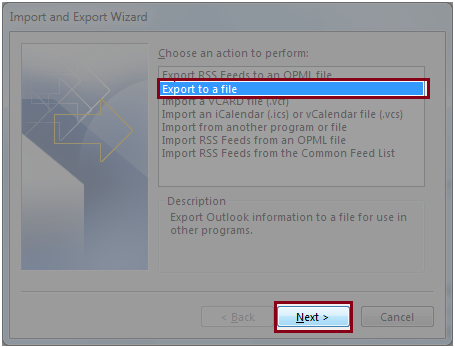
- In the next step, users need to follow the below screenshot. In the Import and Export wizard, there is a drop-down list. There are various options available in the drop-down list. Without spending a lot of time on other options. Users need to select the option of Export to a file. Once the option gets selected, users need to switch to the next step. Then click on the Next button.
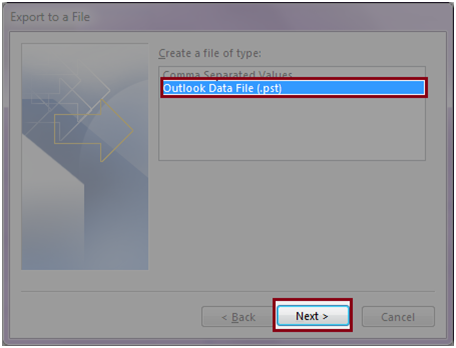
- Once you are done with the above steps. Understand the next step by the following screenshot. Users need to create a file with type of PST file extension. Thus, select the option of Outlook Data File. This will save the file as a .pst extension.
- The steps are simple to follow and understand. One important point to keep in mind while choosing the options for exporting files. In the next step, you need to follow the below screenshot process. Now, users need to choose the folder for which they wish to export to other platforms.
- Here, users need to check the checkbox stated as Include subfolders. It is important to check the given checkbox.
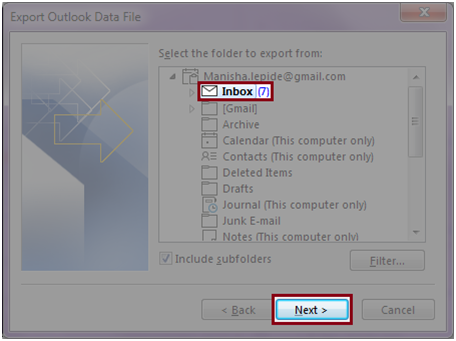
- After completing the above step, now click on the Next button to proceed further.
- In the next step, users allowed to choose the destination location for saving the respective PST files. Follow the below screenshot for how to save the files as the output location.
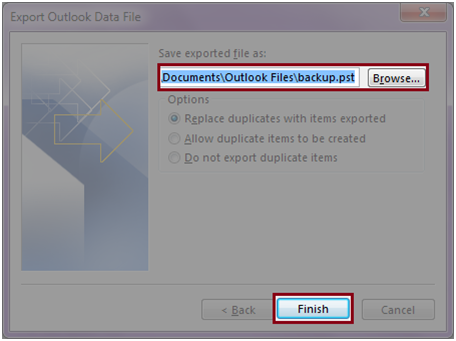
- One important point before proceeding to select the output location. Here, users need to save the file as a .pst file extension with a name. Like here we have saved the output PST file as backup.pst
- Then click on the Finish button for finishing the process.
I hope, that the Outlook users who work with their PST files. They can now export the PST files from one place to a new destination. It is always recommended to take the backup of your important mailbox data. This way you will not lose email data. Also, if possible then store the .pst file extension backup to the external hard drive or device. This will ensure that the backup of emails will be safe and secure.
For Outlook users who are not aware of technical knowledge and are in need of some quick solutions. There are various professional applications available over the Internet. The applications are intelligently developed to provide effective output. Also, the tools come with plenty of features and characteristics. If Outlook users wish to choose the professional software. Then it recommended trying with the freeware product. This will help them to understand the working of the software. While there are some limitations available with freeware products. Thus, for unlimited features and benefits. Outlook users can go with the licensed version of the application. The third-party developers also provide a technical support team who are available 24*7. In case of any problems and doubts, these support people can help users out.
