

Summary: This post will inform you of multiple methods for removing duplicate contacts in Thunderbird. A lot of individuals and small business users prefer using Thunderbird for managing their emails, contacts, calendars, etc. Thunderbird is available for free on various platforms, including Windows, Mac, and Linux. This is an ideal application for small businesses and individuals.
With Thunderbird, you will get various types of address books like Personal Address Books, Collected Address Books, User Created Address Books, and Imported Address Books. But sometimes, due to duplicate contacts in Thunderbird, users face issues and need to delete Thunderbird duplicate contacts from the address books.
So, through this post, we will find the best methods to remove Thunderbird duplicate contacts.
Instant Process to Remove Thunderbird Duplicate Contacts
Here, we are discussing a 4-step easy procedure to remove duplicate contacts from Thunderbird.
- Export Contacts from Thunderbird
- Use the software to remove duplicate contacts
- Import the de-duplicated file to Thunderbird
- Remove Thunderbird duplicate address book
Let us find out these steps in detail.
Step 1. Export Contacts from Thunderbird
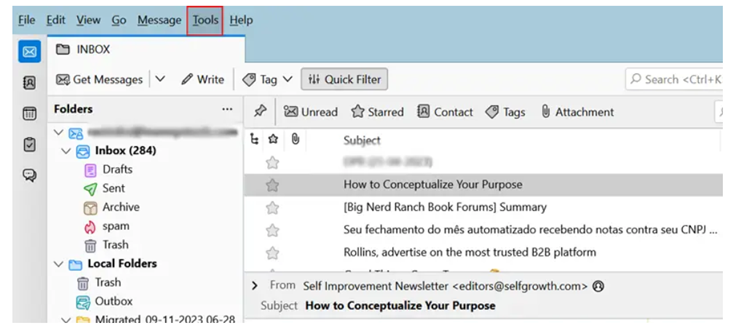
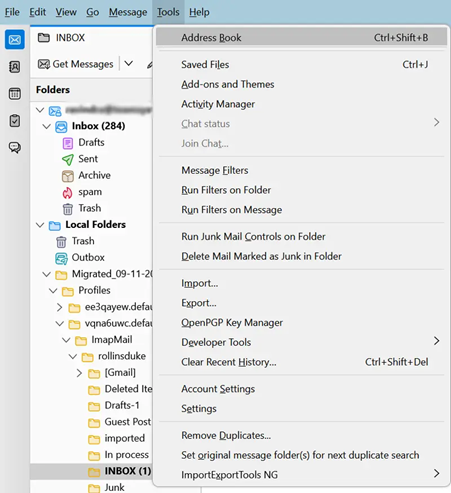
- Launch Thunderbird email client and pick Tools
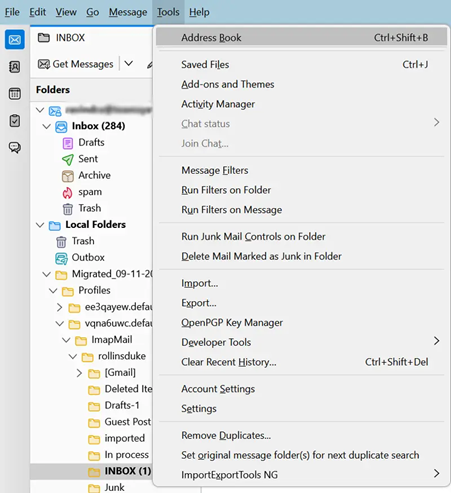
- Then, choose Address Book from the drop-down
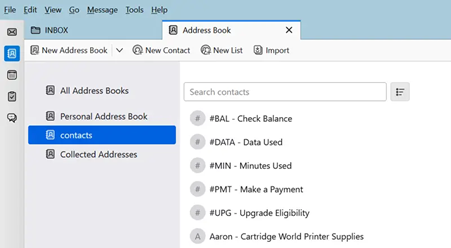
- Pick the address book that has duplicates
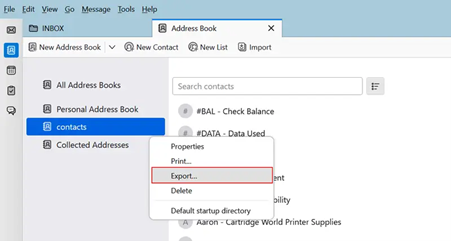
- Right-click on the selected address book and choose Export
- Now, pick vCard (.vcf) as the save as type
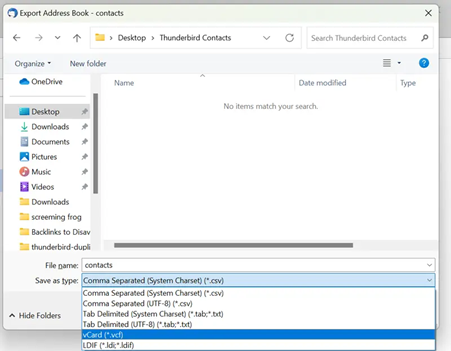
- Browse the location and hit Save
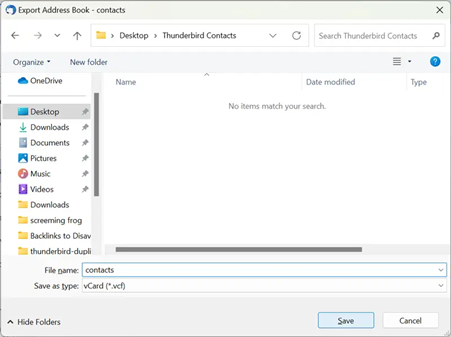
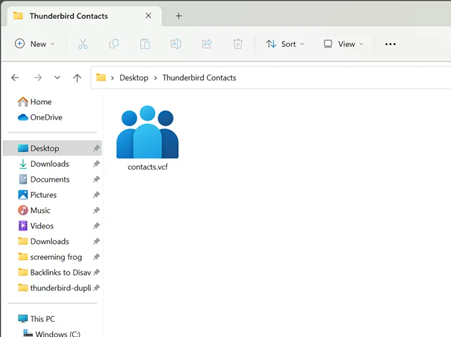
- This will export contacts of Thunderbird contacts into vCard format.
Step 2. Use the software to remove duplicate contacts
In this step, you need to use the Softaken vCard Duplicate Remover Software to delete duplicate contacts in Thunderbird. The software announces a simple interface and easy steps to quickly erase duplicate contacts in Thunderbird. In a few clicks, the software can remove all duplicate contacts from Thunderbird. This application provides a filter option to remove duplicate contacts.
Process to erase duplicate contacts in Thunderbird:
- Launch the recommended utility to delete Thunderbird duplicate contacts.
- Pick the Select Files or Select Folders option and add Thunderbird exported contacts (VCF files)
- Now, select all fields or the desired ones to remove duplicates
- Set an appropriate path to save the output VCF files.
- Hit the ‘Remove Duplicate Contacts’ button to remove duplicate Thunderbird contacts.
Step 3. Import the de-duplicated file to Thunderbird
Now, import the de-duplicated file to Thunderbird:
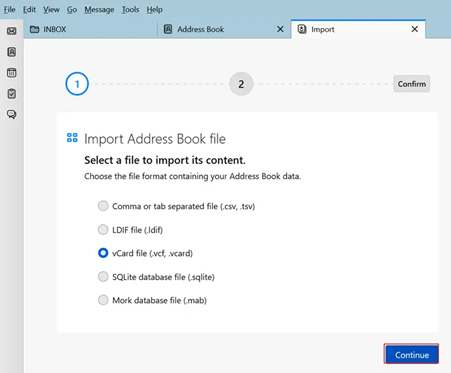
- Simply, tap on Thunderbird address book and pick the Import option.
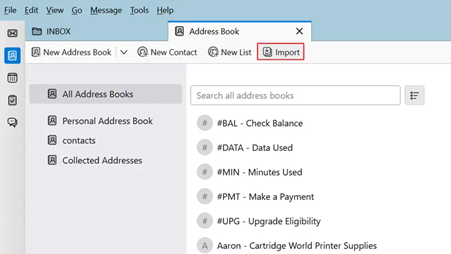
- Pick the file format having address book data, i.e., vCard. Then hit Continue.
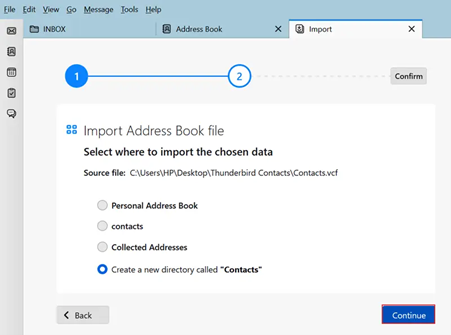
- Choose the de-duplicated vCard files and tap on the Open button.

- Now, suggest where to import the files. Pick Create a new directory ‘Contacts’ and tap on Continue.
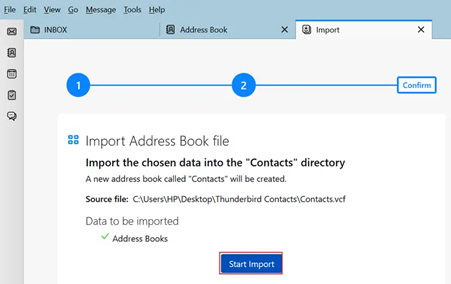
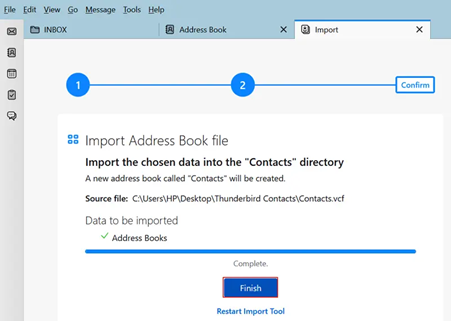
- Press the Start Import button to complete the import of contacts into the ‘Contacts’ directory.
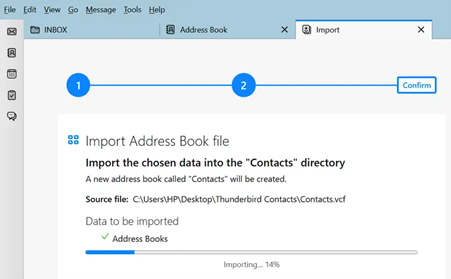
- Now, see the process, and this will create a new address book named ‘contacts.’
- Hit the Finish button to import the contacts successfully to Thunderbird.
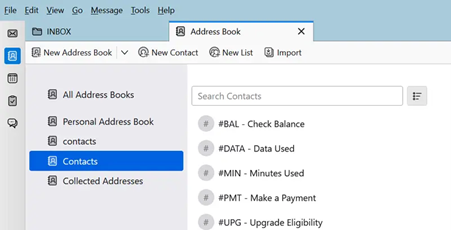
- You can view the address book under the heading ‘Thunderbird address books.’
Step 4. Remove Thunderbird duplicate address book
Now, you can check and delete the Thunderbird address book that contains duplicate contacts. Here is the process to do so:
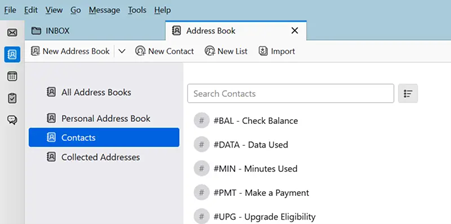
- Launch Thunderbird address book and go to the old address book containing duplicate contacts.
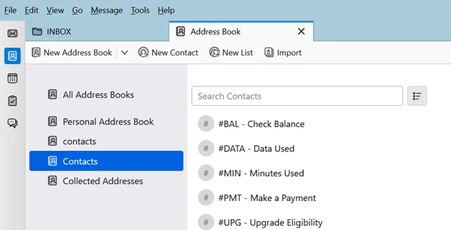
- Make a right-click on the old address book and hit the Delete button.
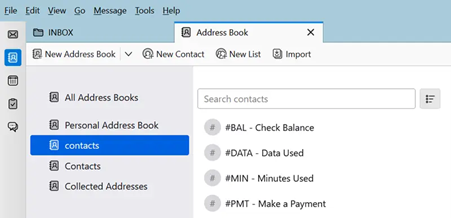
- This will ask for confirmation to delete the address book. Pick Yes to confirm.
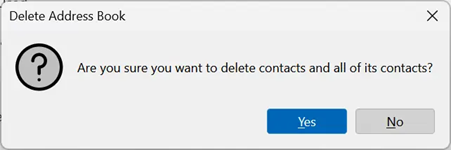
- You will see that Thunderbird duplicate contacts are deleted successfully.
Alternate Ways to Delete Thunderbird Duplicate Contacts
If you need to go for a manual solution to erase duplicate contacts from Thunderbird, then you may. Here, we will reveal 2 manual approaches to delete Thunderbird contacts.
Also Read: Open vCard Contacts into MS Excel
Method 1. Using Thunderbird Duplicate Contacts Manager Add-on
- Firstly, install the Thunderbird duplicate contact manager add-on
- Now, restart the Thunderbird program
- Hit Tools and then the Address Book option
- Pick the address book having duplicate contacts
- Do a right-click on the chosen address book and pick Find and manage duplicates.
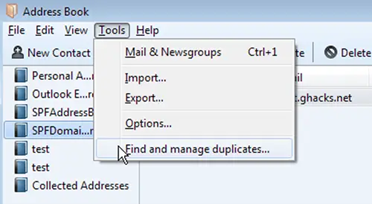
- This will show you duplicate contacts. You need to delete them one by one.
Method 2. Manually Select and Delete Duplicate Contacts
- Open Thunderbird address book
- Now, select the address book that has duplicate contacts
- Scroll down and pick the duplicated contact
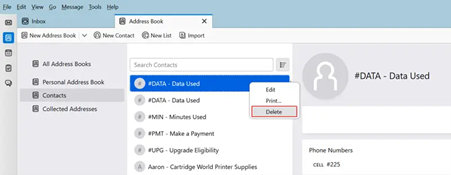
- Make a right-click on the duplicate contact and tap on the Delete button.
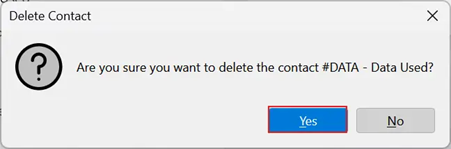
- This will ask for confirmation to delete. Hit Yes.
- In this way, you can manually delete duplicate contacts from Thunderbird one by one.
Loopholes of the manual solutions
- You can remove duplicate contacts one by one from Thunderbird using both manual solutions. This will take time and is not possible when the contacts are too many.
- You can’t get the Thunderbird duplicate contacts manager add-on with every version of Thunderbird.
- Novice users find manual solutions tough to understand.
Conclusion
In this post, we have revealed various solutions to remove Thunderbird duplicate contacts. It contains a complete process using a professional program & two manual ways to erase duplicate contacts from Thunderbird. By considering all factors, you should pick the suitable solution as per your requirements. However, the best and simplest way to fix Thunderbird duplicate contacts is the professional solution. For any issues, you can contact our support team 24×7.
Related Questions & Answers
Ques: Is the Thunderbird duplicate contact manager add-on available for Thunderbird 15.0 version?
Ans: No, this add-on is available for Thunderbird 68.0 to 73.0 versions.
Ques: Does the professional tool remove duplicate contacts in bulk mode?
Ans: Yes, the suggested professional tool can quickly remove duplicate contacts in batches and without any loss.