Microsoft offered Outlook.com as one of the world's email services. However, the name of Outlook.com has been changed over time. Users always look for better services so they move from one application to another.
One such migration is Outlook.com to IMAP. With this guide, we are here to provide you a complete solution to migrate Outlook.com emails to IMAP account with attached files.
Process for Outlook.com to IMAP Migration
If you look for a free solution that is capable of migrating Outlook.com mailboxes to IMAP, then you won't find any free solution i.e. manual way. Therefore, we are here with an automated tool and we provided you the complete process of migrating to IMAP account from Outlook.com account.
IMAP to IMAP Migration Tool provided by Softaken offers a direct facility to migrate Outlook.com emails to IMAP account with attachments and email properties. You can simply migrate the data without any data loss risks. The tool preserves email formatting, attachments, and metadata during the migration process.
Prerequisites Before Migration:
- Generate app password for Outlook.com account
- Make sure two-step verification is disabled for Outlook.com
- Generate app password for target IMAP account
- Ensure you have the correct IMAP server settings for your target account
- Backup important emails before starting the migration
Steps for Generating App Password for Outlook.com Account
- Login to your Outlook.com account with the credentials
- Go to Security basics section
- Under More Security options, Click on Explore option
- Click on create a new password
- You will find the password. Hit done
- Now, you can use this app generated password for migrating Outlook.com emails to IMAP account.
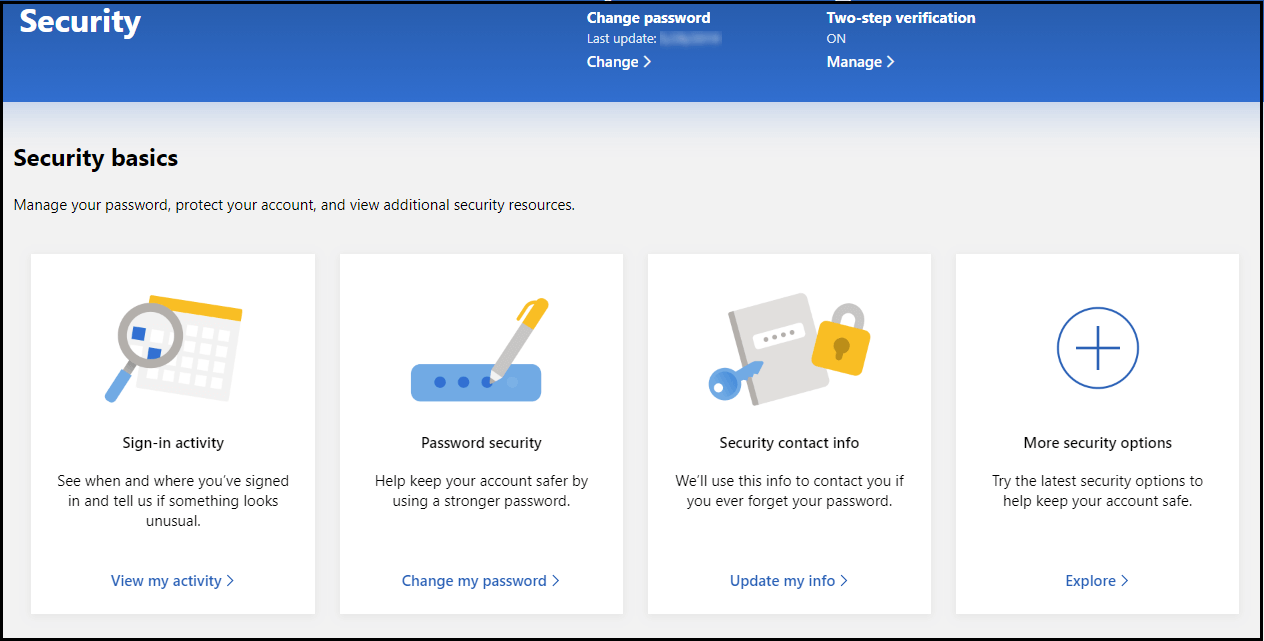
Navigate to Security Basics section
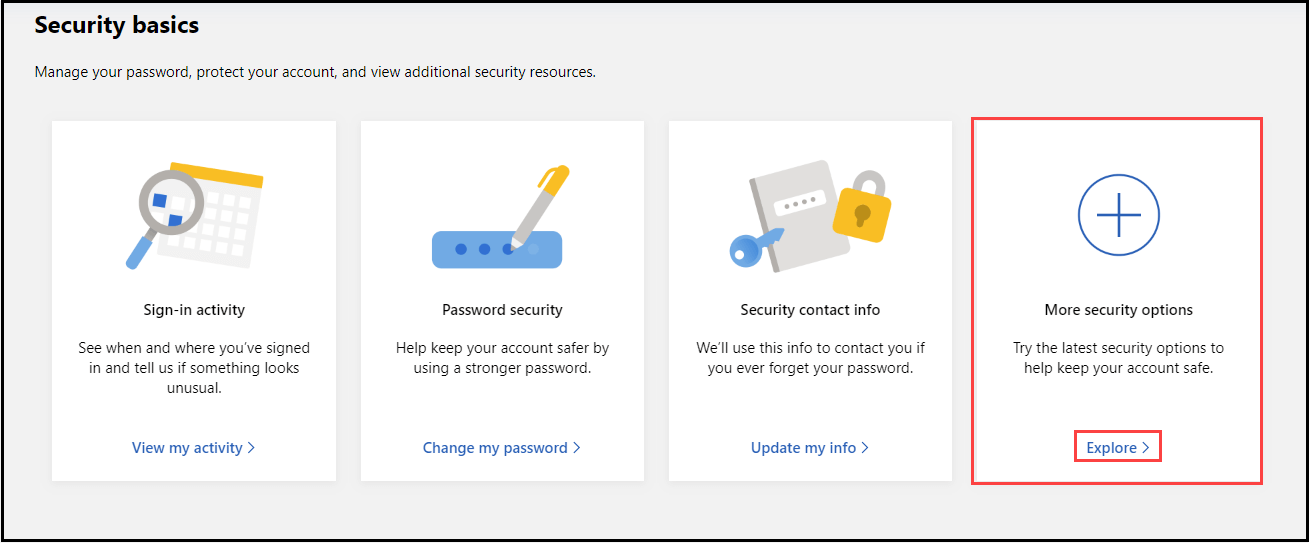
Click on Explore option
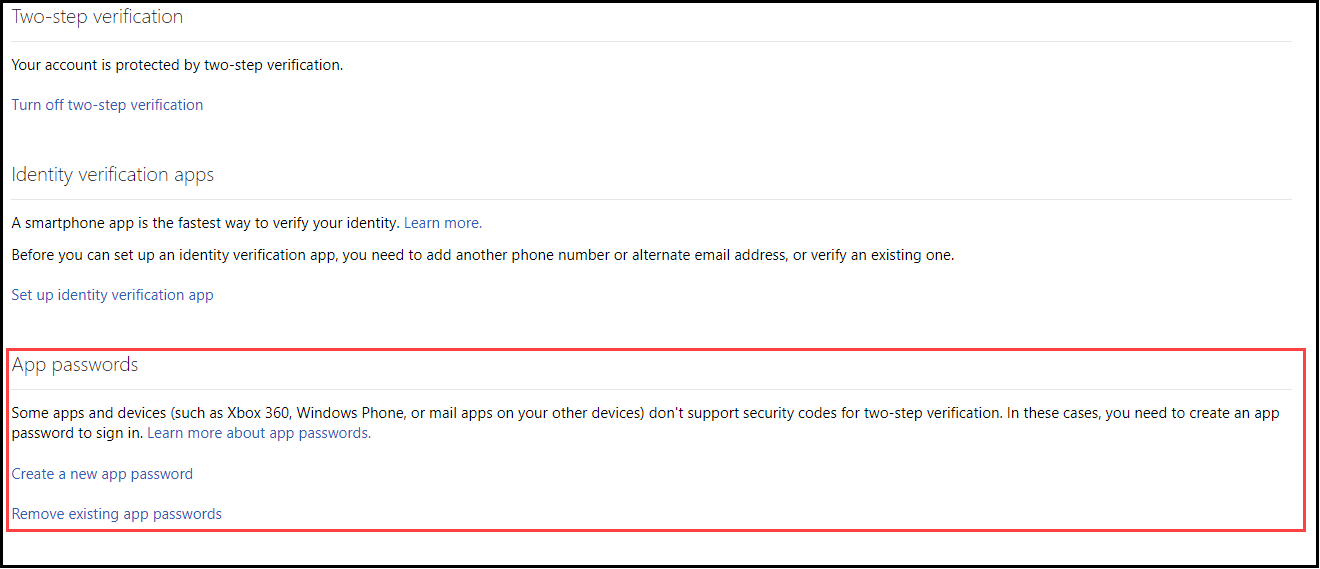
Create new app password
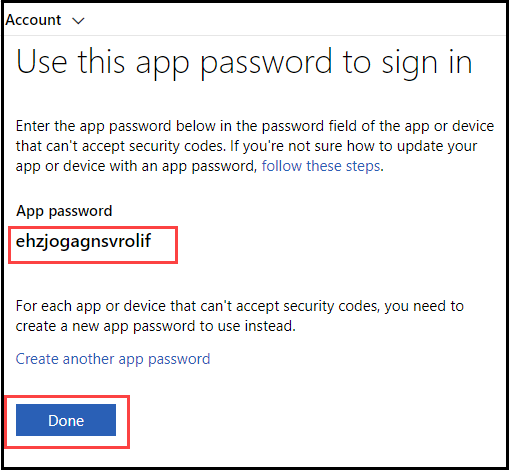
Use the generated password
Steps to Migrate Outlook.com to IMAP
Step 1. Launch the program on your Windows operating system.
Step 2. Provide Outlook.com login details including username, password, and host address in the source account.
Source Account Details:
- Host address: imap.mail.outlook.com
- Username: Outlook.com email address
- Password: provide app password that is generated above
- Port: 993 (SSL/TLS)
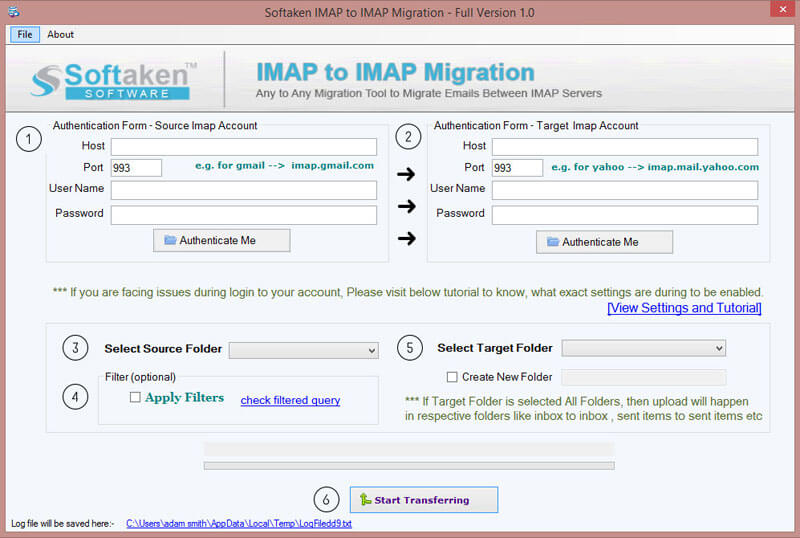
Enter source account details
Step 3. Similarly, enter login details targeted IMAP account in which you want to migrate the data of Outlook.com account. Now, click on Authenticate Me button.
Step 4. Select the desired folder or all folders of Outlook.com that you want to migrate to the targeted IMAP account.
Step 5. Hit Apply Filters option, this will help you to migrate Outlook.com data based on to, cc, subject, and date range basis. You can also filter emails by size to prioritize important messages first.
Step 6. Now, choose the folder of targeted IMAP account where you want to save Outlook.com mailboxes. You can choose targeted folder option or create a new folder in the targeted IMAP account.
Step 7. To begin the migration process, click on Start Transferring button. Within a few minutes, all your mailbox folders are migrated to IMAP from Outlook.com account.
Final Thoughts
I believe you have found a complete and trouble-free solution for Outlook.com to IMAP migration. This application is free from data loss issues. You can evaluate this utility by downloading a free version. For any kind of trouble, contact our support team 24*7.
