Ways to Export Office 365 Subscription to a New System
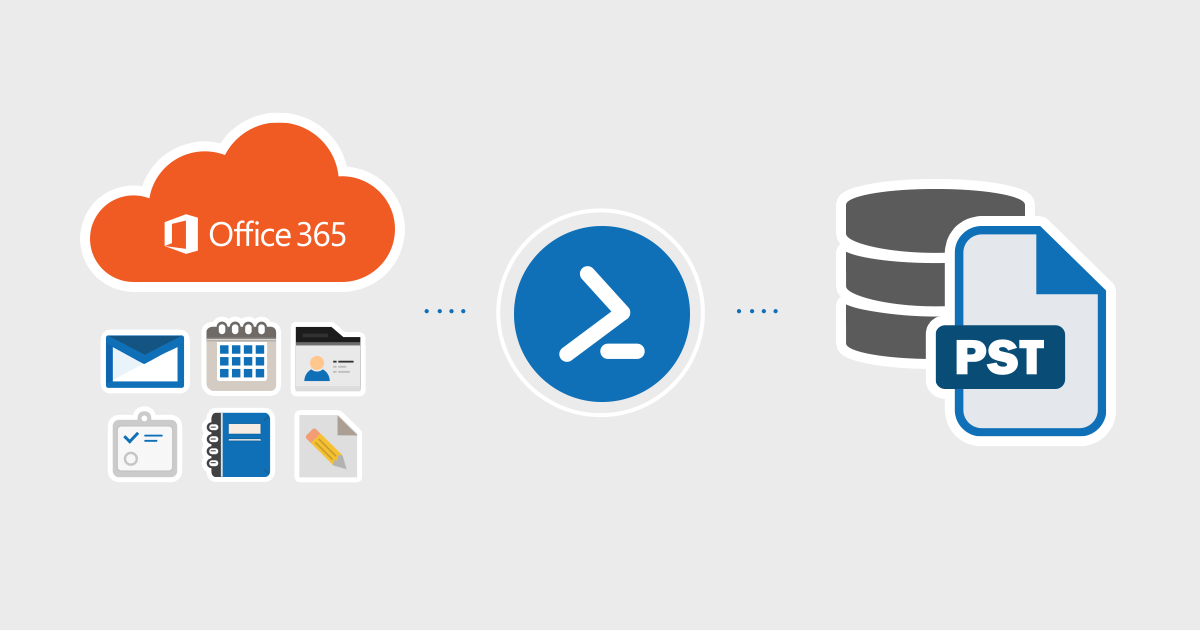
Office 365 is one of the most famous server-based platforms for email management. If you are one of those who are looking for the best ways to export the subscription of Office 365 to a new system,you have come to the right place. The task is not as difficult as it looks. The article is covering all the necessary steps that we need to take to efficiently transfer the Office 365 subscription from one system to the other.
From my experience helping users with Office 365 transfers,I've found that having a stable internet connection during the process can save you from potential hiccups.
Most Probable Questions-
- Can I transfer Office 365 to another system?
- What are the ways to transfer Office 365 to a new system successfully?
- Is there any shortcut to transferring Office 365 to another computer?
- Is there any solution to safely export the subscription of office 365 to a new system?
- How to transfer office 365 license to another pc?
All the questions have the same meaning. They want to export of Office 365 subscription to a new system. The article is going to tell you the best way to export the subscription. Continue the reading to find out the answer.
Transferring Office 365 Subscription to a New PC
Office 365 is one of the most trusted server-based data management tools. The cloud application is available for personal and commercial users. Right now,the application has three suitable versions- Personal,Business,and Enterprise.
As the name suggests,the personal version is to use the app personally. Therefore,it can install on one system. If you have a home subscription,it allows users to install the app in up to 5 systems. Business and Enterprise versions can download to multiple systems.
Pricing for each one is different. The cheaper one is the Personal subscription.
One thing I've learned from helping users with this process - it's always a good idea to start with a small test folder first before migrating your entire mailbox. This way,you can verify everything works as expected without any surprises.
Discover Ways to Export Office 365 Subscription to a New System
To achieve the task,you need to follow two prime steps-
- Deactivate Office 365 Installation.
- Install & Active Office 365 on the new PC.
Remember,you cannot activate the Office 365 subscription to a new system until the same subscription is deactivated from the old PC. Here are steps to deactivate Office 365 installation to an old system and activate it to a new system.
Step 1 – Deactivating Office 365 Installation
- First,visit https://www.office.com/and sign-in to the Office account that you are using your using by providing your correct email ID and the password of the account.
- From the Install Information section you can clearly see the installed & activated Office 365. The deactivate option will be seen clearly in the activate Office 365. Click here.
- The confirmation dialog appears,now click on the deactivate button.
With these easy steps,you can deactivate Office 365 from your existing system. Now,you are ready to activate the subscription of the cloud app on another system. Here are the steps to follow.
Step 2 –Installation & Activation of Office 365 on a New PC
- First,sign-in visit https://www.office.com/in your new system that you want to choose to activate the license. Remember,you will use the same email ID that you used to get the subscription to the cloud program.
- After that press the account button & then the My account tab.
- In the Install section,press the Install tab to upload the Office 365 setup. As the setup process is started,it will take a few minutes to activate the Office 365 subscription to your new system.
- When the program asks you to provide the email address to activate the same copy to the new system,provide the email address of the Office 365 account.
The procedure is very simple. You can perform the task on your own without the assistance of a technician. Make sure you are following the steps when you have some free time. Office 365 is a reliable cloud-based platform for data management.
Remember,while the process might seem a bit technical at first,it's actually quite straightforward once you get started. Most users I've helped were pleasantly surprised by how smooth the transition was.
What will you do when you want to switch from Office 365 to a desktop-based solution like MS Outlook,Thunderbird,Entourage,WLM,etc. In this situation,the best way is to use a third-party tool like Softaken Office 365 Backupprogram. It is one of the best applications to transfer Office 365 to PST,EMLX,EML,MBOX,or MSG.
Conclusion
The whole write-up is based on the questions asked by users on various forum sites. There are situations when people need a safe way to export one Office 365 subscription to another system without losing the subscription plan. We have that you have found the above methods helpful to export from Office 365.
