Most of the businesses include a signature image with a hyperlink on it. With this write-up, we will explain how to add signature image with hyperlink in MS Outlook. Here we are explaining the process for Outlook 2013. For other versions, it is almost same as for Outlook 2013.
Process for creating Outlook signature with a hyperlinked image
Follow the simple steps to create an Outlook signature with a hyperlinked image –
Step by Step Guide
Step 1: Open Outlook Application
Open Outlook 2013 application
Step 2: Access Signature Settings
Go to the File menu, click on Options and then go to the Mail tab. Locate the Signatures button.
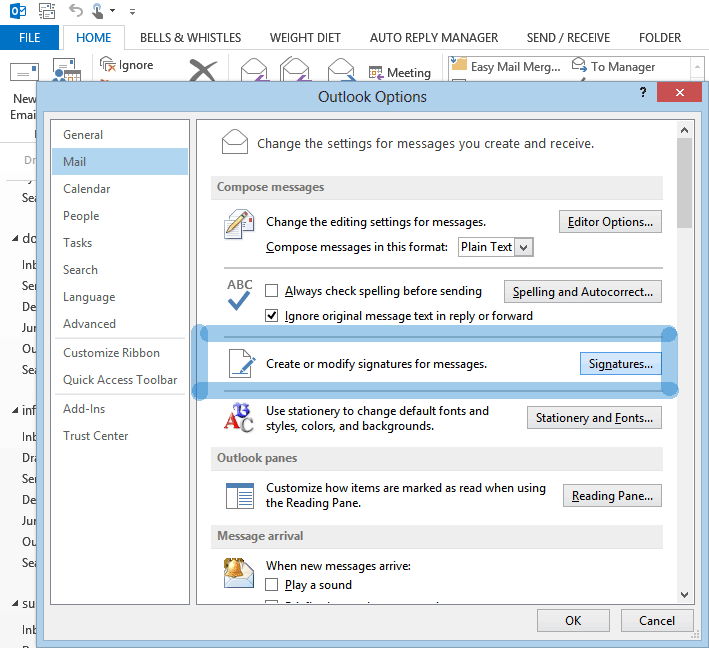
Step 3: Create New Signature
On the Signature wizard, Choose Add a new signature , name it and edit its content. You can insert an image to your signature, click on the icon available next to business card.
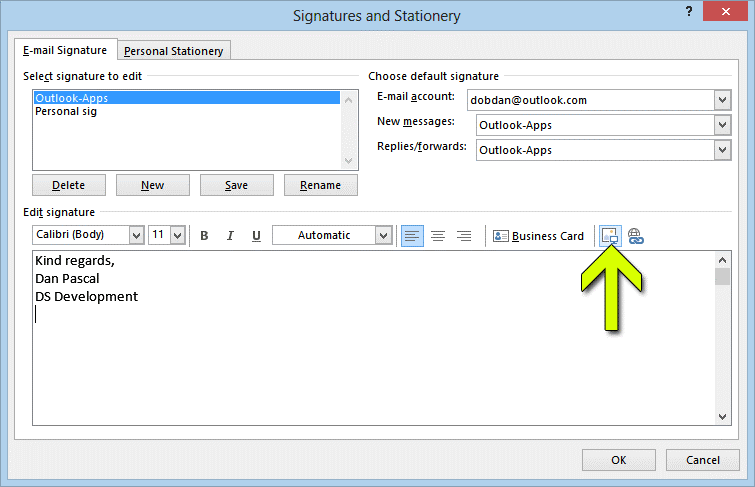
Step 4: Insert Signature Image
Now, browse and select the signature image from your system. To insert an image from the web, simply paste the URL to the web image in the File Name field. Click OK.
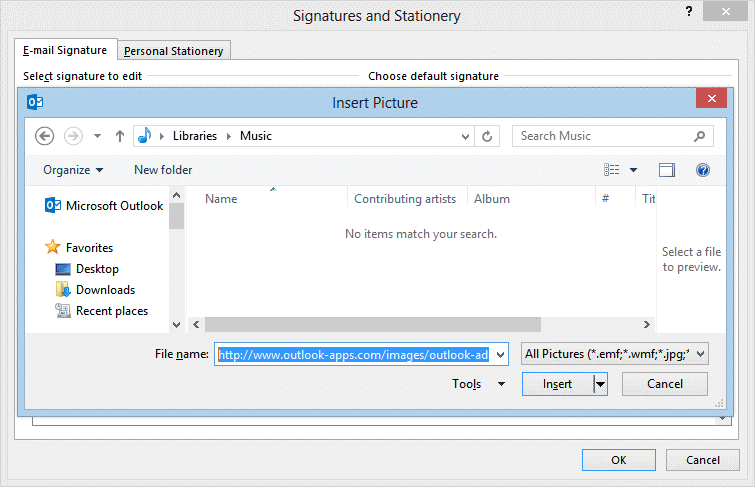
Step 5: Process Image URL
This will take a minute to process the image URL.
Adding Hyperlink to Signature Image
If you want to add a hyperlink on Outlook signature image (by this, people who receive your emails can click on your signature image and open an URL) follow the steps below –
Step 1: Select Image and Access Hyperlink Tool
Select your signature image and click on the last button of the signature format toolbar.
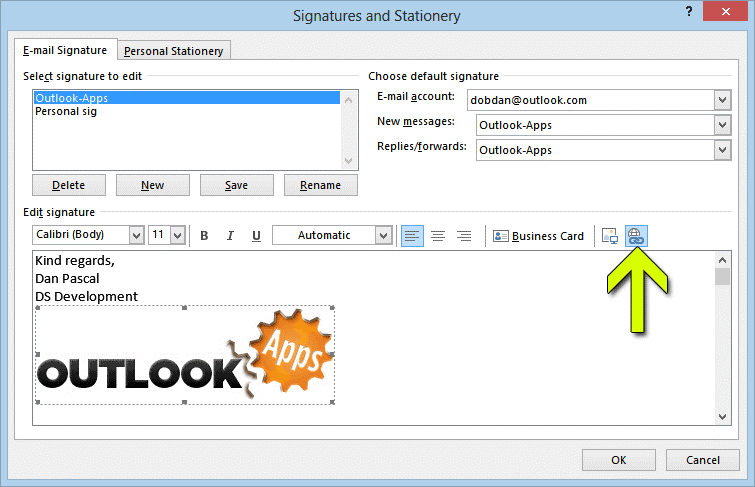
Step 2: Enter Hyperlink URL
Enter the desired hyperlink URL in the Address field. Click OK.

Important Notes
Note: Make sure the selected signature should be added on new, reply, and forwarded emails for your Outlook account. Otherwise, the signature will not be inserted when you send an email.
