
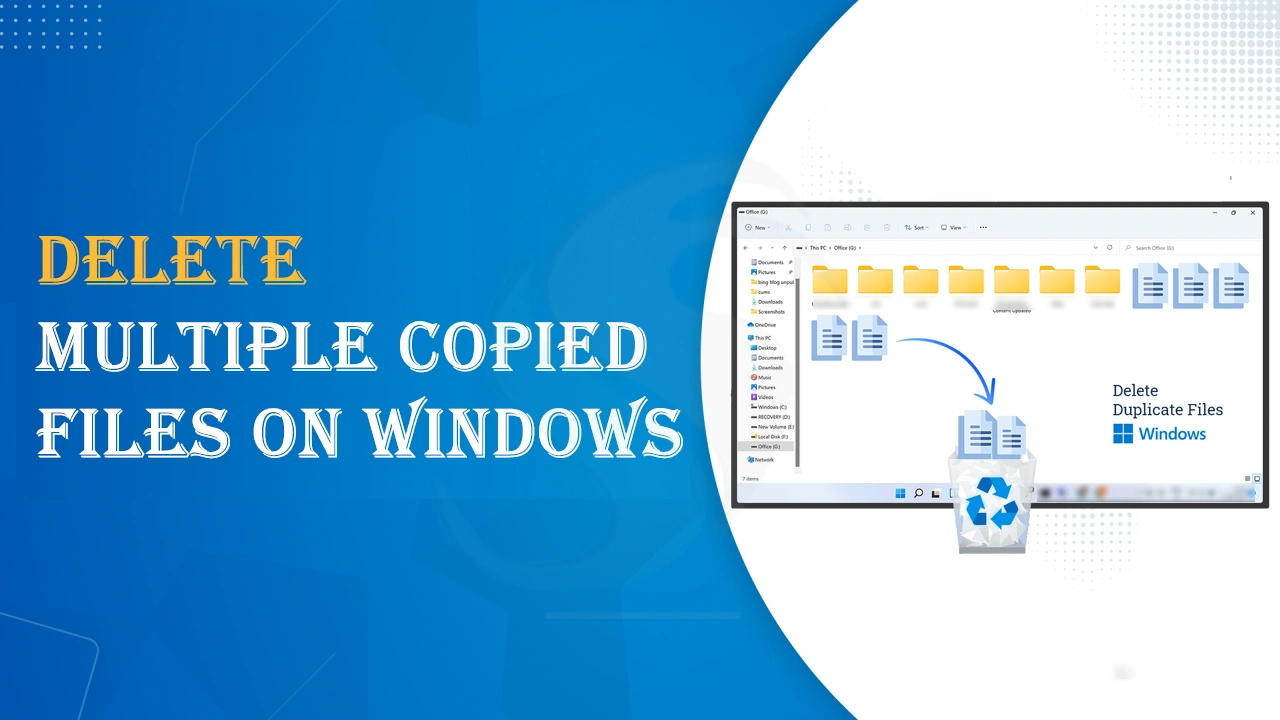
We all know that copied files are nothing more than an unnecessary collection of files in the system that everyone wants to get rid of. If you are not well-organized about your system data, there is a chance of duplicate items. Fortunately, you can delete multiple copied files through manual or automated means.
Advantages of Removing Duplicate Files
- With this practice, we can free up valuable disk space.
- It helps in increasing the system efficiency and speed.
- It helps in the organization and management of files.
Manual Solution to Delete Copies of Files from Windows
If you are a user of Windows 10/11, this technique is for you. Here, we take the help of File Explorer to locate duplicates and delete them. Follow the given steps carefully to avoid any issues.
- Navigate the Start menu and locate the indexing options. Click on the relevant app from the search results.
- A new window, the Indexing Options window, will open. Press Modify and choose Show all locations.
- Go through all the boxes and press OK.
- Press Windows key + E to launch File Explorer.
- Access the user profile by following these steps- PC > Local Disk (C:) > Users.
- Now, organize your file.
- Press the View tab and choose the Preview pane to view the target files.
- Navigate Layout and click Details.
- In the Current View section, press Group by, select Name, and choose Ascending.
- Locate duplicates in the File Explorer by providing the target file extensions in the Search box that you wish to delete.
- Carefully check the file name, size, and date. If you observe duplicate files by checking these three criteria, select these files and press Delete to complete the process.
This is how you can use File Explorer to delete duplicate files. How do you find this method? It is time-consuming and is highly recommended for technicians. There is no doubt that this is an effective method to remove a considerable number of duplicate files.
Remove Copies of Data Files from Mac
If you are a Mac user, you also have options to remove duplicate files, but the process is as challenging as Windows ‘. Here are the steps you have mentioned for Mac users to get rid of copied data.
- Press the Finder icon in the Dock to access a Finder window.
- Now, locate the folder where you feel identical files are located. Another thing you can do is to use This Mac to locate such files.
- In the Finder window, provide the file name or type in the Search bar. You can broaden your search by typing general keywords related to the files that you believe are duplicates.
- Press View and choose As List to see the files.
- Press on the Name column header to filter copied data by name. You can filter by size or date, also.
- Carefully check the list to identify copied data by size, name, or date.
- Select the duplicate files by holding the Command (⌘) key.
- Now, right-click or Control-click on the selected files and select Move to Trash from the dropped menu. After that, press Command (⌘) + Delete to move these files into Trash.
- Right-click on the Trash icon in the Dock and press Empty Trash to delete all these duplicate files permanently.
This is how you can manually remove copied or identical files from a Mac. The suggested process is time-consuming because you manually search for the identical files. It is good to do this job when you have no work pressure.
Automated Ways to Delete Multiple Copied Files in Windows
You only need to wait for 15 minutes to receive the most popular automated tool to remove copied items from your Windows system. Softaken Duplicate File Remover is a premium-quality, advanced solution to remove all identical files within a few clicks.
Reasons for the Popularity of this Automated Application
- It is an interactive program with a highly interactive interface.
- It removes duplicate files from a folder regardless of its size.
- It can remove all types of identical files, including documents, archives, pictures, videos, and music.
- The filter pane shows files by name, size, date, and the folder they are located in.
- You can customize filtration by manually entering the minimum and maximum size, date range, include patterns, exclude patterns, exclude folders, and various other search options like include hidden files, include system files, skip empty files, and case-sensitive file matching.
- The tool shows how many files have been scanned, duplicates found, and how much space they have taken.
- You can pre-set the settings of the tool to speed up its work from its settings options, including general, appearance, and advanced.
- The best way to evaluate this application is through its free trial. Download today!
- The licensed version offers unlimited support because its validity is unlimited.
Steps to Follow to Search and Delete Duplicate Files with the Automated Version
- Launch the application and click on “Browse Folder” to upload the target folder
- Click “Search Options” to filter data by actions like “Remove Duplicates” and “Save/Load” and filters by file type like Music, Documents, Pictures, and Videos.
- In “Clean Duplicates,” select the size range, date range, patterns, and excluded folders to customize filtration.
- Click the “Start Scan” button to wait for the result.
Also Read: Delete Duplicate Emails from Orphaned PST Files
Conclusion
Ideally, you have two ways to delete multiple copied files. One is manual and another is automated. If your system has hundreds of duplicates, the best option is automation to save time and effort. It is a well-recommended solution for firms dealing with thousands of files.