Get solution to migrate Zoho Mail to IMAP – Complete Steps
Today,every user wants the best and effective communication application to remain competitive. If any email client failed to fulfill the requirements of users,users begin to search for another web-based application. Just like this,Zoho Mail users who are not satisfied with the services are moving towards other IMAP accounts. This,in this write-up,we will help users to migrate their mailboxes from Zoho to IMAP account.
Techniques for Zoho Mail to IMAP migration
If you look forward to a manual solution to migrate Zoho mailboxes to IMAP account,then don't waste your time because no manual method is available for the migration. Don't panic as third-party tools are available for Zoho to IMAP migration.
One such brilliant application is Softaken IMAP to IMAP Migration. This has been designed with a simplified interface to smoothly perform data migration. Keeping the data integrity intact,the migration of Zoho emails to IMAP is performed.
Steps to migrate Zoho Emails to IMAP account
To migrate Zoho Mail to IMAP account,you have to follow a total of three steps –
- Enable IMAP settings in Zoho Mail account
- Create app password for Zoho Mail
- Migrate Zoho Mail folders to IMAP account
Step 1. Enable IMAP option in Zoho Mail
- Log in to your Zoho Mail account.
- Go to Settings option
- Choose Mail accounts and select IMAP Access
- Enable IMAP Access
Step 2. Create app password for Zoho Mail
- Sign in to Zoho Mail account
- Go to Security and select App passwords option
- Click on Generate New password
- Enter any name in app name & Hit Generate
- Enter Zoho account password to confirm your identity
- Hit Generate button and then click on Close button
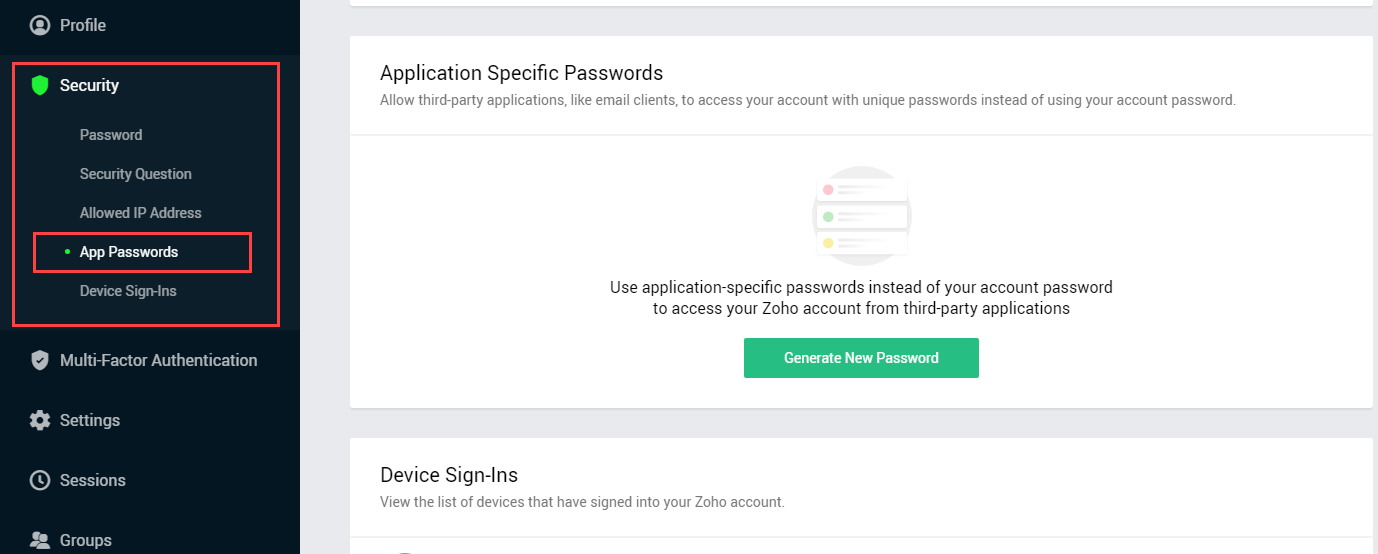
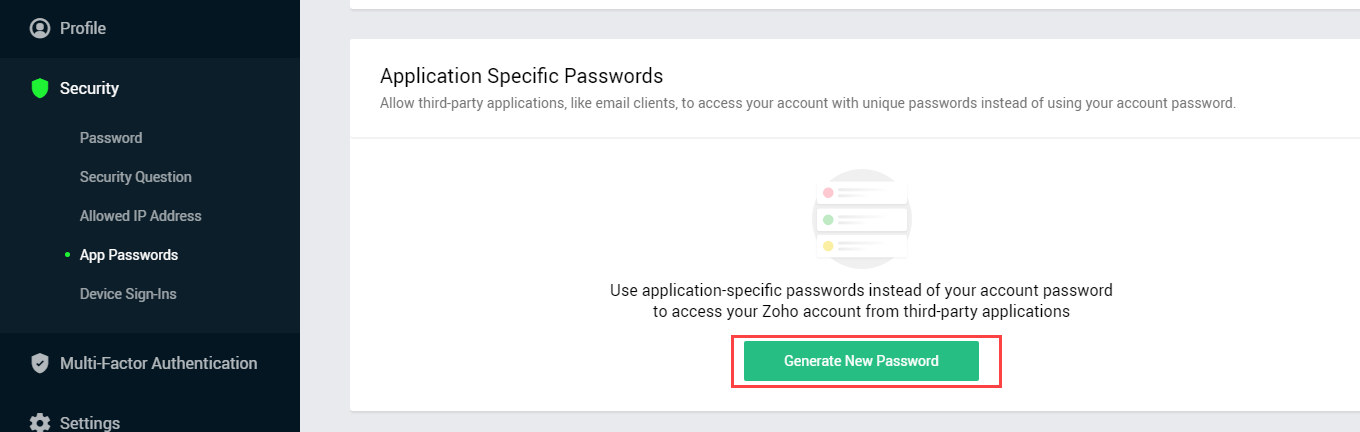


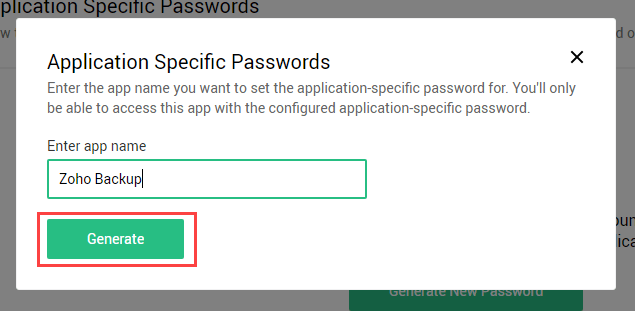
You can use this app password to migrate Zoho mailboxes to IMAP account
Note:Like Zoho account,you need to enable IMAP option and generate an app password for the targeted IMAP account.
Step 3. Export Zoho mailboxes to IMAP account
Now,to export Zoho emails to IMAP account,download the software and follow the steps discussed below –
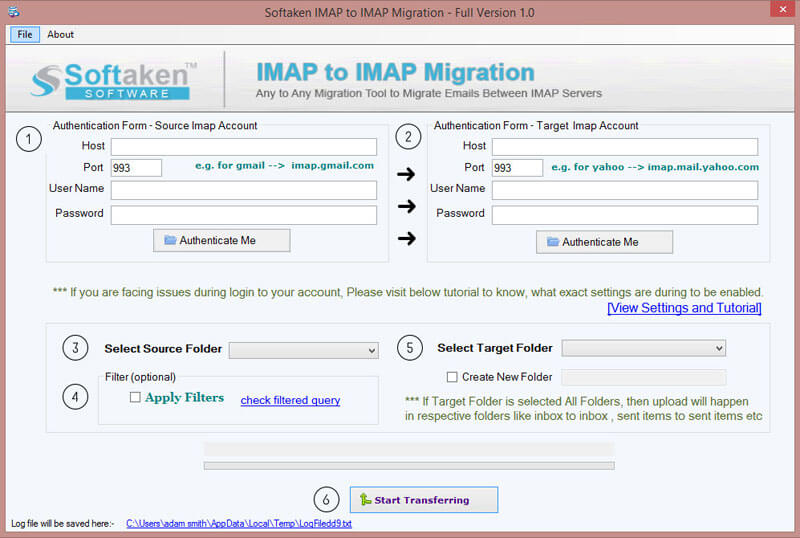
- Launch the software on any Windows OS.
- Now,provide Zoho Mail login details such as –
- Host address:imap.zoho.com
- Port no:993 (by default)
- Username:email address of Zoho account
- Password:enter the password that is generated above
- Now,similarly,provide host address,port no,username,and password of the targeted IMAP account. Hit Authenticate Me option.
- Select Zoho Mail folders or choose the desired ones that you want to export to IMAP.
- To export Zoho data more selectively,use "Apply filters " option.
- Now,provide a folder of the IMAP account where you want to save Zoho Mail folders. You can create a new folder in IMAP account.
- Hit Start Transferring button to export Zoho emails to IMAP account.
Summing Up
I believe you can easily migrate Zoho Mail to IMAP by following the procedure discussed in this post. The software assures 100% safe and smart migration without any troubles. You can check the functionality of the software with the trial edition. For any doubts or trouble,contact our support team 24*7.
