Query:I wish to take back up Office 365 complete emails. Is there any reliable solution for the same? Also,share the different file formats in which I can export the Office 365 mailbox data.
Solution:A simple and affordable solution for exporting Office 365 emails to other file formats is available online. Users can trust the Softaken Office 365 Backup Software tool. This delivers accurate output. As well as the complete process is simple and easy to understand. Office 365 users can download the software. Then try to export the respective emails in different file formats. The application allows exporting Office 365 mailbox data to PST,EML,EMLX,MSG,and MBOX file extensions.
Go through the Following Steps for Exporting Office 365 to Various File Formats
In the very first step,users need to download the software on their local machine. Then try to launch the software. There are two versions available on the website. One can try the free version for examining the working of the application. Users who get aware of the tool they can choose for purchasing the software at nominal rates.
Follow the following steps for the trial version of Office 365 backup software.
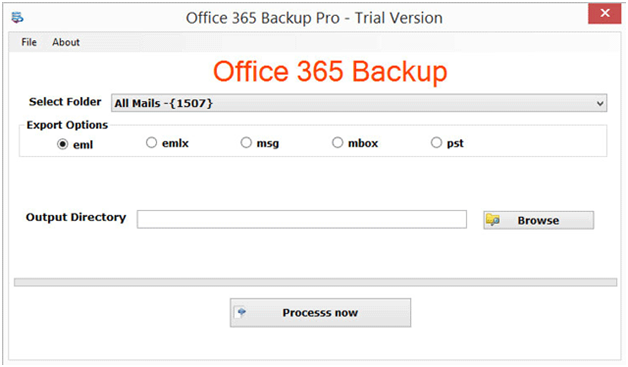
In the dialog box,you will see the dropdown menu with different options. Choose the All emails option from the drop-down menu. The Office 365 mailbox can be exported to different folders. You will get to export the Office 365 mailbox to EML/EMLX/MSG/MBOX/PST file formats.
In the same dialog box,you need to browse the destination path where you wish to save the required output. After completing the above steps,click on the process now button. This will complete the procedure and display the output.
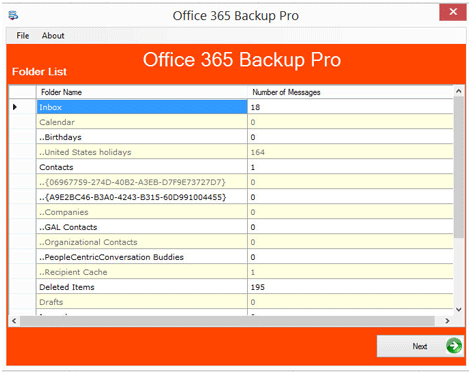
In the next dialog box,you will see the number of email data,their attributes,contact,events,and cards. All such details can be seen in the following dialog box of this application. The software has the ability for showing the deleted email data as well. Follow the simple steps for proceeding with the export process to any of the available file formats.
In the next step of the freeware product,users need to enter the username and password. Enter the appropriate credentials so as to login to the next screen. Once entering the user credentials,click on the connect button. Then hit the next button to proceed further.
The steps are simple to understand and operate for exporting the Office 365 emails to PST file format.
Simple steps to follow – Avail the Migration process from Office 365 to EML,MSG,EMLX,MBOX,and PST
Choose the first option – Select Folder
- Users need to choose the required folder that they wish to download. In the dialog box,there is an option to select the folder. Once this is done jump on to the next step.
Choose the destination file format
Office 365 users need to choose the file format extension in which they wish to save the emails. There are multiple file formats in which they can save the Office 365 emails. The emails can be easily migrated from Office 365 to PST,EML,EMLX,MSG,MBOX,or PST file format. The process of migration is simple to understand and operate as well.
Browse Option for Choosing the Target Path
The next step is to choose the target path where you need to save the emails. Office 365 email data can be browsed from the browse folder. Then,choose the target folder where you need to save the emails in any of the respective folders.
Complete the procedure
The final step is to choose the Process Now button. Once you hit this button,the process of migration starts. In few minutes,users can see the exported Office 365 emails in desired file format.
Have a Look at the System Needs for working with this application
For windows users,it is important to know the basic system requirements before working with any third-party tool. This application supports well the Windows versions like 10,8.1,8,and 7,Vista,XP supported with both 32 bit and 64 bit.
Local machine specifications
- The application is supported with different versions of Windows.
- If you need to ask related the processor. Then the recommendation is at least of 2.4GHz processor.
- DO try to have 1 GB of RAM in your local machine for better usage of Office 365 backup mailbox software.
- Always try to have a free space on your device. This will not hamper the process and export the Office 365 emails to any of the desired formats.
- For the Windows users who are using the following versions. Like 10/8/8.1/7 or Vista. Then,users need to launch the software via using "Run as Administrator"
Freeware version of Office 365 Backup Software
Users can install the freeware version without paying a single amount. This can help to understand the working of this application. For working with this tool,users need not be good with technical knowledge. The steps are simple to understand as well as to work with.
The demo version helps to export 10 items from each available folder. Office 365 users can check the different facilities and features provided in the application. Once users get aware of the working and successfully exported the emails from Office 365. Then it recommends choosing the licensed version of this professional tool. With a professional tool,there will no limitation for working with the application.
Technical Support Help Provided to All the Customers
Another major help is given to our customers via the technical support team. The team members from the technical support team are available 24*7. Users can communicate via an online live chat feature. This will help to clear the entire queries of Office 365 users. Enjoy working with the trustworthy brand available online in the IT market. Many of the companies have great reviews with the working of this software. Our developers created the software with the easy graphical user interface. This helps the customers to use the application without any technical issues.
