Introduction to PST File Compression
Outlook users can take benefits from this application for reducing the file size of PST fileextension. The application helps the users to overcome the issue of large file size. In some cases,the oversize file size can lead to file corruption as well. Thus,try to reduce the file size with the Compress PST software tool.
The software comes with various benefits and features. Users can avail the characteristics and use the same for reducing the PST file size. Outlook PST email attachments can be saved properly with the help of Compress PST software.
The people who work with Outlook email clients. They might face difficulties in managing Outlook PST files. Sometimes,the email client prompts an error related to the file size of the PST file extension. In Outlook there is a maximum size limit of PST file formats. If this size limit gets exceeded then it can lead to PST file corruption. Thus,working with a professional tool for compressing PST files can help you from file corruption.
Quick Tip:Before starting the compression process,it's recommended to create a backup of your PST file. This ensures you have a safety net in case anything goes wrong during the compression process.
Outlook email client comes with different versions.
Outlook 1992 to 2002 version
Under these versions,the Outlook PST files get saved in ANSI format. The maximum limit of these versions is up to 2GB. As of such a smaller size,the file size limit gets completes. This can lead to file corruption easily. Thus,it recommends for users to choose a professional tool for overcoming this problem. This will help to save your email access for future purposes.
Outlook 2003 and another version
These versions make the PST file extension store in the UNICODE file format. The maximum limit of these versions is between 20GB to 50GB. If you have a large amount of email mailbox data and huge attachments. Then only the oversize PST file error can come in the Outlook email client. Users need to make sure there must be some space left in Outlook.
Check to Convert ANSI to Unicode PST File
Did You Know?The compression process can take anywhere from a few minutes to several hours,depending on your PST file size and system performance. It's best to run this process when you're not actively using Outlook.
What are the Different Requirements with Large Size PST files?
If you have large PST file formats then it can lead to various problems. Sometimes,you might face data corruption. Because of which there are chances of data loss. Here we will discuss the different scenarios of challenges. Outlook users might face the following situations. Have a look and understand it completely.
Large size Outlook PST files get corrupts
At the time of increased size limit of PST file extension. This leads to cause PST file corruption. Users need to be aware of themselves in such situations. Mostly these problems occur when we work in a network.
Users will not get access for large size PST files
As for the size increase issue. Users might get stuck in accessing their emails. This is one of the major problems that Outlook users generally face.
You might get an error prompt displaying "PST file exceeded its maximum size limit".
For preventing the problem,users need to delete unwanted emails from the mailbox. Another solution for the same problem is to use a professional tool for compressing PST files.
Check out the Manual Method to Compress PST files.
Step 1:Start MS Outlook on your local machine and launch the same.
Step 2:Try to select the emails that you wish to delete. After complete selection deletes those emails. These will make some space in Outlook email clients.
Step 3:Now check for the Folder List. Now you need to check the Delete emails from the folder. Try to make that folder empty. This will make space in an email client.
Step 4:Now choose the Account settings after selecting the File then Info option.
Step 5:Now from the Account settings,go to select the Data files. Choose Outlook Data file and then try to click on the Settings option.
Step 6:There you will be able to see the personal folders option. Now,you need to click the compact now option.
Step 7:Once you hit the compact now button. The process will start and you need to wait till it finishes.
Many of the times,this manual method is not accurate. Also,you might lose your crucial data by following this method. Thus,it requires to use of a professional tool for overcoming all these problems. Let us discuss the professional application process.
System Requirements:For optimal performance during PST compression,ensure your system has at least 4GB of RAM and sufficient free disk space (at least twice the size of your PST file).
A trustworthy Software Application to Compress PST File
Outlook users can go through the following easy steps. This process is for a professional tool that does not need any technical knowledge. Without any headache or error,users can easily compress their PSTfiles. Utilizing these software solutions can help you in the future from large size errors. The software will always maintain the free size in your email client application. Thus,Outlook users can access the emails at anytime from anywhere without any restrictions.
Steps for professional tool:
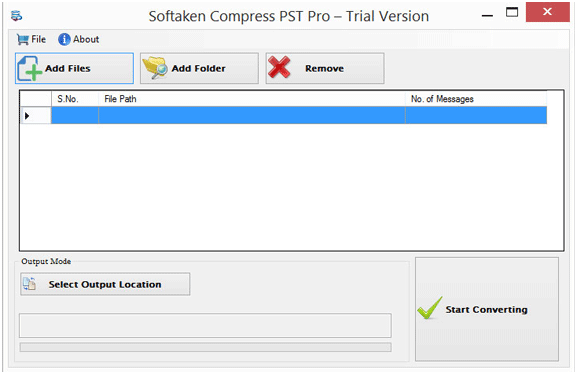
Step 1:Try to download the software and launch the same on your local machine. Try to start the software,by double-clicking on the software symbol. Users will be able to check the user interface of the application. You will find it easy and user-friendly.
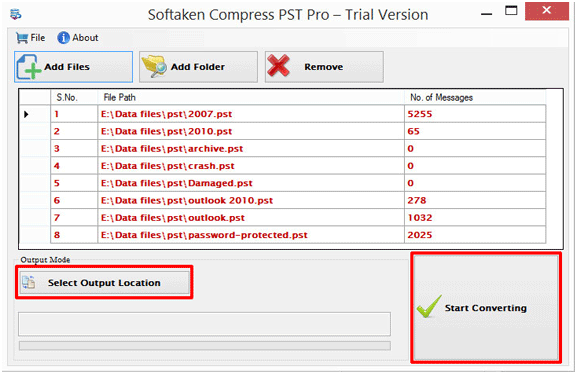
Step 2:In the next step,you will be able to see the options for adding files and folders to the software. Click on the add files option for adding the PST file extensions. With the option of Add files,users can select the selected files only. While with the Add folder option,users can easily select the complete folder. This way users can choose the option according to their needs. In Add folder option,users need to select one folder which consists of various PST files.
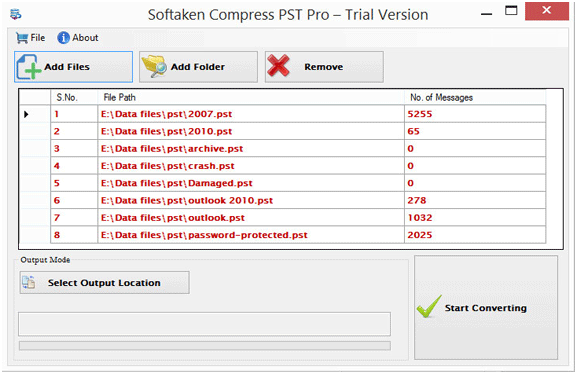
Step 3:In the next step,you will see an option of Output location. From here,you need to add the destination where you wish to save the output. After this process,next,you need to click on the start converting option. Once you hit the start converting option,the process will start and wait till it completes.
The professional application is easy to use and not time-consuming. As well as the software is free from bugs and delivers accurate output.