MS Outlook is a popular email file management for Windows users. The Microsoft application has several versions. When MS Outlook connects with MS Exchange Server, it creates an OST local file. In other words, when the Cached Exchange Mode in MS Exchange is active, a replicate of data is made on the local machine and is an OST file. The “Cached Mode” gives users the platform to work offline.
OST provides users with uninterrupted work experience because users can work offline. Sometimes, OST files develop errors. Some errors appear automatically, while some may be because of human errors.
The file C:\users\….username.ost is in use and cannot be accessed is one of the most common errors with OST files. It may need users to restart the system.
The Main Reasons Lead to the Error
OST files are prone to corruption and can damage without giving a warning. You can lose your important contacts and emails. However, the best practice is to convert OST file. MS Outlook uses PST also and is comparatively better than OST for performance and data safety. Below are some reasons that can corrupt an OST file-
- There may be a synchronization issue that can develop between OST and Exchange mailbox.
- MS Outlook conflicts with other apps can be the reason for the problem.
- If your company uses MS Outlook through a network system and more than one user tries to open the same OST file, the error may develop.
- A poor or slow internet connection can cause the problem.
- A protected OST file can cause an issue because of unauthorized access.
Taking Some Steps to Resolve MS Outlook 2019, 2016, 2013, 2010 & 2007-
Follow any given below method to troubleshoot “The file xxxx.OST is in use and cannot be accessed” error-
Method 1: Quit Microsoft Outlook & Related Procedure
Confirm that multiple instances of MS Outlook and no other related process to open an OST file are not in a running state on your system. It can mark the file “in use.” Follow the given steps –
- If Outlook is running, close the tool and go to the Task Manager
- A window will open, choose the “Processes” button
- A list will appear, search for “Outlook”, “LYNC”, “Communicator”, or “UCMAPI” names in the list.
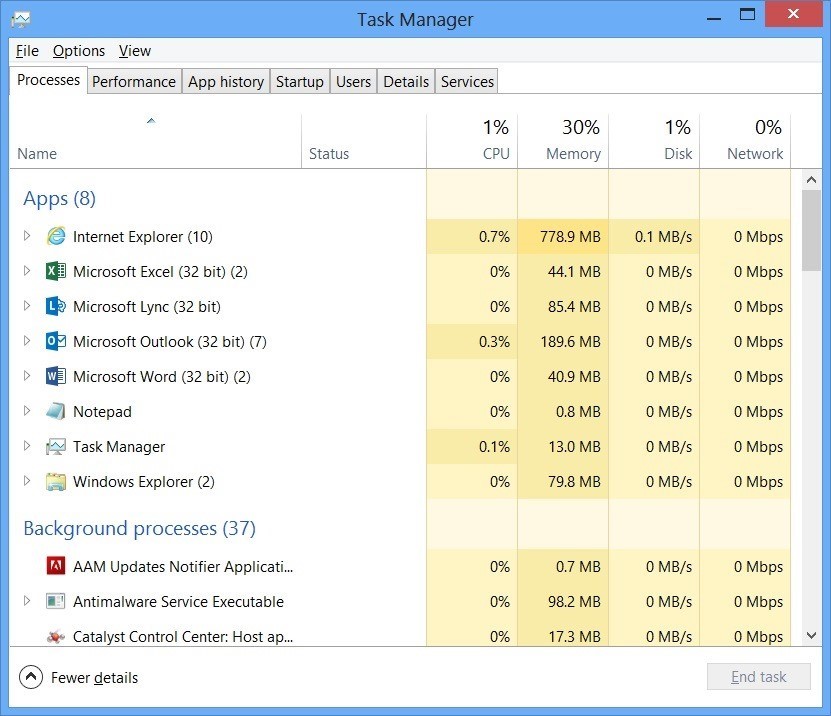
- Select them one by one and press the “End Task” tab
- Now, you can analyse whether the problem is fixed.
Method 2: Disable Exchange Cached Mode
Sometimes, the feature “Cached Mode” makes OST files inaccessible. In this situation, you can turn down the “Cached Mode” to fix the error and open inaccessible OST files. Here are the steps to follow-
- If Outlook is open, click on the exit button and go to the Control Panel
- Click on the Mail tab then Email Accounts and after that, Email
- Choose the email-id and press the “Change” tab
- Uncheck the “Use Cached Exchange Mode…” option
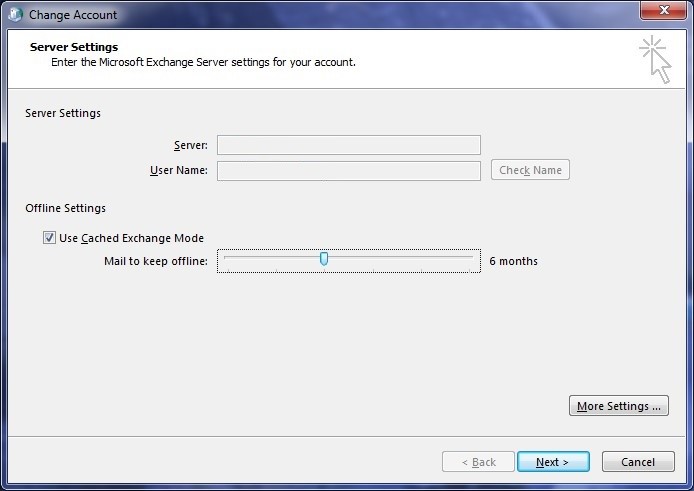
- Press Next and then the Finish tab
If the error has not fixed after this step, don’t forget to turn on the Cached Mode.
Read This Blog for More Info :- Fix send/receive error in Outlook Express
Method 3: Taking Help of Inbox Repair Tool
If the error has developed due to the OST file issues like integrity or read or write permission, you can use an Outlook in-built file repairing tool to make OST files accessible. For versions of Outlook 2007 and later, the default location for the built-in repair tool is-
For 32-bit Outlook: C:\Program Files (x86)\Microsoft Office\Office16\
For 64-bit Outlook: C:\Program Files\Microsoft Office\Office16\
The tool repairs only minor problems. If you have missing data or damaged OST files because of virus attack, the ScanPST.exe will not help you. The feature is profitable to use for older versions. It is not so effective to use for Outlook 2010 and other upgraded versions of MS Outlook. The location of the tool can be different for different versions.
Note: OST files that are orphaned, encrypted, or larger than 2 GB cannot be scanned using ScanPST.exe.
Method 4: Recreating OST Files
If the above measures fail, you can recreate an OST file. Below are the steps to follow for recreating an OST file.
- Switch off MS Outlook and hit the folder where you have saved your OST file
- Rename the target file using the .bak extension
For instance, If the existing file name is [email protected], you can rename it with a .bak extension like this [email protected]
• It will re-create the OST file by synching the mailbox databases
If the solution seems not helpful, you can move OST files to PST. It is one of the best measures to access OST file data on your MS Outlook. The process of conversion comprises two options. One is to export Outlook Mailbox manually and the other is to use a third-party conversion program. Businesses usually prefer the second option because it is fast, safe, and reliable.
Using Outlook Import Export Wizard for Manual Conversion
Below are the steps to follow for the manual conversion of OST file.
- Open MS Outlook and go to the File menu then the Open section and then Import.
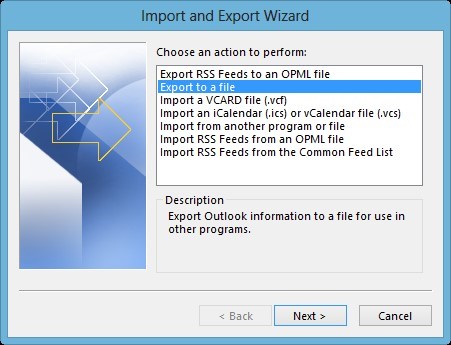
- The ‘Import and Export Wizard’ will open
- From the wizard, select the ‘Export to a file option and press the Next tab
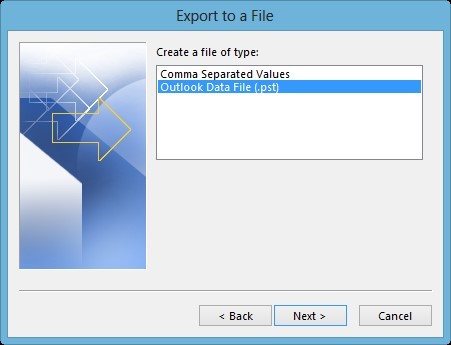
- From the next wizard, choose the ‘Outlook data file (.pst)’ and press ‘Next’
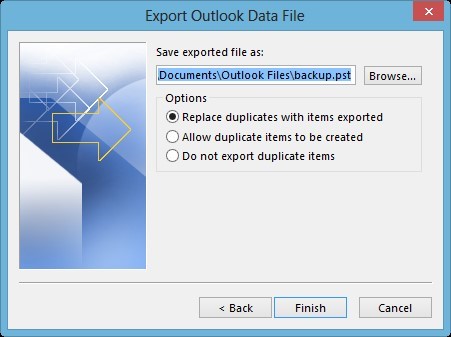
- Now, press the “Browse” tab to provide the destination, Select the below points if you like and then Finish.
Note: The method works for healthy and accessible OST files. It is not helpful in the conversion of inaccessible OST files. For this reason, you can choose a third-party conversion program.
Convert With Softaken Software Converter
Softaken Microsoft Outlook OST to PST Converter is one of the best software on your Windows system. The intuitive graphical user interface that allows users to operate it independently or without technical assistance. The conversion program repairs and converts OST files to PST. Orphaned OST files can scan and export to PST. During conversion, the utility maintains data integrity and accuracy.
Below are some features that encourage users to choose the app-
- No installation of MS Outlook is necessary
- Capable of scanning, repairing, and exporting OST files of any size
- Display a preview of the selected OST file in its preview pane
- Convert entire or selective OST file folders to provide custom conversion goal
- A lightweight and bug-free application to use for personal and professional purposes
Wrapping Things Up-
In this post we explained the 5 different ways to fix The File Username.OST is in Use & Cannot be Accessed” in MS Outlook. PST is more popular than OST because of its compatibility and robust security, while OST files are vulnerable to corruption. So, you can try the automated Softaken OST Recovery solution to repair and convert OST files get the accurate results. Before buying this tool you can also attempt its free trial pack and convert a few OST files to PST without paying any fee.