Proven Troubleshooting Methods to Restore Corrupt OST Files
Have received an error message in Outlook that states "Errors have been detected in the file C:\Users\AppData\Local\Microsoft\Outlook\.ost",and looking for a way out to fix this issue.
Before we run to the conclusion,how to fix this error,it is imperative to know the cause of this error and how often users encounter it. So,as far as the occurrence of this error is a concern,then "Errors have been detected in the file C:\Users\AppData\Local\Microsoft\Outlook\.ost" is a common error that Outlook users often faces. One of the reasons of this error is corruption in MS Outlook offline data file.
Causes of OST File Errors
Now,there could be multiple reasons for corruption in OST file,such as:
- The size of OST file has grown high
- There is attack of malware or virus on OST file.
- The user has shut down the Outlook at the time of OST and Exchange server synchronization.
- Exchange mailbox has been accidentally deleted.
Now,based on the reason of occurrence of this error,the solutions to fix this issue are also present. In this article,we will be discussing all possible methods to fix OST file error.
Fix Error with MS Outlook Inbox Repair Tool
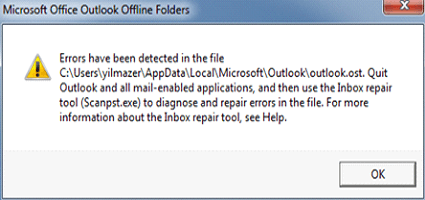
This error is one of the commonest errors in Outlook,and therefore,Outlook also is equipped with a tool to fix it out. The earlier version of Outlook has the tool Scanost.exe to fix error coming in Outlook offline file. Modern editions of the application including Outlook use the SCANPST.exe to handle both local files. The role of this tool is to scan PST and OST file both.
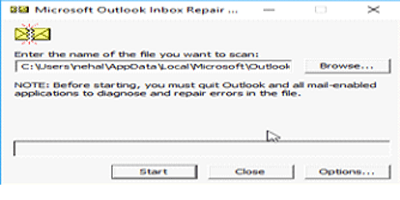
The Step by Step Guide to Use Inbox Repair Tool
- Navigate Scanpst.exeTool in MS Office Outlook default installation location.
- Run the tool and then navigate the corrupted .ost file location.
- Tap on the Startbutton to begin scanning of OST file and finding errors in the file.
- For repairing all the errors found errors,tap on Repairoption.
By using this inbox repair tool,you would be able to fix minor errors in Outlook. If there is a major error in Outlook the software does not work.
Recreate the Offline Outlook Data File
The other way to fix this error is recreating Outlook OST file with the same Outlook profile. You can use this method if the first method doesn't resolve the lying issue.
Execute these directory edits to force a fresh data sync:
- Close the MS Outlook Application.
- Navigate the location of corrupt .ost file. You can find the location on this path.
(C:\Users\AppData\Local\Microsoft\Outlook\.ost) - Delete the OST file along with the error message.
- Turn on the MS Outlook application again,here you will see the new OST file.
Create A Fresh Default Outlook Profile
One of the reasons of receiving Errors detected in the file C:\Users\AppData\Local\Microsoft\Outlook\.ost could be corruption in the default Outlook Profile.
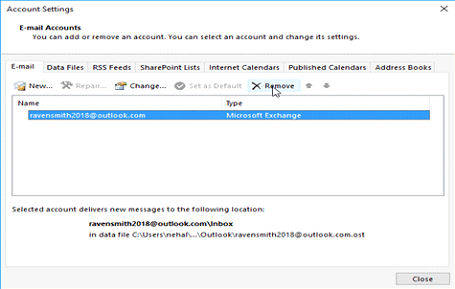
Reconfigure profile attributes using this sequence:
- Open the Outlook application,and then click on Account Settings.
- In the Account Setting option,select current default Outlook email and then click on the option Remove.
- Now click on option Newto create a new email account. Once done,choose the account as the default profile.
Repair and Recover OST File Data and Save It as PST File
If any of the above-mentioned methods don't work and you are unable to fix error in account,then it is certain to an extent that your OST file has gone corrupt and you need to repair the file. There are third party software present that help you repair and recover data from damage OST file,and allow you to save the retrieve OST file in PST format,so that,you can again import PST file in Outlook to access its content.
One of this software is Softaken OST to PST Converterwizard. This is one of the most effective software to retrieve data from damage OST file. Convert database efficiently using this modern 4-step UI flow:
- Step 1 – Add Outlook OST Data:Open the application on the computer and load files using single-file,multi-file,or complete folder mode selection.
- Step 2 – Deep Scan and Live Preview:The tool scans the inner data architecture and generates an interactive preview of all emails,contacts,calendars,and attachments,maintaining the original folder.
- Step 3 – Choose Export Target:Select PST from the extensive target output menu.
- Step 4 – Path and Convert:Select the preferred destination folder path on Windows machine and click Convert to execute the recovery task.
Why the Softaken Software Stands Out
- Complete Independence:Runs completely standalone. No MS Outlook installation or live Exchange Server connectivity is required to extract data from orphaned or broken files.
- Grade Capacity:Successfully field-tested with large databases exceeding 150GB+ in size without lagging or freezing.
- Metadata Protection:Recovers non-English characters,embedded attachments,read/unread states,contact books,and calendar parameters.
- Filters:Features built-in date-range filters and dedicated options to export contact lists or attachment files independently into organized folders.
The important point to note about the software is that with this wizard,you can convert the healthy OST file in PST file as well. The software supports both ANSI and UNICODE file format. It exports every piece of information present in OST file.
Conclusion
All the methods shared to fix "Errors have been detected in the file C:\Users\AppData\Local\Microsoft\Outlook\.ost"in the article are proven and are able to fix the error. However,we have advised to use the Softaken OST to PSTconvertor tool if any of the methods fails to work. The software method is effective to repair OST file when there is a major corruption in the file.