Summary: Are you looking for solutions to extract PDF attachments from Gmail? It can be an easy process if you choose a third-party solution. The article provides both manual and automated solutions to achieve this.
Gmail is one of Google’s most popular free email clients. However, it is free to use up to a 30 GB limit, which also applies to Google Photos, Drive, and other Google products. If you want to use your Gmail account longer, extracting attachments to free up space is the best solution.
Your Gmail may have several attachments. Follow the solutions below to extract particular attachments or attachments in a specific format.
Manual Solution to extract PDF attachments from Gmail to Your Computer
- Open your Gmail account and go to the “Folder” from where you want to extract the PDF files.
- Locate the particular mail from where you want to extract PDF files.
- Open the particular email hover the cursor on the PDF attachment and click on the “Download” arrow.
- The tool will save the PDF file in the Download folder.
In this process, you can extract attachments from one email at a time. Repeat the same process to extract PDF attachments from all the target emails.
Also read: Cannot Download Gmail Attachments
Downsides of the Manual Solution
This manual solution is a suitable choice if you want to extract PDF files from a few emails. For extraction of attachments from a range of emails, the manual process is time-consuming and very tiring. It will drain your energy and working hours.
Using Softaken IMAP Attachment Extractor
This application is one of the best alternatives to the manual extraction of PDF files from your Gmail account. This advanced application extracts attachments from several file extensions. Most users have rated it 9 on a scale of 10, making it a reliable choice.
Significant Features of IMAP PDF Extractor
- Specialized in the extraction of attachments from IMAP servers
- Make attachment extraction from Gmail and other IMAP servers effortless
- Support extraction of all IMAP-supporting email clients like Gmail, Yahoo, AOL, Office365, etc.
- Compatible to extract all types of attachments such as PDG, JPG, PNG, RAR, XLS, Doc, etc.
- Need a few easy steps to complete the PDF extraction task
- Retain accuracy and alignment of attachments
- A 100% safe application to install
- It is an independent app to download and run on your Windows system
- A lightweight app, that needs 512 MB minimum memory and only 100 MB of free disk space for installation
- Extract data with higher accuracy
- User interactive single interface to operate by anyone, including a novice
Steps to Extract PDFs Using Softaken IMAP Extraction Tool
Step 1- Access and authentication of Gmail account
To access your Gmail account with this third-party application, it is essential to enable the “less secure apps” feature of your Gmail account. For this, here are the simple steps to follow.
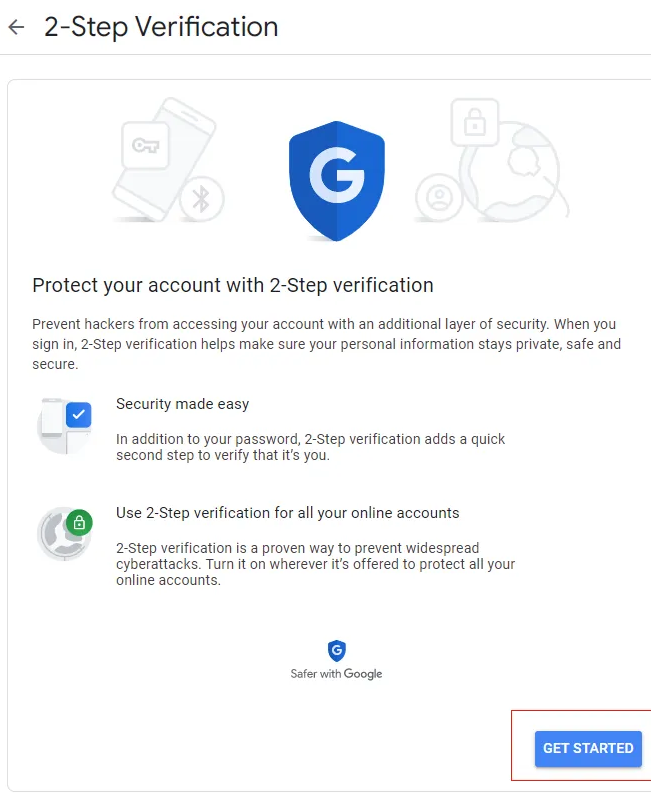
- Login to your Gmail account and enable the “2-step verification” option.
- For this, go to Gmail Settings and hit the “Security” option on the left side as you can see in the image.
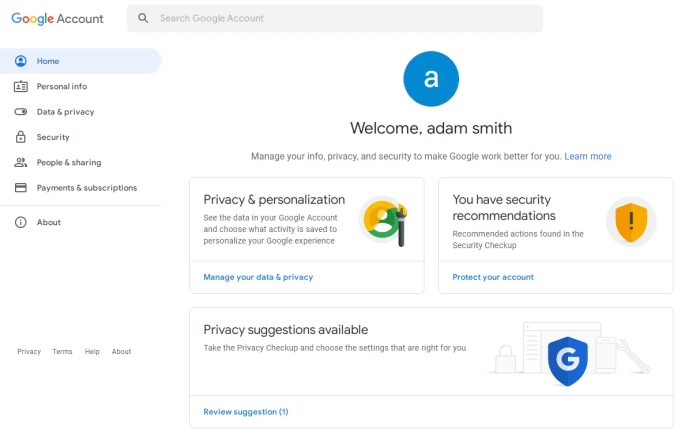
- After that, click the “Get Started” tab
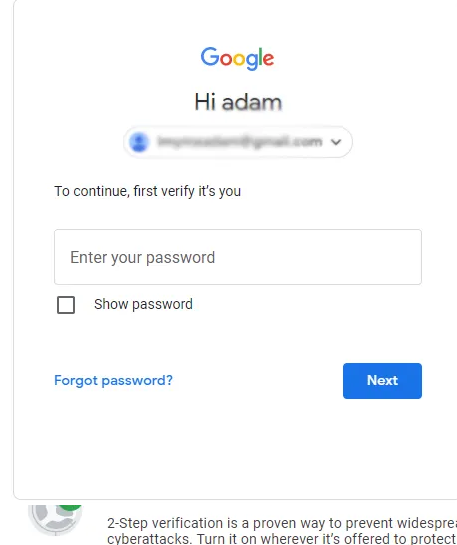
- Now, log in to your account
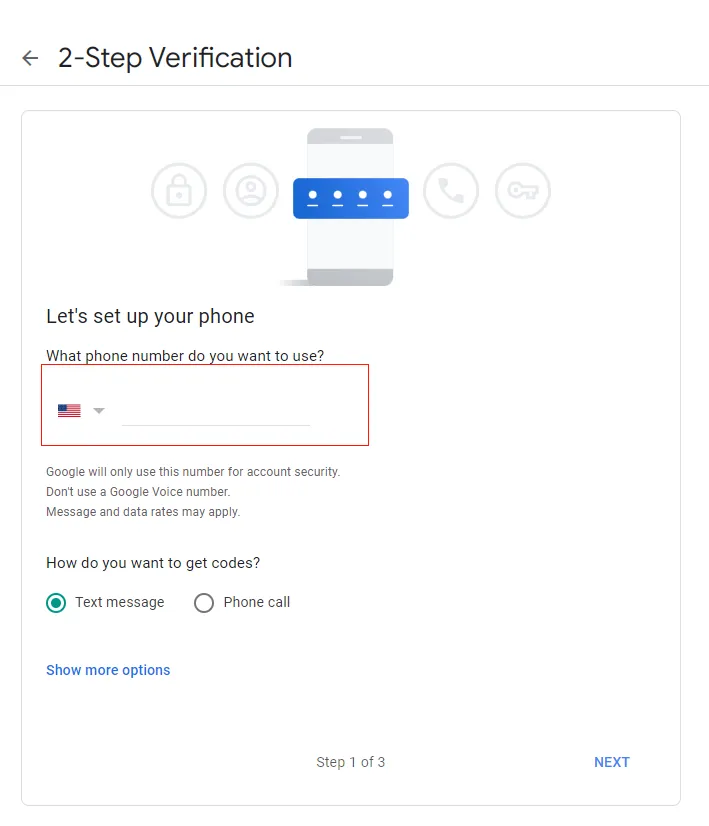
- Complete the mobile verification step.
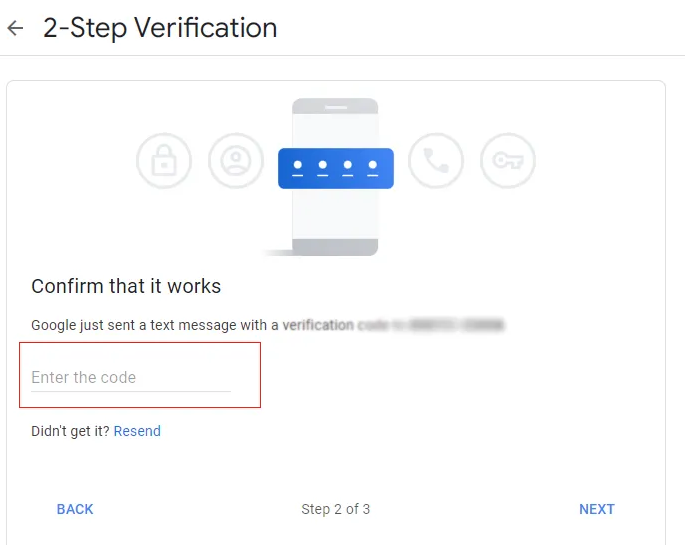
- Provide the verification code.
- Now, press the “Turn On” option
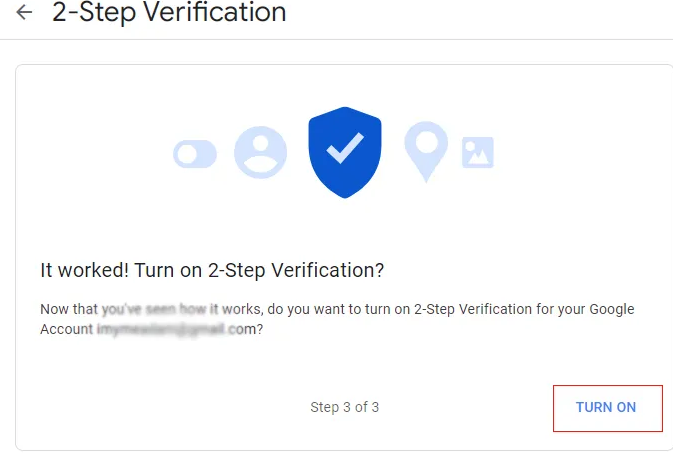
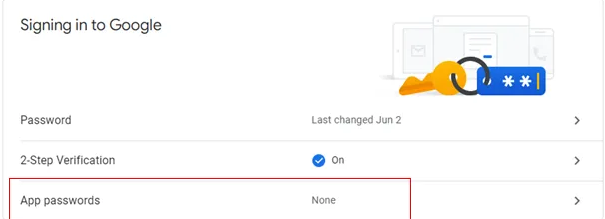
- After that, you will create a password for the app that you want to connect to.
- Press the back arrow to find the “App Password” option to create a unique password.
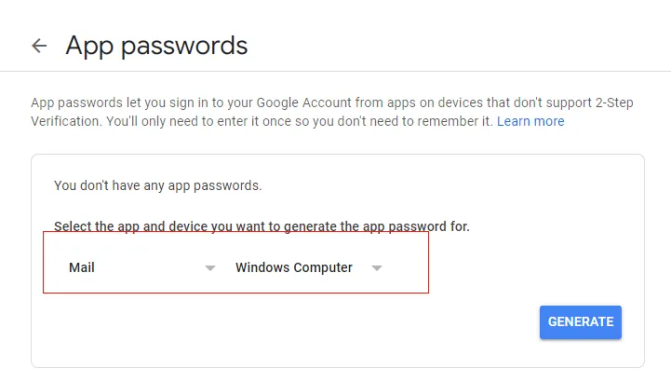
- In this process, you have two boxes. For the first box, select Mail, and in the second “Windows System” to access the password in the Windows system. Press the “Generate” tab after this.
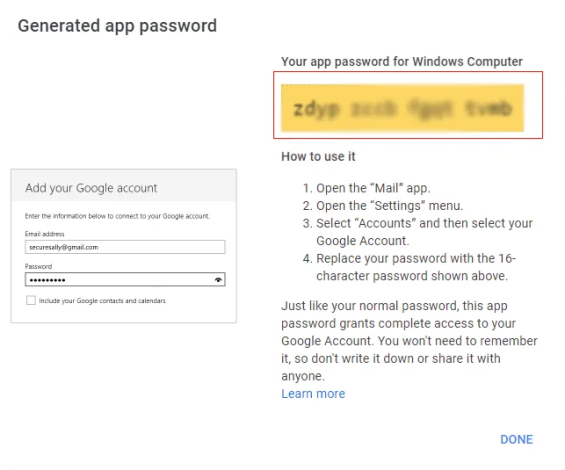
- Don’t forget to copy the password to connect the Gmail account with the third-party solution.
Step 2- Steps to Extract PDF Attachments with software
Once the step 1 process is finished, you should download and launch the Softaken IMAP Attachment Extraction Pro on your Windows system.
- Please complete the authentication form by providing details of the Host, Port, Username, and password. Then, press the “Authenticate Me” tab to allow the tool to connect with the target Gmail account.

- In the next process, select a Gmail folder from which you want to extract PDF files such as Inbox, Sent Items, or any folder you choose. After that, select the “Export Only PDF” option to give the tool command to extract only PDF files.

- In the final step, click the “Browse” tab to direct the application location to save the PDF files. It could be any local folder, including new or old. Press the “Export Attachments Now” to finish the process.

(Note: While running this app, make sure the internet connection is uninterrupted.)
FAQs
Ques: How many Google accounts can connect at a time to perform extraction using this app?
Ans: To extract data, you can connect only one account at a time. It doesn’t support multiple accounts at a time.
Ques: How long can I use this application?
Ans: The validity period is unlimited. You can use this sophisticated application indefinitely. There is no time limit set for its usage.
Ques: Does this tool extract attachments from Gmail accounts with unknown passwords?
Ans: The correct password is necessary to establish a connection with the target Gmail account.
Conclusion
Overall, users have two ways to consider to extract PDF attachments from Gmail: manual and automatic. If you want to extract data in bulk, the manual approach is tiring and time-consuming and can affect your work quality. Therefore, the best solution is to use a third-party solution.