Summary: Your search for the best solutions to export AVI to MP4 can meet here. If you have 5 minutes, read on the article to find out the experts’ recommended solutions to move AVI files to MP4.
When it comes to selecting between AVI and MP4 video formats, many of you prefer to choose MP4. Why? The answer is that MP4 files offer better compression, smaller file sizes, and greater compatibility across various devices. Isn’t it?
The MP4 format provides optimal compression quality, resulting in smaller files for easier archiving and sharing compared to AVI. MP4 supports all types of modern devices. You can run an MP4 file on your computer, smartphone, and tablet.
AVI files are not ideal for non-Windows systems. The built-in streaming support of MP4 is another good reason why many users prefer this format. No doubt, the format is versatile, allowing you to store audio, video, still images, and subtitles.
Even during compression, video quality is not significantly compromised. You can also share your opinion in the comment box on what encourages you to move from AVI to MP4 because your experience matters to us and our readers.
Using VLC Media Player to Export AVI to MP4
If you are looking for manual solution, you can take help of VLC media player which is an open-source. The application will make the conversion process easy. Carefully follow the given steps.
- Open VLC media player on your system.
- In the menu, follow Media>Convert/Save.
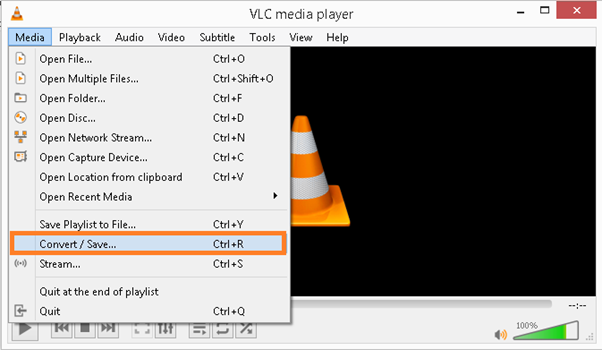
- In the Open Media window, click Add to select the target AVI video files for conversion. Press the Convert/Save option on the right-bottom.

- Direct the destination in your system and select output format as MP4 under Profile section.

- Press the final tab Start.
- Wait for the process to complete.
Why This is Not a Popular Choice?
The VLC media player will make the conversion process easy, but it has some disadvantages that is essential to address.
- The media player doesn’t support conversion of multiple VMI files. Hence, it is a time-consuming process.
- The process of conversion is very slow.
- You can only convert AVI files of up to 500 MB.
- The file quality can be compromised.
- It may be not a secure process.
An Alternative Easy Method to Convert AVI to MP4
No doubt the aforementioned method is excellent but has limitation for file size and the process is slow. If you want fast and easy methods to export AVI to MP4 without worrying about file size, the best solution is an automated conversion program. Softaken Audio Video Converter is the latest application for this task. This application can export multiple AVI files to MP4 within a few clicks. Batch conversion makes the entire process effortless.
The prominent features of this application
- Lifetime validity to export unlimited AVI files to MP4.
- Enable conversion of single and multiple AVI files at a time.
- Its Interactive interface needs no technical knowledge to download and configure the app.
- File quality remains intact and not modified.
- A reliable and lightweight application to download on your Windows 11/10/8/7.
- An independent application to download and run on your system.
Steps to Follow for Conversion of AVI into MP4
- Download and launch the application on your system.

- Check the video tab and in file selection, select “single file” or “batch conversion”.
- Click “Browse Folder” tab and select the required AVI files.
- Get a preview of the selected files and click “Browse” of the output location option to direct the location for the new MP4 files.
- Next, from the right panel, click the arrow and choose “MP4” and select the resolution, press “Convert” to complete the process.
Also read: Export Video into Audio on Windows & MAC
Conclusion
If you know your priority and needs, you can choose any one of the solutions to export AVI into MP4. For batch conversion and conversion without compromising the video quality, it is always good to take the help of a third-party application. Share your feedback with us if you have applied any one of the suggested tools. We are happy to receive your comments.