Introduction
In a professional environment, email communication is not just about interacting with each other; the whole workflow engine depends on it. But suddenly, your Outlook stuck in offline mode, which disrupts everything in your daily workflow. The main cause of this problem is a slow internet connection, enabling work offline mode, a corrupt Outlook profile, and more. If this issue is not resolved properly, it will become more escalated in the future. In this blog, we are here to figure out why Outlook gets stuck in offline mode and discuss some reliable methods that can solve these troubles.
Also Read: Outlook Not Updating Inbox Error
What is Outlook Offline Mode?
Offline Mode is a feature of the Mail application that allows users to work offline without an internet connection. In which users can perform these tasks smoothly, such as reading previous downloads, creating new drafts, accessing the calendar, and contacts. However, users are unable to send email nor receive new messages.
Why Is Outlook Stuck in Offline Mode? Common Causes
Work Offline Mode is Enabled
This is the most common cause of Outlook getting stuck in offline mode. Users sometimes enable Work Offline mode accidentally when they navigate through the send/receive tab.
Poor or Unstable Internet Connection
Desktop email client requires a stable internet connection to sync with servers such as Exchange, IMAP, etc. If your network frequently disconnects, has high latency, use restrictive firewall settings, then in this scenario, Desktop email client fails to connect automatically and gets stuck in offline mode.
Corrupted Outlook Profile
Your Outlook profile contains account settings, data file links, and server configuration. If the profile becomes corrupted, Email client is unable to authenticate properly, sync fails silently, and offline mode persists even with a working internet.
Mail Server Problem
Sometimes the problem is created due to Exchange Server downtime, maintenance windows, DNS, or network routing failures. In this scenario, the Email client Connect establishes a connection.
Account Sync & Configuration Issue
Incorrect settings can break the connectivity, such as a wrong server name, incorrect credentials, SSL/TLS misconfiguration, or sometimes a small mismatch can cause Outlook to go Desktop-based.
How to Troubleshoot Outlook Stuck in Offline Mode Error
Method 1: Disable Work Offline Mode
Method:
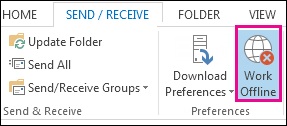
- Launch Outlook
- Select the Send/Receive tab
- Click Work Offline. If the button is highlighted, it is turned on. To turn it off, click once
- As a result, Outlook will try to reconnect to the server right away
Method 2: Recreate New Outlook Profile
Making a new profile is frequently the best solution
Method:
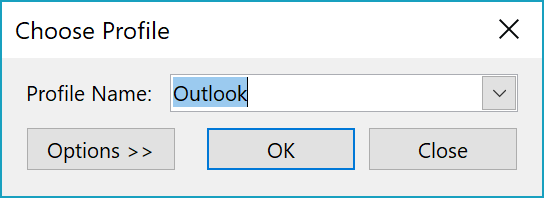
- Launch the Control Panel
- Select Mail.
- Choose Show Profiles
- Click Add.
- Set up your email
- Make it the default
Why it functions
It establishes a new connection environment and eliminates corrupted setups
Method 3: Check Pending Updates
Outlook versions that are too old may have connectivity-related issues
Method:
- Launch Outlook
- Navigate to File
- Office Account,
- Then select Update Options
- Update Now.
Frequently, updates address:
- Sync issues
- Problems with server compatibility
- Errors in performance
Method 4: Disable Conflicts for Add-ins
Outlook’s essential features may be hampered by third-party add-ins
Method:
- Navigate to File
- Options
- Add-ins
- Choose COM Add-ins
- Proceed
- Restart Outlook and uncheck any unneeded add-ins
In particular, disable:
- Integrations with CRM
- Plugins for antivirus software
- Unknown third-party resources
Method 5: Set up Exchange Server Account Manually
Auto-configuration doesn’t always work.
Manual configuration guarantees:
- The correct name of the server
- Appropriate authentication
- Precise synchronization settings
Method:
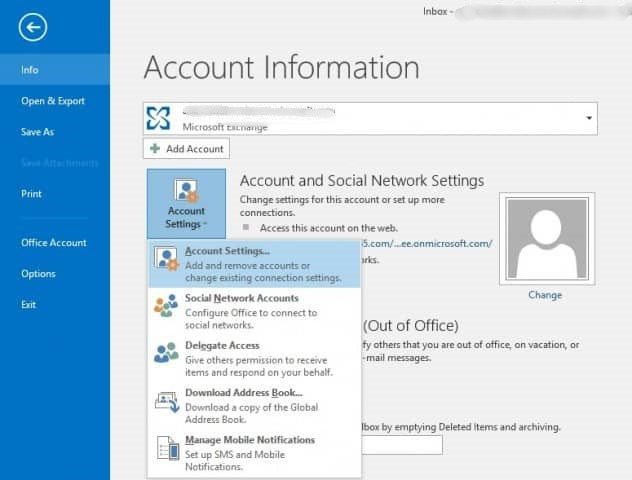
- Navigate to Control Panel
- Create a new account
- Select Manual Configuration
- Enter the Exchange server information.
In business settings where bespoke configurations are employed, this method is helpful.
Method 6: Recreate the OST File
When Microsoft Outlook is frequently stuck in Non-cloud mode, normal methods also fail to resolve the problem. In this condition, the problem is often related to the OST file. The OST file is a local cache that is synced with the Exchange server. Only reconnecting will not help in this situation; we need to fix the data layer. To handle this situation, you need to use the Softaken OST to PST Converter. This software scans the orphaned or corrupted file and converts it into PST format, which is a standard file format of Outlook. After the conversion, you can access your complete mailbox in Outlook, such as emails, contacts, calendar, attachments, and more. This is a reliable tool that helps you to eliminate the Outlook Stuck in Offline Mode issue.
Steps to Convert OST to PST
Step 1: Install the Software
- Download the OST Converter Tool
- Run the setup and install it
- Open the application and launch it
Step 2: Add Corrupted OST File
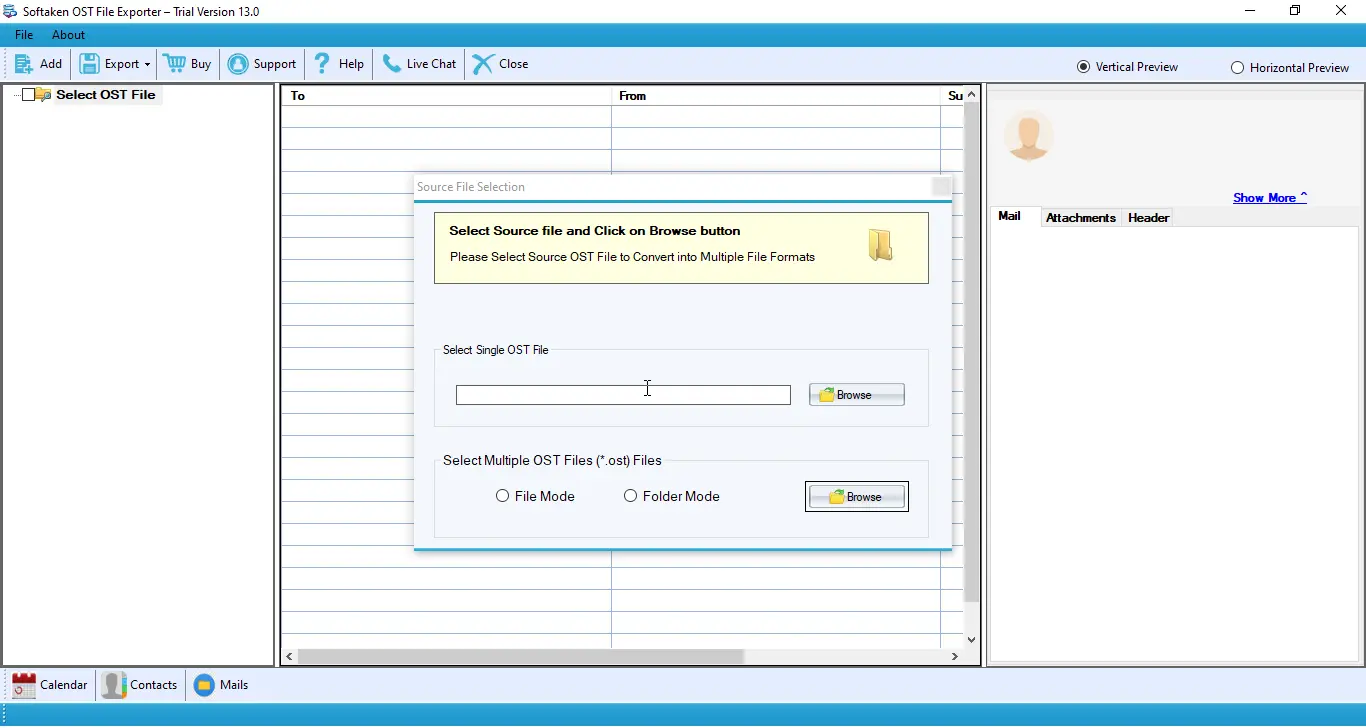
Click on the Browser or Add file option and select the OST file from your local system
Step 3: Scan and Preview Data
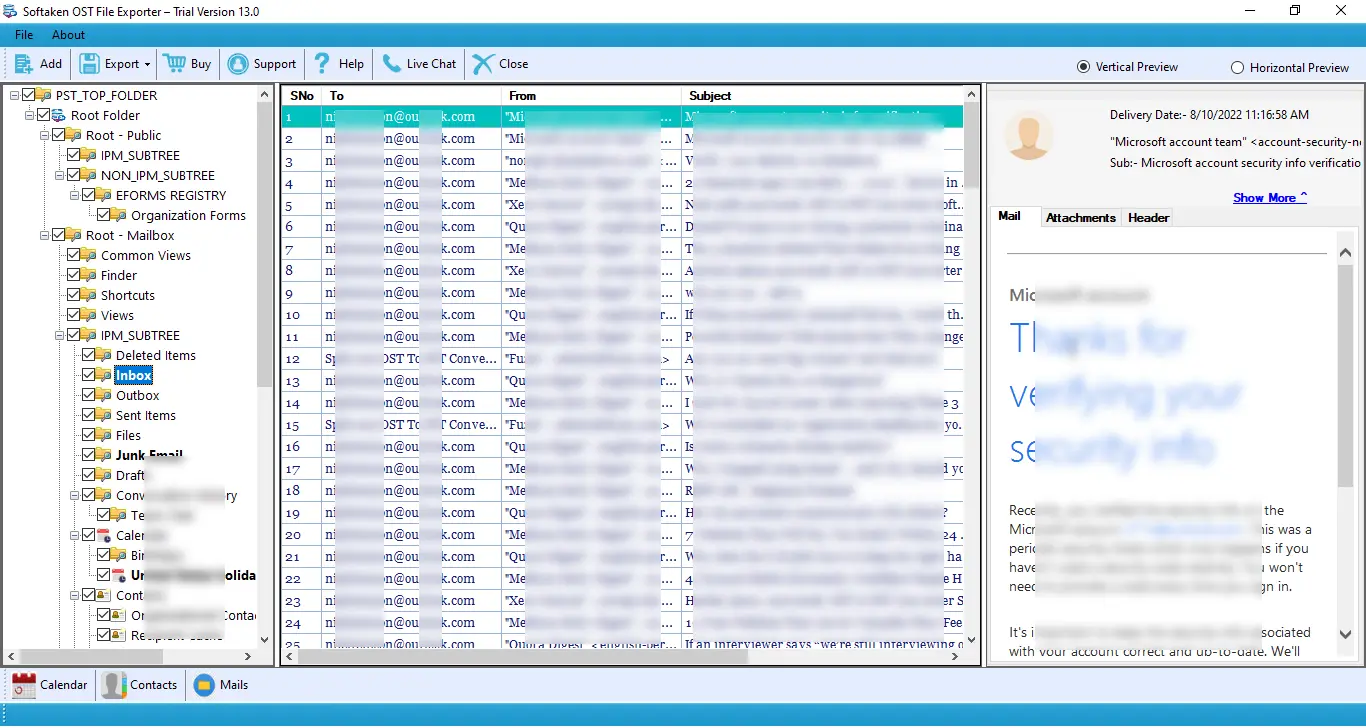
- The tool will automatically scan the OST file
- It shows a preview of complete items such as email, contacts, and Calendar
Step 4: Select PST Format
Choose PST in the Output format, apply a filter if needed, like data range, specific folder, selected items, and more.
Step 5: Start Conversion
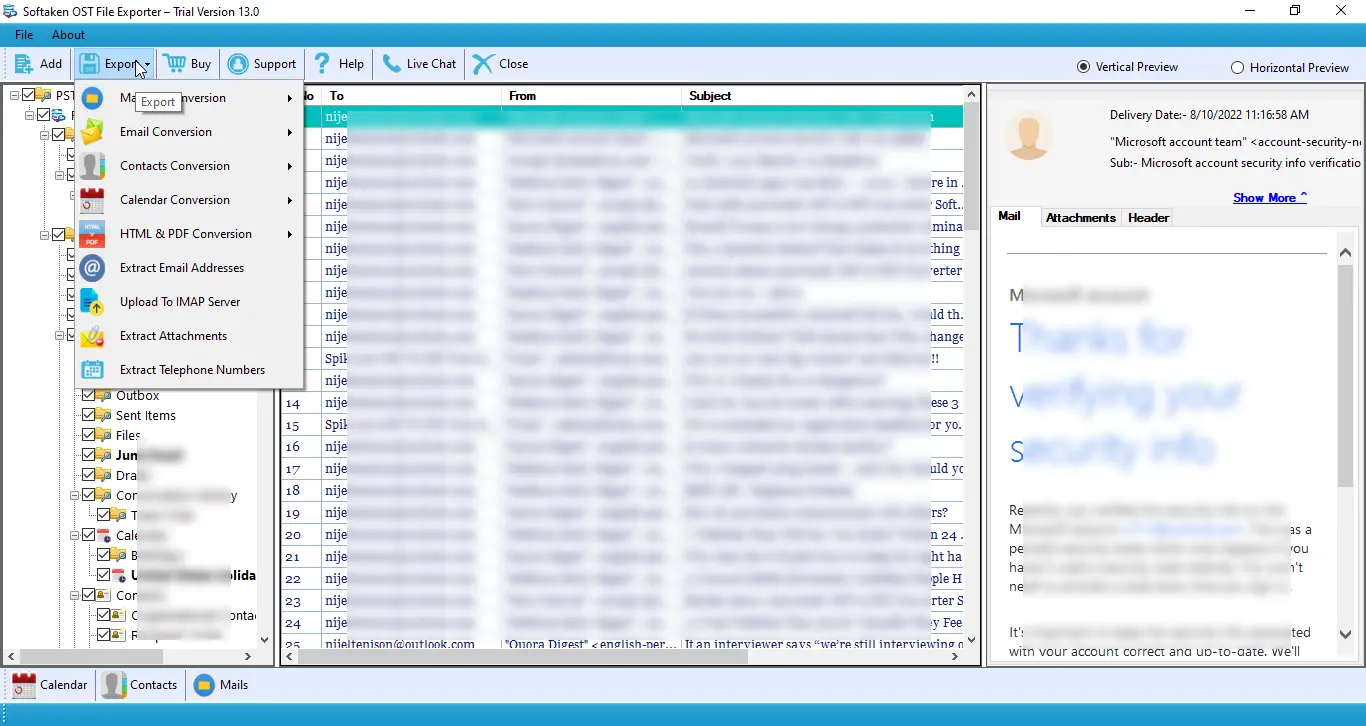
Then, click on the Convert button
Step 6: Import PST File in Outlook
- Open Outlook
- Go to File
- Open & Export
- Import/Export
- Select Import from another file
- Choose Outlook data file (.pst)
- Select the converted PST file
- Complete the Import process
Conclusion
The “stuck in offline mode” problem in Microsoft Outlook generally suggests connectivity, configuration, or data file issues rather than a single error. Deeper problems like profile corruption or OST file loss need a more organized approach, although straightforward reasons like activated Work Non-cloud mode or fluctuating connection can be quickly resolved. Instead of doing random troubleshooting, it is crucial to determine the root of the problem and utilize the appropriate technique. You may ensure continuous email communication and restore regular operation without running risks of data loss by following the right steps, from simple checks to complex recovery.
FAQs
Why is MS Outlook Stuck in Offline Mode?
It happened due to many reasons, such as enabled mode, internet issues, corrupted profile, or server connectivity problems.
How do I Get My Outlook Back Online and Change My Status Offline to Online?
If you want to go back to your online status, you need to Disable Work offline mode from the send/receive option, and ensure that your internet connection is stable.
Can Add-ins Cause Outlook to Stay Offline?
Yes, conflicting or faulty add-ins can interrupt connectivity and keep Outlook in offline mode.