Struggling to access your old Verizon.net email account? Because Verizon transitioned its email services to AOL and Yahoo, setting it up in modern applications like Microsoft Outlook can be confusing. Whether you want to centralise your inbox, access emails offline, or keep your old messages safe, this guide covers everything you need to know. Read on to explore why users are making the switch, how to set it up manually, and the easiest ways to automate your data transfer.
Reasons to Move Old Verizon.net Email to Outlook
There are several reasons that prompt users to switch data from an old Verizon email account to Outlook.
- To centralise email management, Outlook is one of the best choices. The Microsoft product allows users to manage multiple accounts.
- Whether old or new emails, both are important. You cannot lose them, especially when these emails are for official purposes. By exporting Verizon emails to Outlook, you can easily view all important old emails from your Verizon account.
- Verizon is not as advanced as Outlook. Outlook allows you to maintain data systematically through folders, categories, and rules.
- The search filter option of Outlook is much more advanced than Verizon, allowing you to search for a particular email or attachment with a small clue.
- Outlook supports the feature of offline data access. This feature is not available with Verizon. You can access previous messages without a server connection.
- By moving from Verizon to Outlook, you can increase your work productivity by using Outlook features like the Calendar, contacts, and task management.
Steps to Generate an App Password for Old Verizon.net Email
If you try to connect an old Verizon.net email account with Microsoft Outlook, you may need an app-specific password. Here, your regular email password will not work. This app password lets you access your account when standard sign-in credentials are not supported.
Taking AOL Assistance to Create an App Password for Verizon.net
- Access AOL Mail by providing your Verizon.net email address and regular password.
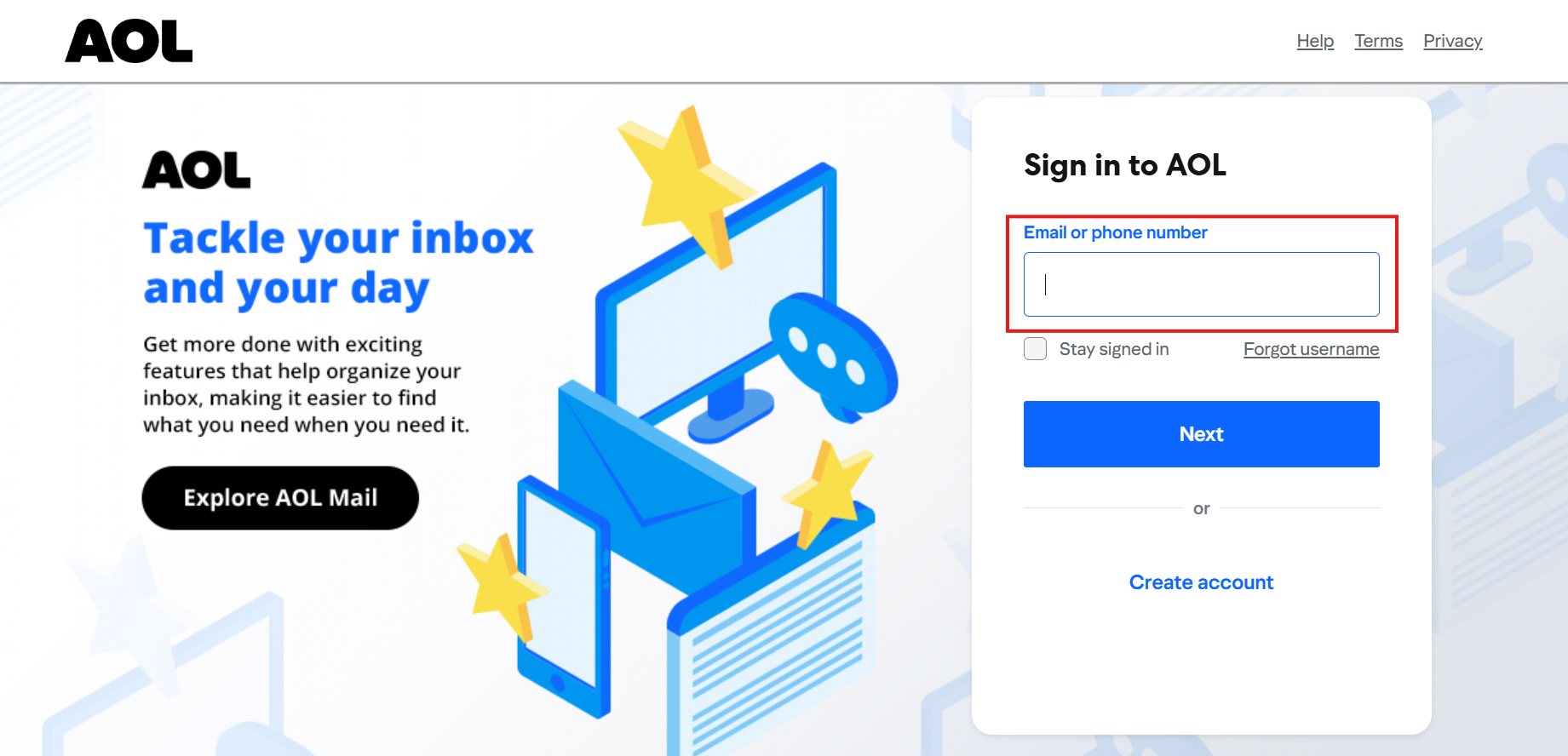
- Then, go to the Account Security window by clicking the profile name or icon.
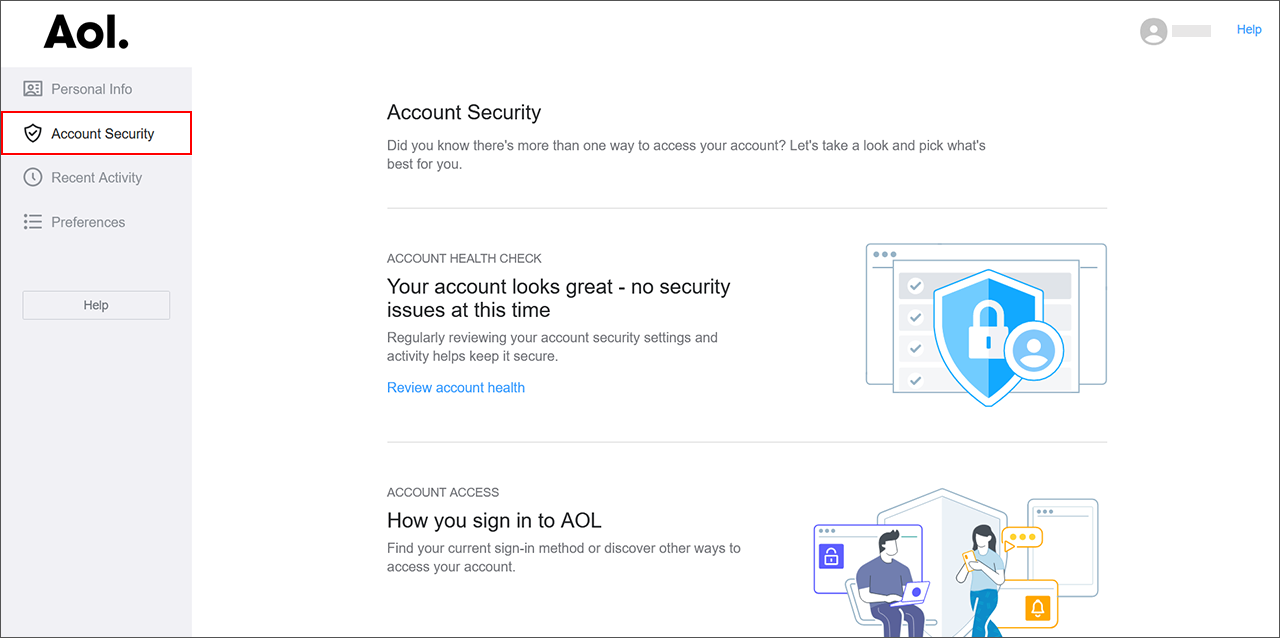
- Locate the App Password section and click the “Generate App Password” tab.
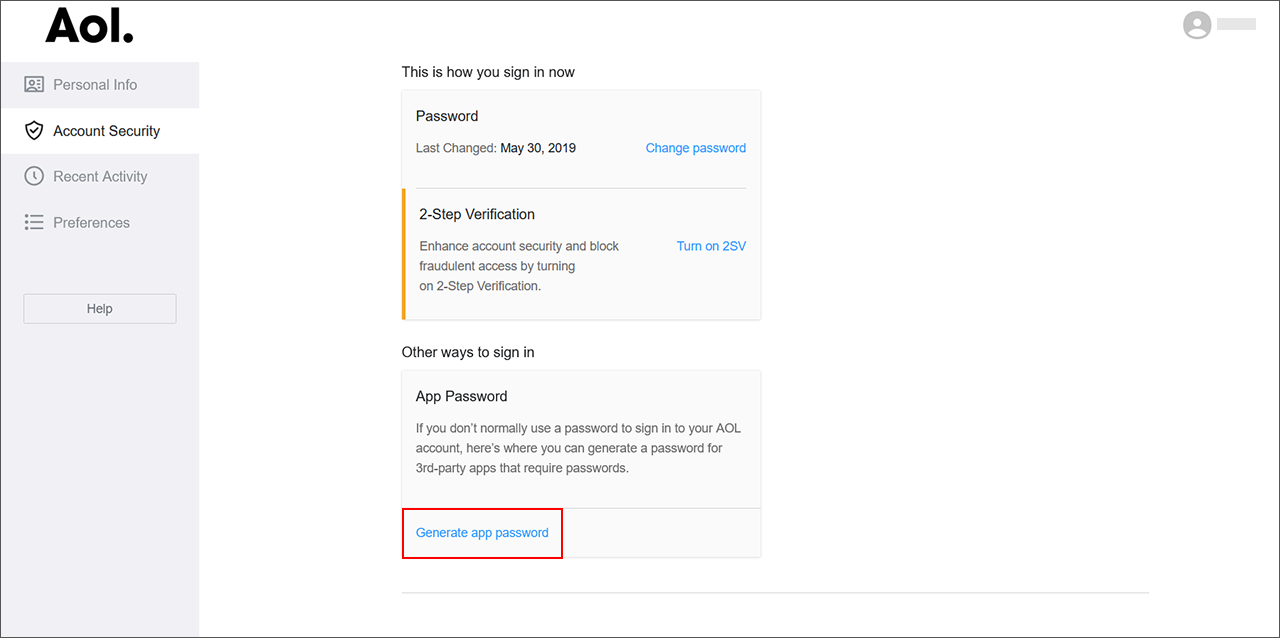
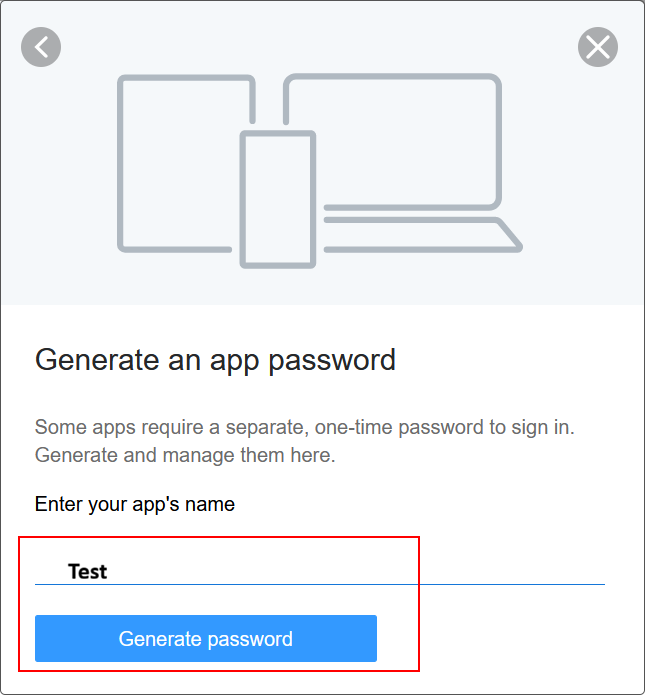
- In this process, provide a name like “Test” and then click Generate Password
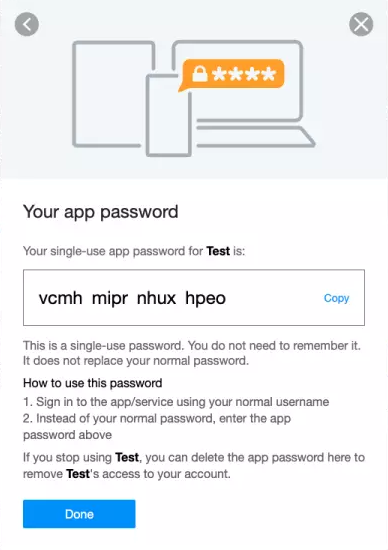
- Now, copy the password to store in a notepad or Word. Finally, press Finish to end the process.
Taking Yahoo Assistance to Create an App Password for Verizon.net
- Access your Yahoo Mail account by providing your Verizon.net email credentials.
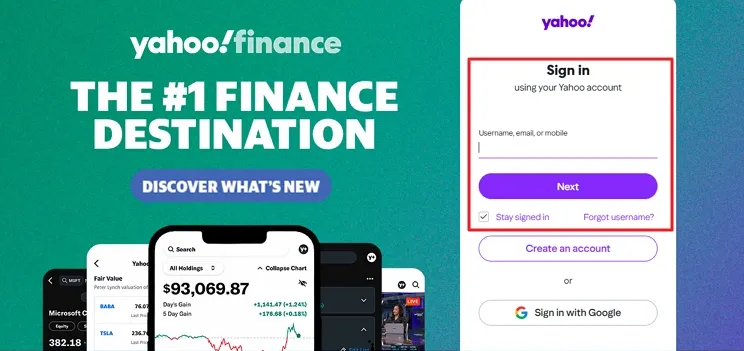
- Now, click the profile icon and then click Account Info to open Account Security.
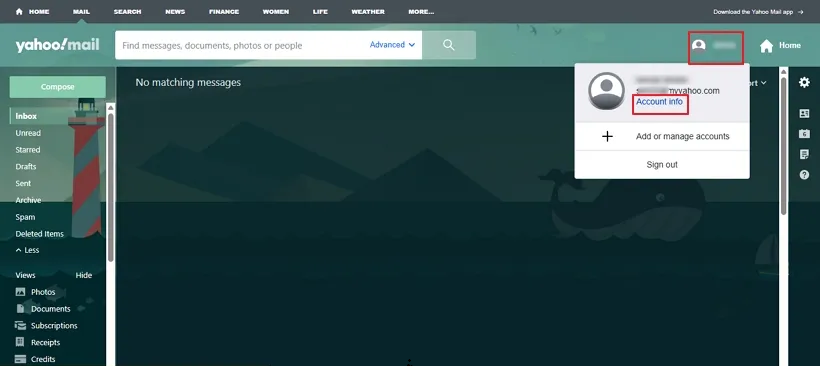
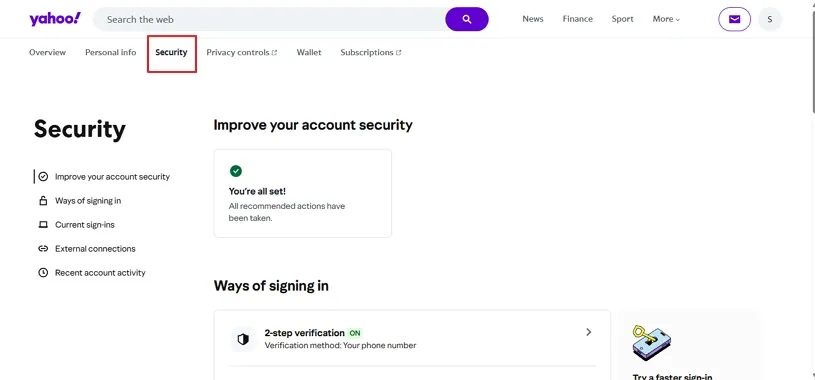
- Now, click on the Security Options at the top of the account settings.
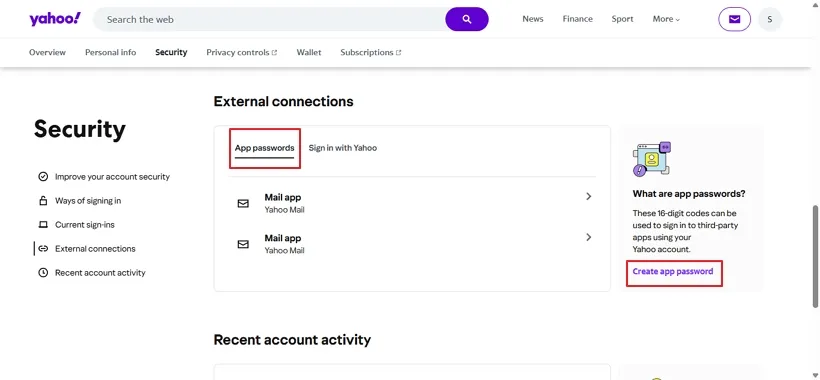
- Now, press Generate and manage app passwords.
- Provide the name. For identification, you can add Yahoo Mail as a name and click on Generate Password.
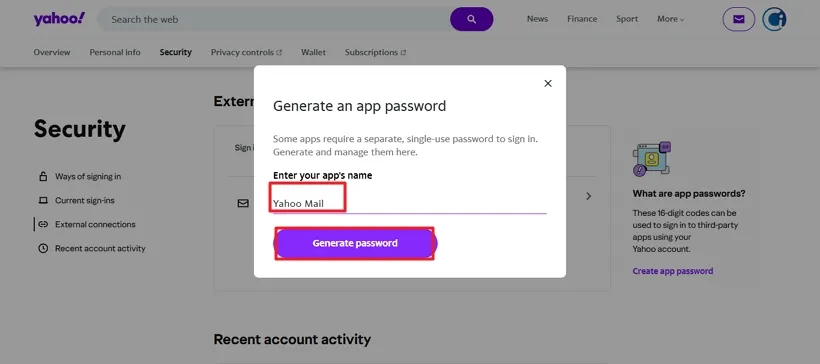
- Now, Yahoo displays the app password; you can copy and paste it into Notepad.
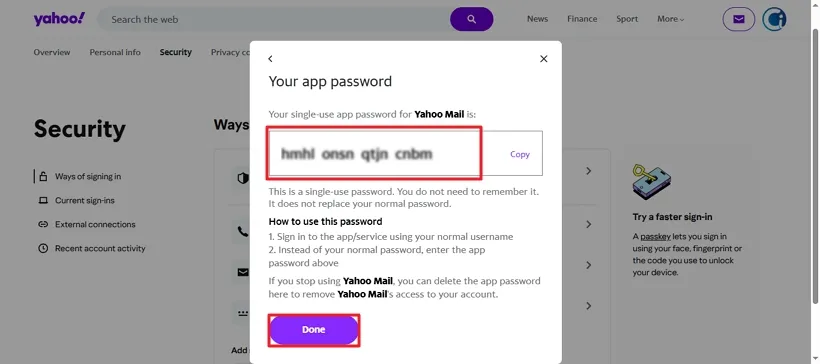
Now that you have your Verizon app password ready, let’s look at the correct Verizon IMAP and SMTP server settings required to connect your account to Outlook.
Depending on whether your backend was migrated to AOL or Yahoo, make sure to use the correct settings.
Verizon IMAP and SMTP Server Settings
Here are the configuration details for your email accounts:
| Account Type | Verizon AOL | Verizon Yahoo |
| Incoming Mail Server | imap.aol.com | incoming.yahoo.verizon.net |
| Incoming Port | 993 | 993 |
| Outgoing Mail Server | smtp.verizon.net | smtp.verizon.net |
| Outgoing Port | 465 | 465 |
| Encryption (Incoming & Outgoing) | SSL/TLS | SSL/TLS |
Note: If you aren’t sure whether your legacy Verizon account is hosted through AOL or Yahoo, try using the AOL server settings first, as they manage the vast majority of migrated Verizon accounts
Connect Verizon.net to Outlook – Manually
You cannot export Verizon.net Email to Outlook successfully until you have the IMAP protocol. With the help of this protocol, it is easy to connect the desired Verizon account to Outlook. The process is simple. We have provided the steps to follow below. Follow them carefully.
- In this step, log in to your existing Outlook desktop client.
- Then, move your mouse cursor over the File option and, from the drop-down menu, click the Add Account button.
- Here, you are required to provide your complete old Verizon email address and then click Advanced options.
- Now, press the “Let me set up my account manually” button and then the Connect tab.
- Next, choose IMAP as the account type. Enter the server settings that we have already discussed above.
- Now, enter the newly generated password and copy it.
- Finally, press the Connect tab to give the command to sync your account to Outlook.
The manual steps for data syncing are easy to follow, but they are recommended for technical experts. If you are a novice, the process could be tricky for you.
Drawbacks of Manual Verizon to Outlook Setup
Manual data transfer could be a hectic process. It has several other disadvantages that you can consider before you choose the manual process.
- The server configuration process is complex. You are required to add both the incoming and outgoing mail server details manually. If any setting goes wrong, the data transfer process will not start. You may have to spend a few more minutes to fix the settings.
- Another common problem is the inability to authenticate. You are required to be careful when entering the credentials or authentication. There is a chance of login failures due to an incorrect password.
- If your workload is high, the following manual process can cause an extra burden because it involves various steps.
- This manual method is highly recommended for technically expert people, rather than novices.
- Entering the incorrect IMAP or POP3 settings can lead to synchronisation issues. You may notice missing emails, inconsistent mailbox content, and delayed updates.
- This manual method gives no guarantee of accuracy. This means the data transfer can be incomplete. You may notice that some attachments are missing.
Automated Way to Move Verizon Email to Outlook
When manual setups feel a bit too overwhelming, the easiest and safest way to add Verizon.net Email to Outlook is to use a dedicated utility like the Softaken IMAP to IMAP Migration Tool. This software takes the guesswork out of server configurations, letting you transfer your old Verizon emails straight to Outlook with just a few clicks.
Follow the straightforward steps below to get your account connected and your emails securely moved.
Steps to Add Verizon.net to MS Outlook
Here are the easy steps to follow to add Verizon.net to MS Outlook
- First, install the app on your system and access the application.
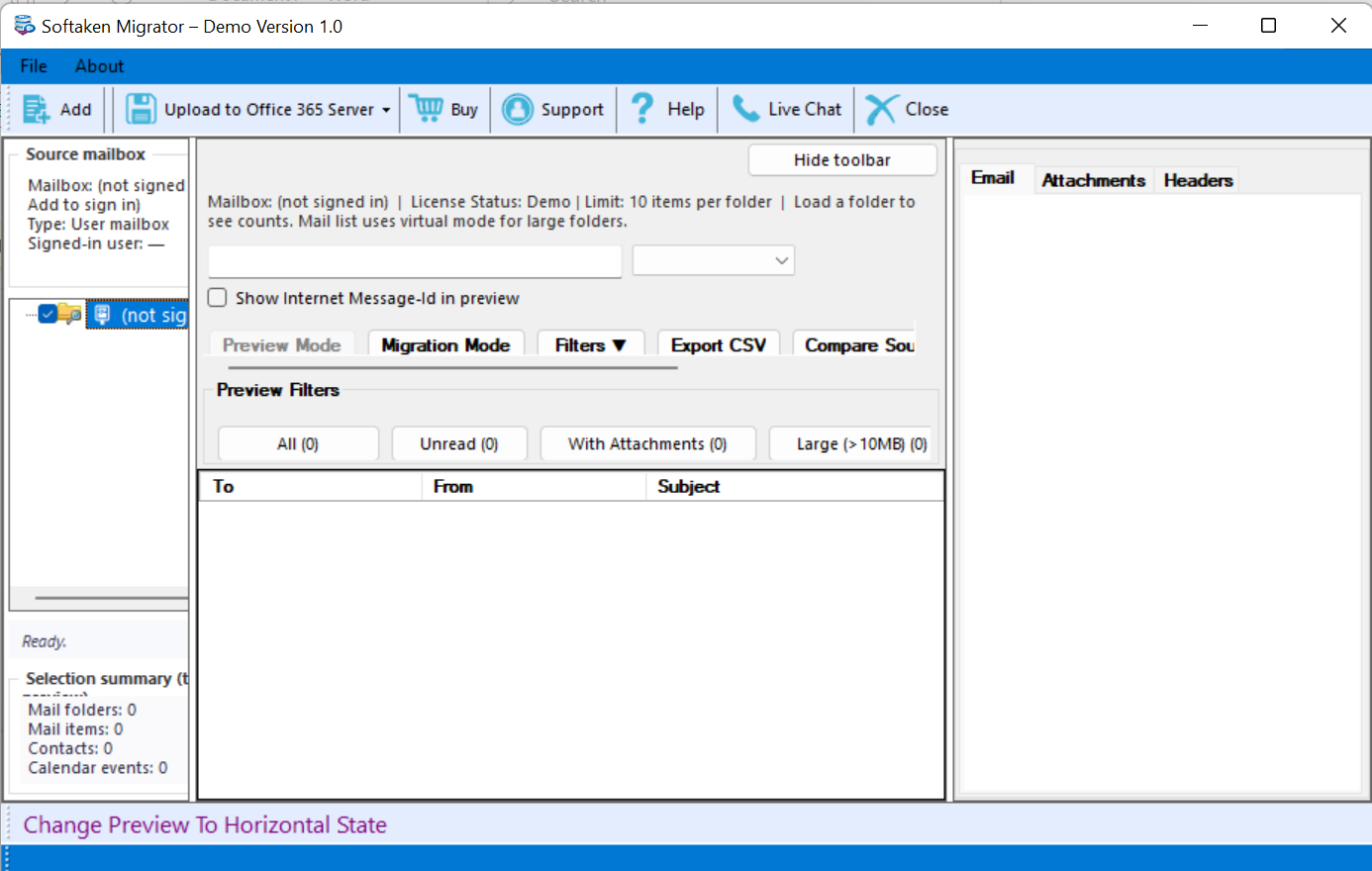
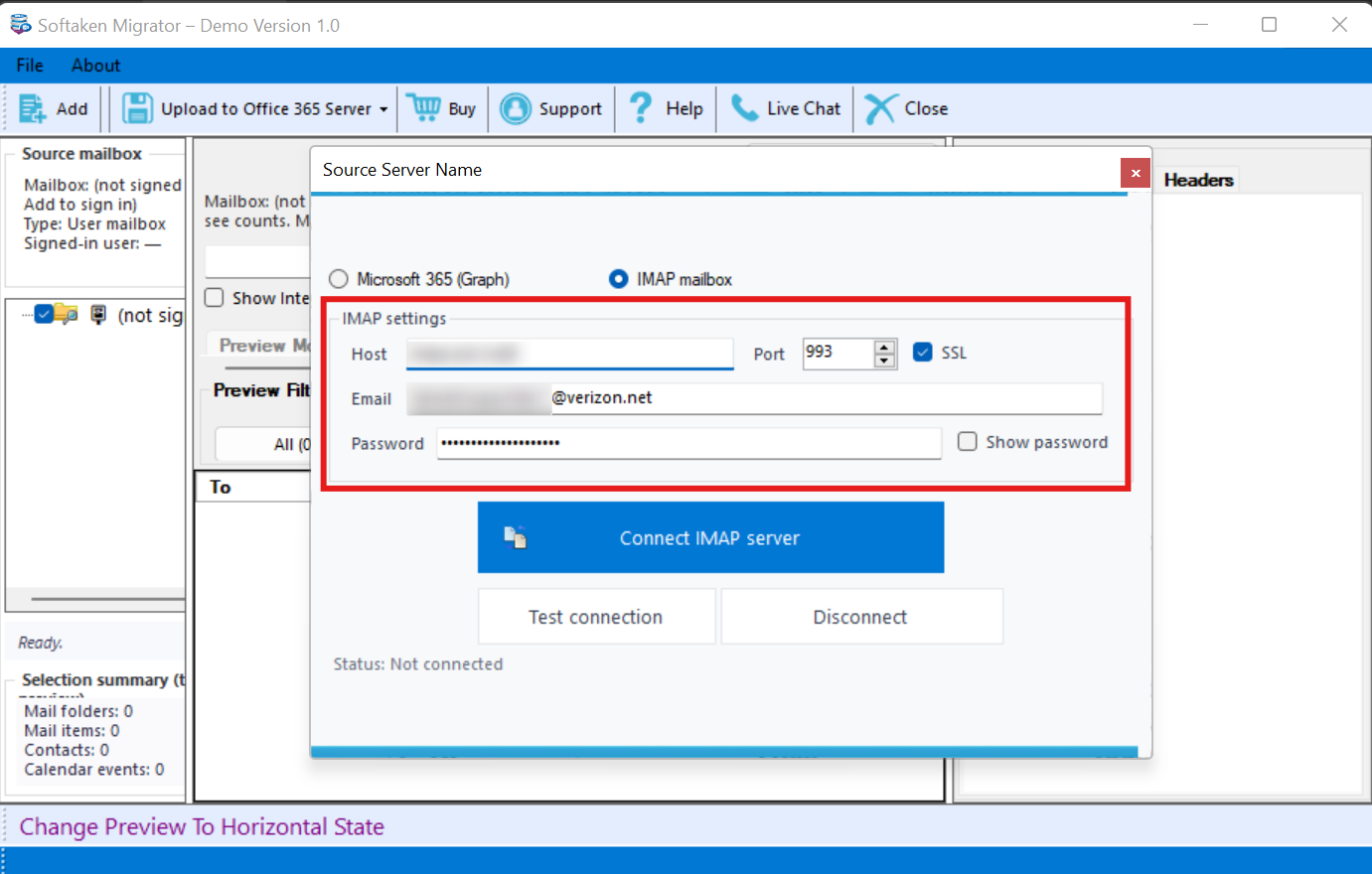
- Next, add Verizon account details. Carefully enter the host, port, and credentials of your Verizon account. Then, press the “Connect IMAP Server” tab. You can also click “Test Connection” to check whether the tool connects safely.
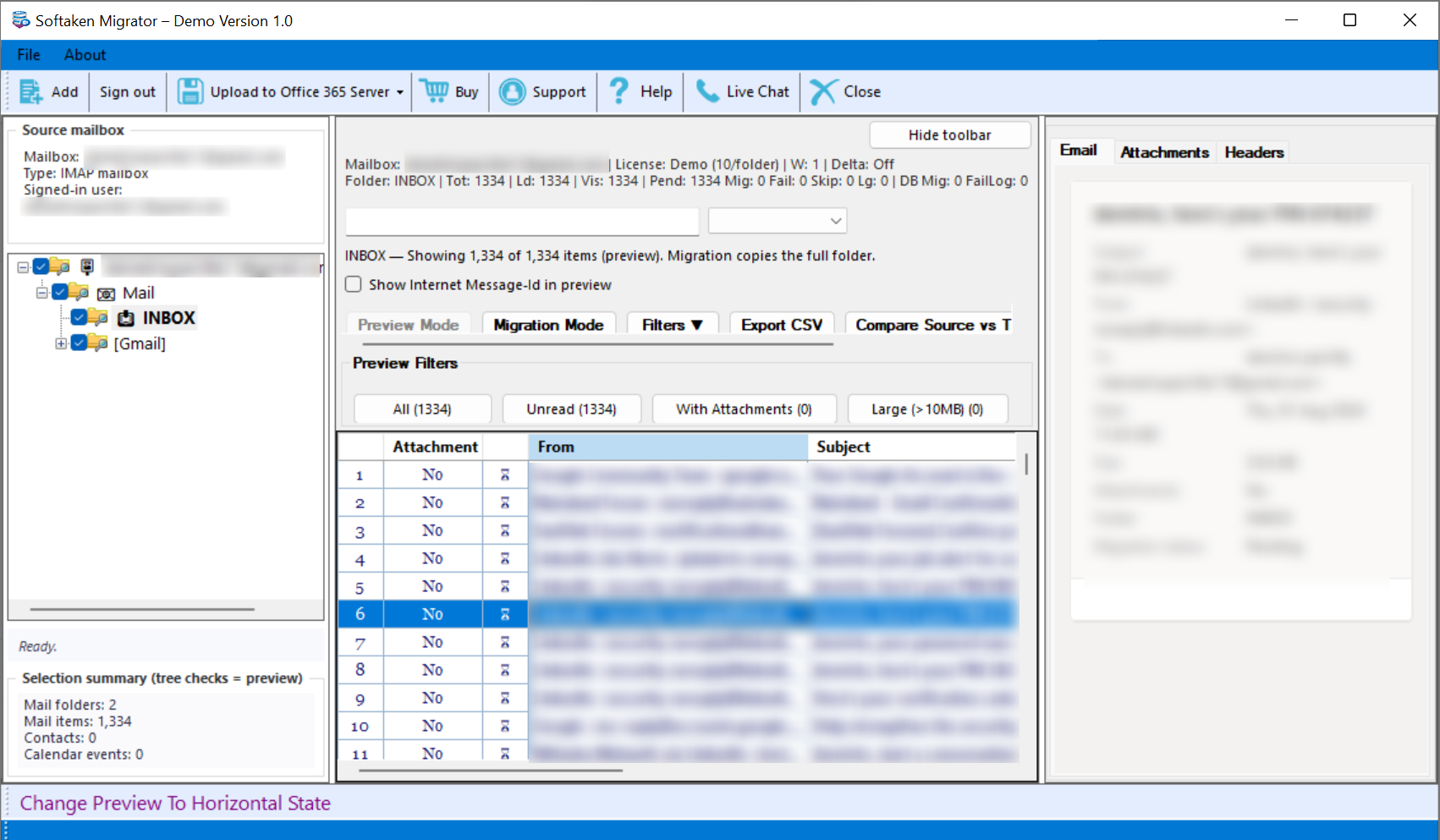
- Take a preview! As the Verizon account is connected, the tool displays all folders, emails and attachments in tabular format. The preview section has three separate windows: one to display folders, the middle to check attachments, and the right side to display emails, attachments, and headers.
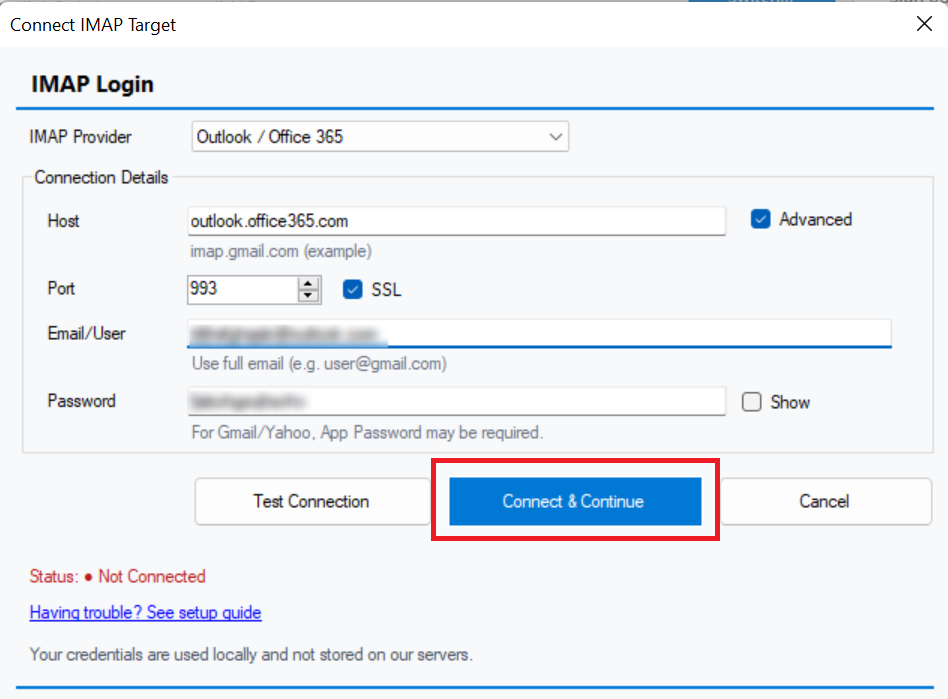
- Add Outlook Account Details to Authenticate. Now, connect the Outlook account with the Verizon account by providing IMAP login details. Provide credentials, host and port details, then click the “Connect & Continue” tab.
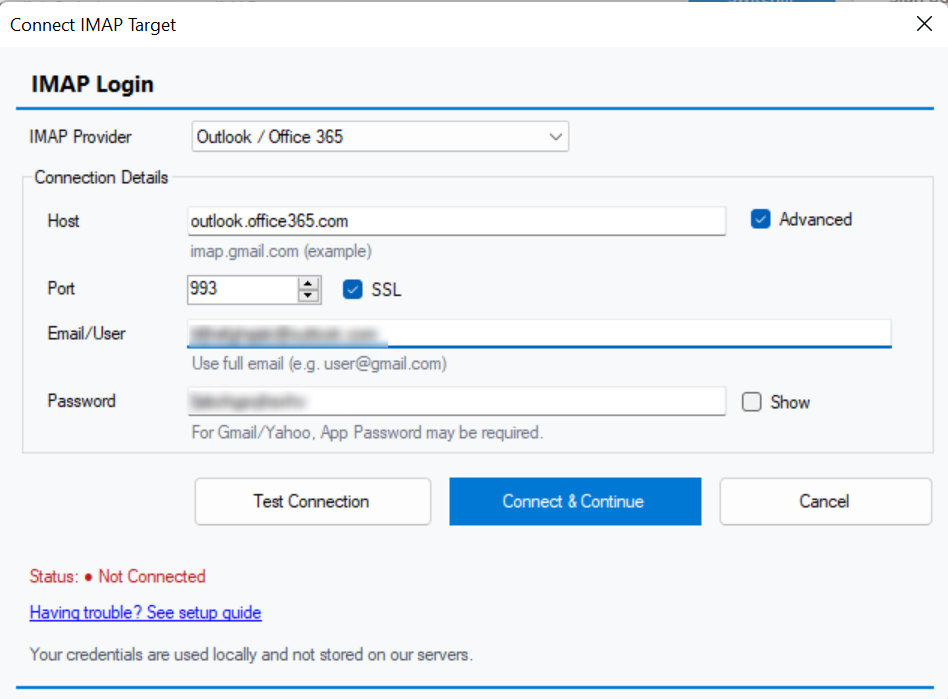
- Lastly, click on the Connect & Continue button to start migration! In this step, you can choose an existing folder or create a new folder to save the exported data. Finally, press the “Conversion” button to start the process.
Advantages of Using IMAP to IMAP Migration Tool
- It performs smoothly and is lightweight. Your system will not hang while the software is working in the background.
- The tool interface is interactive enough to be operated by anyone with a little technical knowledge.
- The steps for IMAP to IMAP migration are easy to follow. Usually, it requires a few details, like credentials and ports, to connect two IMAP accounts for migration.
- While you are exporting data, you can save the exported data to an existing or a new folder. Without leaving the software, you can create a new folder in Outlook to save the data. This means there is no data mismanagement.
- It allows you to export specific emails, folders, and all data at once. This flexibility has made it one of the best choices for migration.
Conclusion
Overall, connecting accounts and migrating from Verizon.net Email to Outlook is easy with an automated tool. It provides you with the flexibility to export a single folder or the entire data. The data filtration feature gives you full control over getting the desired result. Another plus point of the recommended app is that it keeps the quality of attachments and the email body intact. Manual conversion can often be tricky. You can lose quality as well. Therefore, use manual conversion only when you have a few emails to export and are ready to take the risks. Backing up your data is important here. Carefully choose a conversion solution.