Overview
Whenever we want to store our personal or professional images, we often choose PNG over JPEG or other options. There is no doubt that PNG images are of high quality. If you have images in other formats that you want to store in PNG, solutions are available. In this blog, you will get both manual and automated ways to convert images to PNG.
Is it Easy to Convert?
Over time, we have noticed technological advancements. Gone are the days when only a handful of options were available. These days, we are surrounded by multiple automated options. If anyone asks whether it is easy to convert images into PNG, the answer is yes. We have a plethora of options to choose from when it comes to the conversion of images. They are mainly categorized in three ways.
- Manual conversion
- Online free/paid conversion
- Applications
Among all of them, it could be difficult to tell which one is suitable until you set some priorities, like whether you are ready to take risks (go for manual or online free/paid conversion) and whether you priorities data security and accuracy (go for a reliable application). There are some other priorities too. We will discuss them later.
What is the PNG format?
PNG file format needs not much introduction these days because it is one of the most popular image formats. Don’t be confused by the name Portable Network Graphics. It is its full name. If you want to know whether an image is in PNG or another format, all you need to do is see the file extension. If it ends with “.png”, for example, photo.png, it is PNG.
Professionals often choose PNG to store logos, illustrations, icons, screenshots, and graphics. PNG has several advantages that make it one of the most useful image file extensions.
Advantages of Converting an Image to PNG Format
If your priority is to maintain image quality and preserve visual details, PNG is definitely one of the best options to consider. While considering its advantages, you can say that PNG fits well with your requirements for both personal and professional use.
- By using lossless compression, PNG manages to maintain image quality. Important details are well-preserved.
- It maintains transparent backgrounds, which is one of its best qualities. Professionals, while designing logos, backgrounds, and product images, want a transparent background. PNG helps to achieve this goal.
- While creating charts and diagrams, there is a requirement for clear edges and details. PNG is the best alternative to JPEG and other formats.
- Since it uses lossless compression, images can be used for further editing. Even after repeated editing, images don’t lose quality, unlike lossy formats like JPEG.
- Another popular reason is that PNG is a widely supported format. It supports almost all devices, including mobile phones and laptops. Image sharing is easy with PNG.
Convert Image to PNG Format – Manually
There are several free manual methods to convert images to PNG. We have provided two well-approved manual solutions for Windows users.
Manual Method 1: Using Paint to Change the Format
- First, open an image that you want to export and right-click on it.
- Next, select the Open With option and then “Paint” from the drop-down menu.
- Now, go to the File option and select Save as from the drop-down menu.
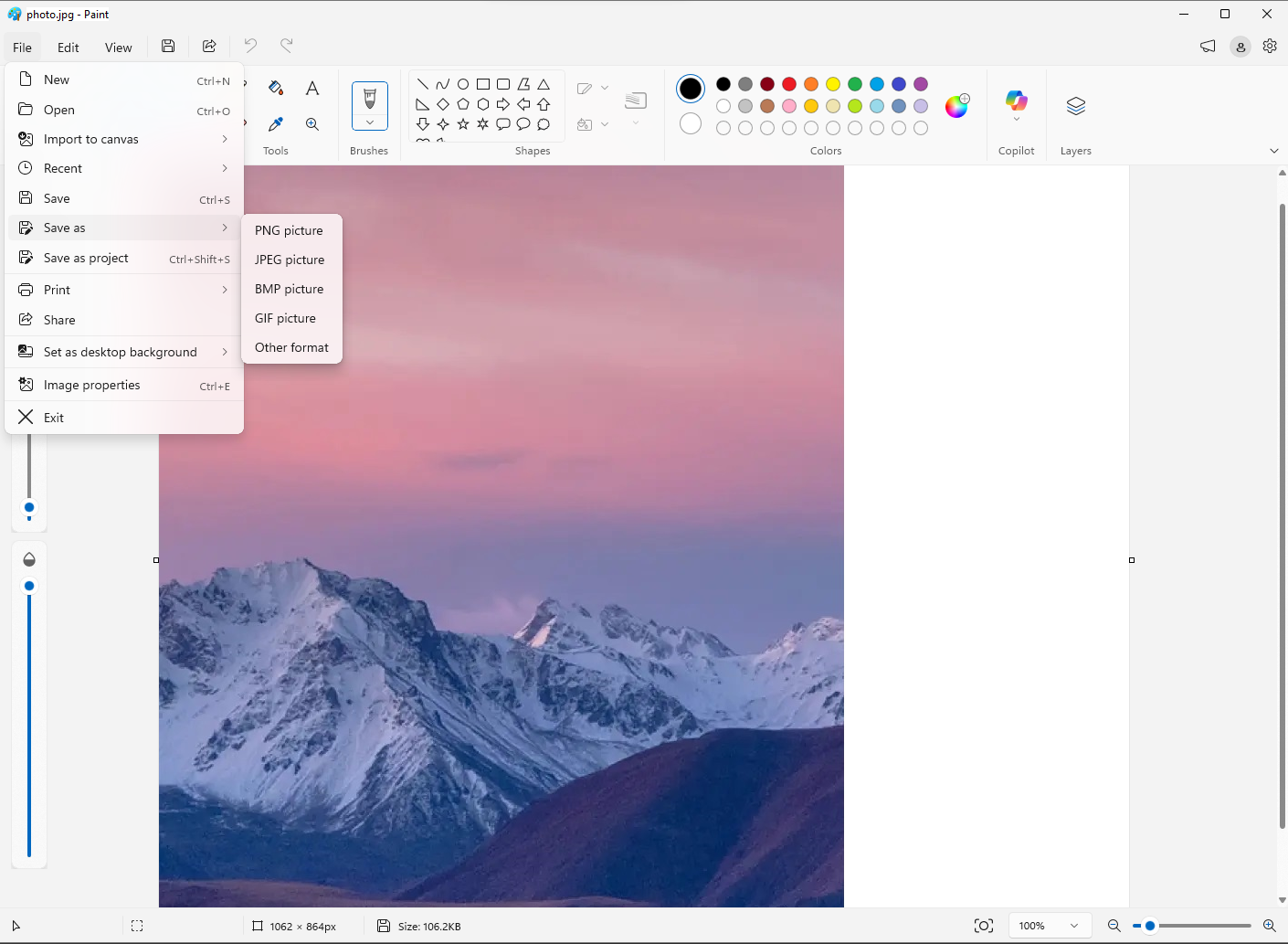
- It will give you several options; select PNG from them.
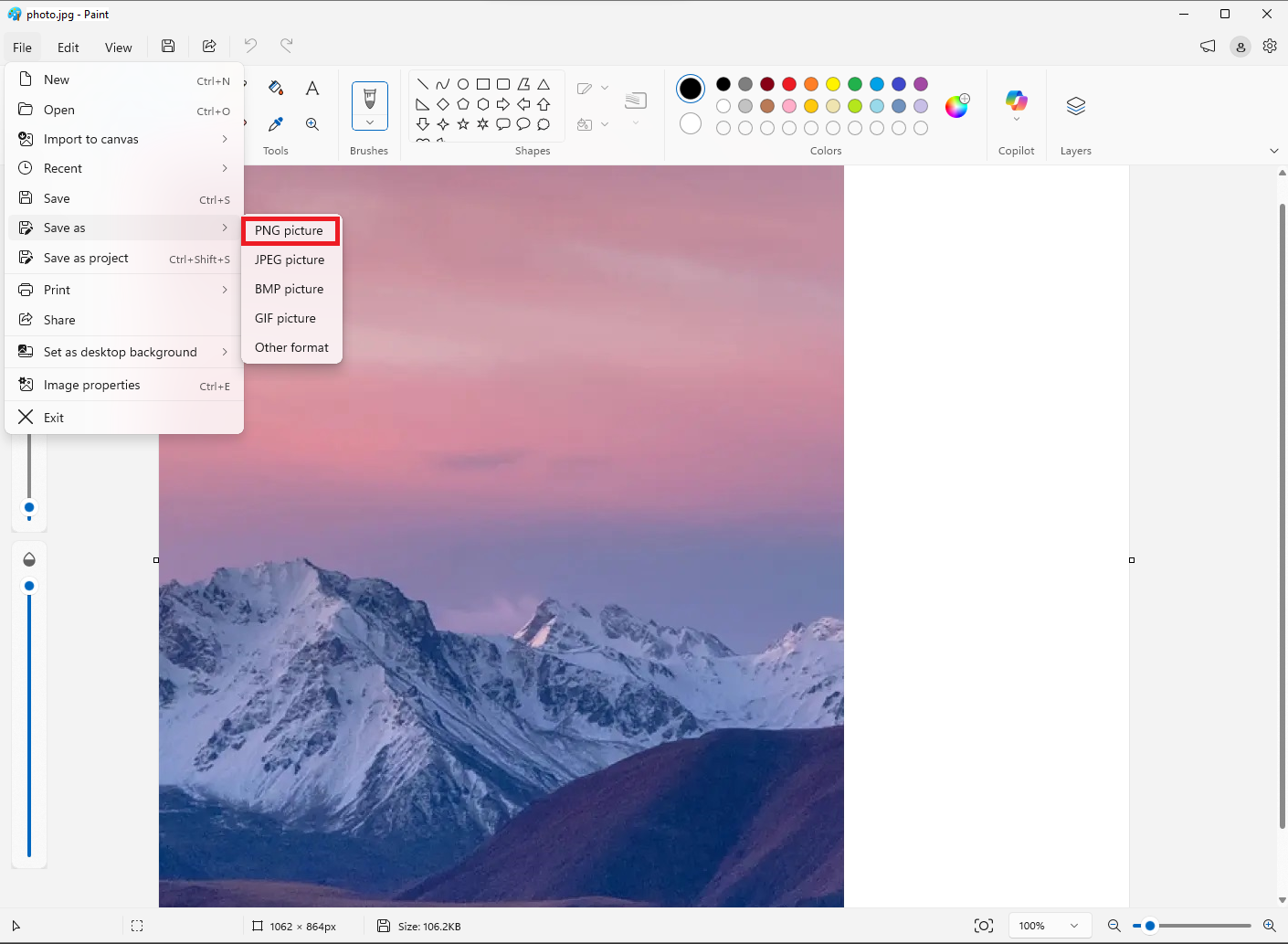
- Now, give it a new name or rename the file and choose an output location to save the image. Press Save.
 .
.
This manual method allows you to change the file format of one image at a time. Thus, it can be time-consuming, but it is one of the safest manual solutions to change the format.
Manual Method 2: Using Microsoft Word to Change the PNG Format
- Access a Microsoft Word file, which is a new blank file.
- Then, place the cursor on Insert → Pictures → This Device and choose the desired image.
- Now, right-click on the selected image and select Save as Picture.
- You will get various Save as type options; choose PNG.
- Now, select a local folder to save the image and press “Save.”
Note: This is another very popular conversion option. Depending on the Word version and image quality, it will give you different results. This means the quality could be compromised.
Drawbacks of the Manual Technique
Manual solutions often attract users because they are free to use, but in terms of quality, they cost you heavily. We have provided some drawbacks of the manual techniques to look for.
- There is a persistent risk of losing image quality. You will not get the details and sharpness you are looking for in a PNG image.
- The process comprises several steps. This means it is time-consuming, and only technical experts can do it.
- Conversion can stop in the middle for any reason. You may have to restart the process. Thus, it hampers your work productivity.
- If you have large image files to export to PNG, the manual solution is not something you should consider.
Turn Image into PNG With High Quality – Automated Solution
As we have discussed, manual conversion seems attractive but has many drawbacks. Therefore, the best solution to convert an image into PNG format while maintaining high quality is to use an automated tool that helps you turn not only a single image but also multiple images into PNG in one go. One such application is the Softaken Image Converter. The tool can convert any image format to PNG, like JPEG to PNG, WEBP to PNG, ICO to PNG, and many others. You can set the quality scale and check the preview of each image before converting it.
We are breaking down its advantages to help you understand why this program is an excellent choice for image conversion.
- You will get options to select and export either single or multiple images to PNG. By selecting images in batch, you can save time and effort. The batch conversion process makes the entire conversion easy and fast.
- The tool can scan and upload images of any format (JPEG, TIFF, GIF, BMP, and ICO) to convert to PNG or any other format. There is no restriction on exporting only a particular type of image to PNG.
- This advanced application allows you to set the quality ratio scale. It is one of the most striking features, where you can set the image quality as per your choice.
- It has a preview box where you can get an instant preview of the image quality of each uploaded image. With this feature, setting the image quality ratio is easy and satisfying.
- If you want to change the file name before saving, it allows you to do so.
- Its interface is interactive for a novice. There is hardly any need for a technical overview of this app. It allows you to change the file format easily on the first attempt.
- Like other apps from Softaken, a free trial of this tool is also available.
Quick Steps to Convert Image into PNG
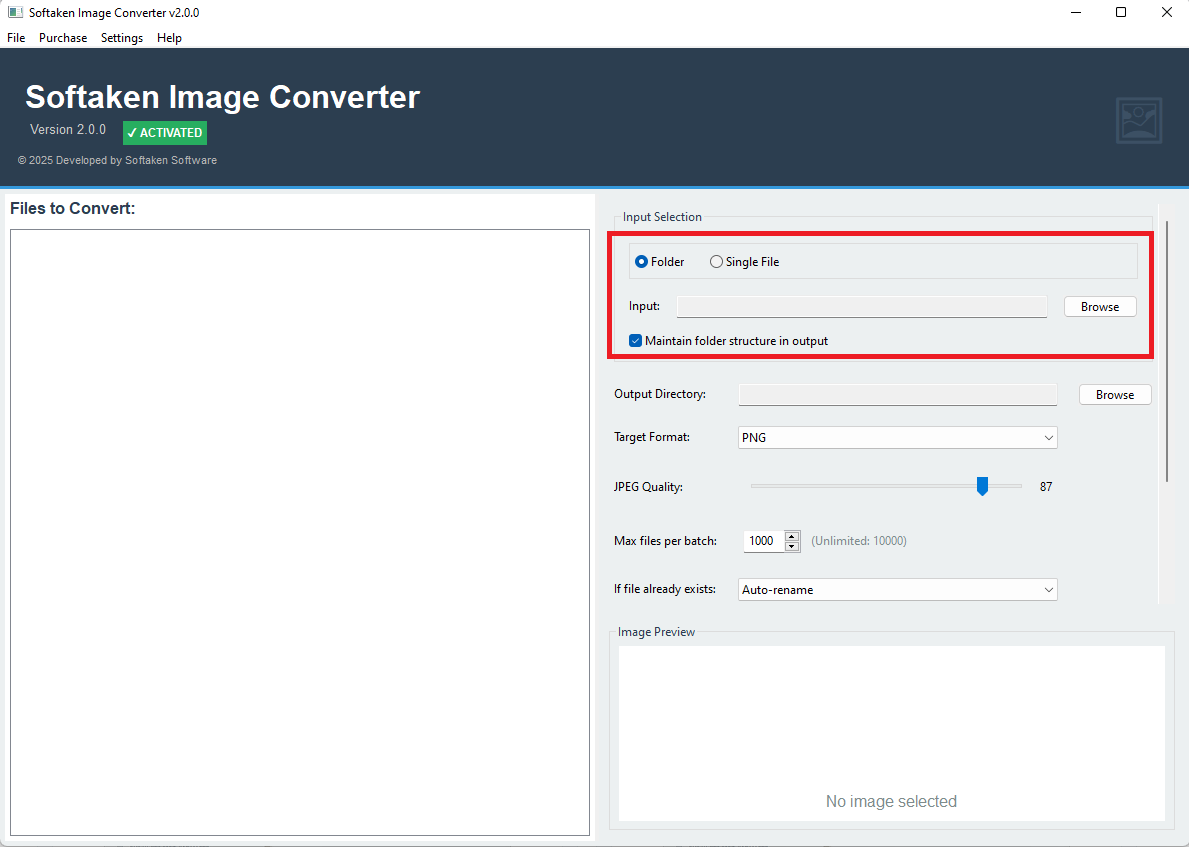
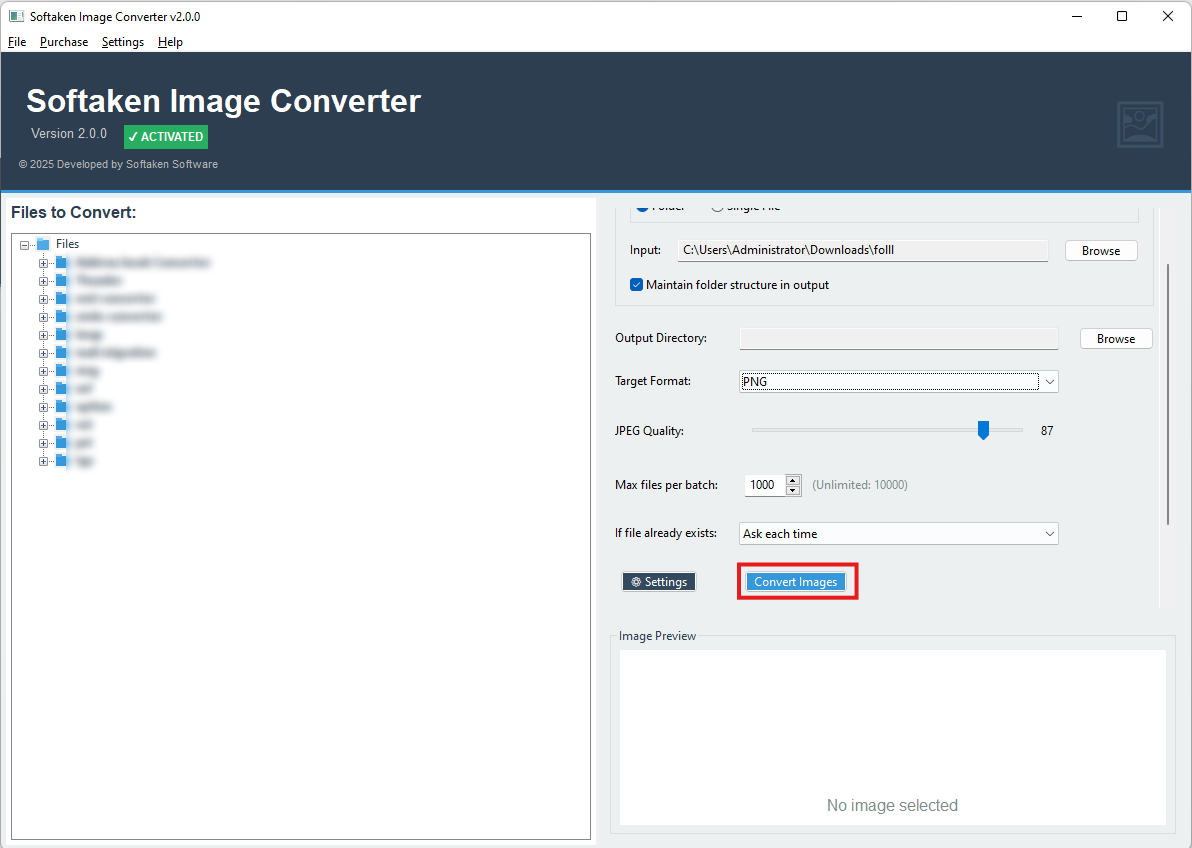
- After launching this app, the first step is to upload the required images that you want to convert into PNG. Choose the “Folder” or “Single File” option and then press “Browse” to upload the required files.
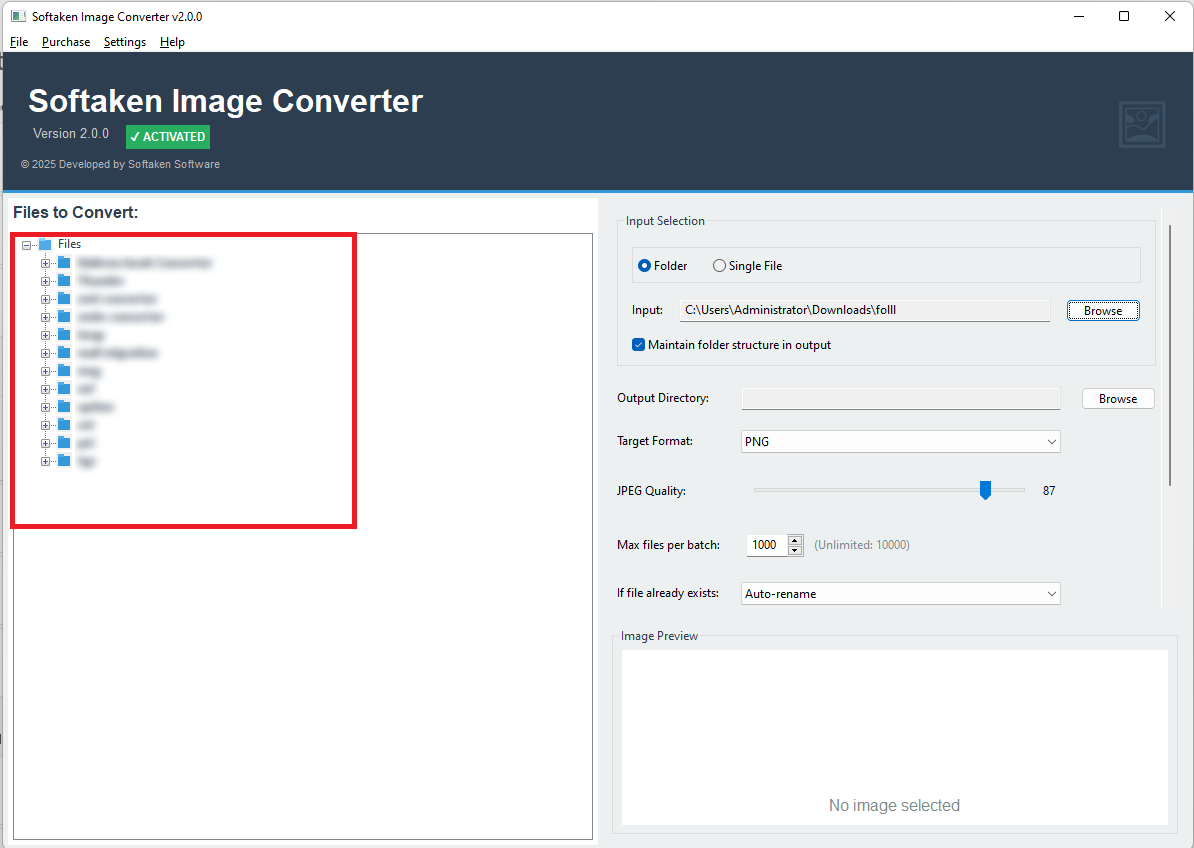
- Check the list on the left side. After uploading the files, you can see how many files have been uploaded. The tool displays the selected file names in a tabular format.
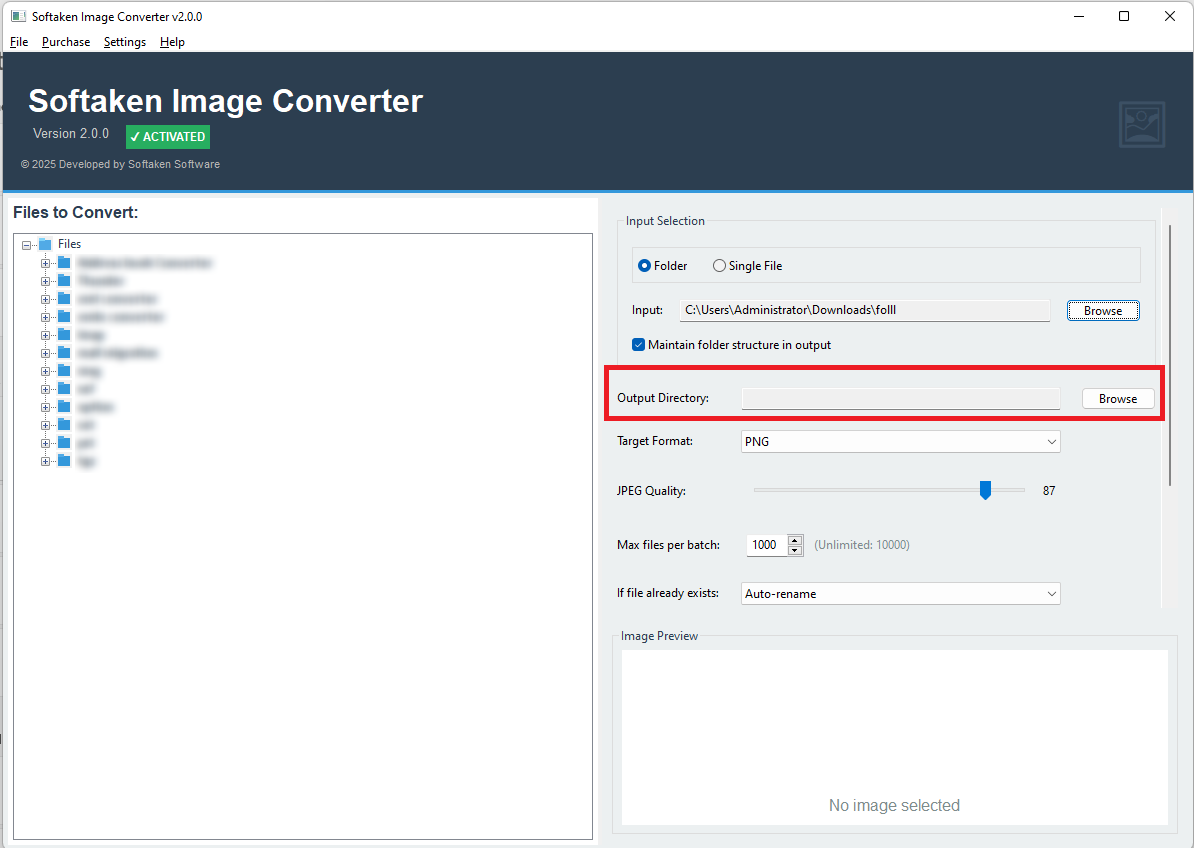
- Choose the output location. In the next step, click “Browse” to direct the tool to a local folder where you want to save the new PNG files.
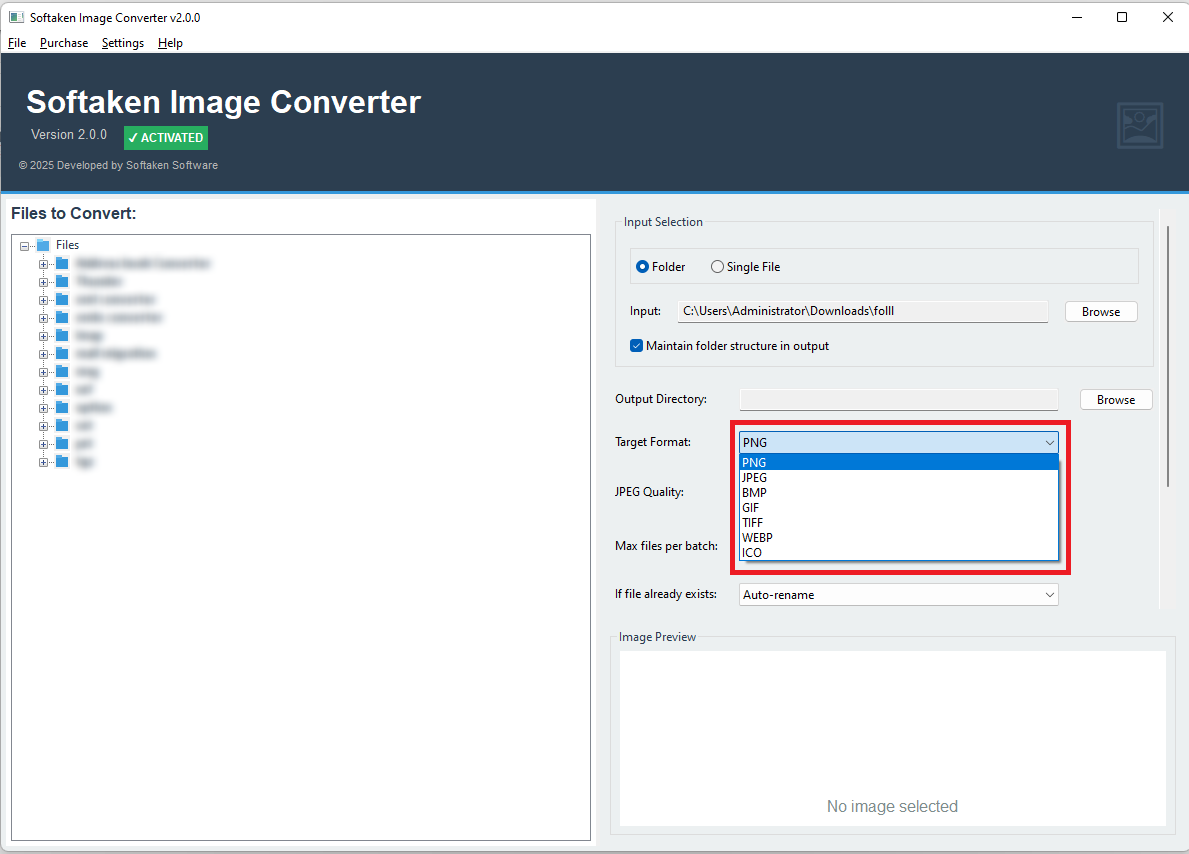
- Select PNG from the Format List. In this step, click the arrow button to choose “PNG” from a range of image formats.
- Lastly, click Convert image. This is the final button; when you click it, the conversion process starts. Meanwhile, you can continue your daily work routine as the tool works in the background.
Conclusion
We have discussed both manual and automated solutions to let you choose the desired solution for converting images to PNG. According to experts, a professional tool is the best alternative to any manual solution when you have multiple images to export and want to maintain quality.
FAQs (Frequently Asked Questions)
Will Converting an Image to PNG Reduce its Quality?
If you choose a manual solution or any free online tool, there is no guarantee of accuracy. However, a professional tool like the recommended one will give you satisfactory results each time.
Can I Convert Multiple Images to PNG at the Same Time?
Manual conversion often allows a limited number of images, but a professional tool can export unlimited images to PNG. It is one of the best advantages of an automated image converter.
Are Offline Image Converters Safer than Online Tools?
Yes, they are. With the recommended tool, you can export images to PNG offline. This means there is no risk of data theft.