Like other Samsung users, you may have discovered that your phone’s contact list has duplicate numbers appearing more than twice or three times. It could be frustrating, right? In this situation, if you want to know how to delete duplicate contacts on Samsung, then you are in the right place.
One of the primary reasons for duplicate contacts is when your phone combines contacts from Google, WhatsApp, your SIM card, or old backups. This contact clutter can be a big headache when it comes to making calls or texting.
Learn a step-by-step guide on how to clean up duplicate contacts on your Samsung phone using free built-in settings, Google tools, or a quick automated fix.
Why Do Duplicate Contacts Happen on Samsung?
Several reasons can trigger duplicate contacts on your Samsung mobile phone. Here are the most common reasons.
- There is a chance that the contacts on your phone have been synced with your Microsoft, Google, or other accounts. If the same contacts are stored in multiple accounts, Samsung can display duplicates.
- If one copy of the same number is stored on your phone, and another is stored on your SIM card or cloud, the chances of duplicates can increase.
- Restoring or transferring contacts using Smart Switch or any contact-transfer application can import contacts that already exist.
- Manually, you may have entered the same contacts more than once.
Top 3 Solutions to Remove/Delete Duplicate Contacts from a Samsung Device
Here we have provided three successful manual methods to get rid of duplicate contacts on your Samsung device.
Method 1: Using Built-in Samsung Manage Contacts Feature
If you don’t know that there is a built-in Manage Contacts feature in Samsung to manage your contacts smartly, you may be missing an essential feature as a user of this brand. Here are the steps you can follow.
- Access the Contacts app on your Samsung device.
- Click three horizontal lines (☰) or three dots (⋮).
- Now, choose Manage contacts.
- Tap Merge contacts.
- Choose the duplicate contacts you would like to merge.
- Click Merge.
In this way, Samsung will combine multiple entries with the same number and create a single contact.
Important: Remember, this “Merge contacts” feature may not be available in every Samsung model/One UI version. However, the new versions of Samsung may have this feature.
Pros
- The following method needs no third-party apps.
- It is free to use.
- It is one of the safest ways to manage duplicate contacts.
- It allows you to reduce contact-list clutter in simple steps.
Cons
- If you have an old version of a Samsung phone, there is a chance you may be missing the Contact Manage feature.
- It could be a time-consuming process because you will manually check each number.
- It will be difficult to identify duplicate contacts if the name or number is slightly varied.
Method 2: Using Google Contacts
This method works only when your Samsung phone is synced with your Google account. Google helps you identify duplicate contacts.
- Access the Google Contacts app on your Samsung smart device.
- Confirm that you are connected to the Google account where you have saved contacts.
- Tap the icon at the bottom to click Fix & manage.
- Next, choose the Merge & fix option.
- Now, Google displays duplicate contacts.
- Review the suggested duplicates.
- Next, click Merge to merge individual duplicates, or choose Merge all if you wish to merge all suggested duplicates.
- Now, it will take some time to merge contacts and sync them with your Samsung phone.
Note: The Merge & fix option will be invisible if contacts have no duplicates.
Pros
- The following method is free to use.
- It can automatically find duplicate contacts.
- It is compatible with every smart device, not just Samsung.
- Changes to contacts can automatically sync with your phone.
Cons
- Google Contacts may fail to identify duplicate contacts if contact details have slight changes in terms of names.
- The automatic sync process can affect the contact organisation feature of your device.
- The following process needs a smooth internet connection.
Method 3: Delete Duplicate Contacts from Samsung (Best for Bulk Contacts)
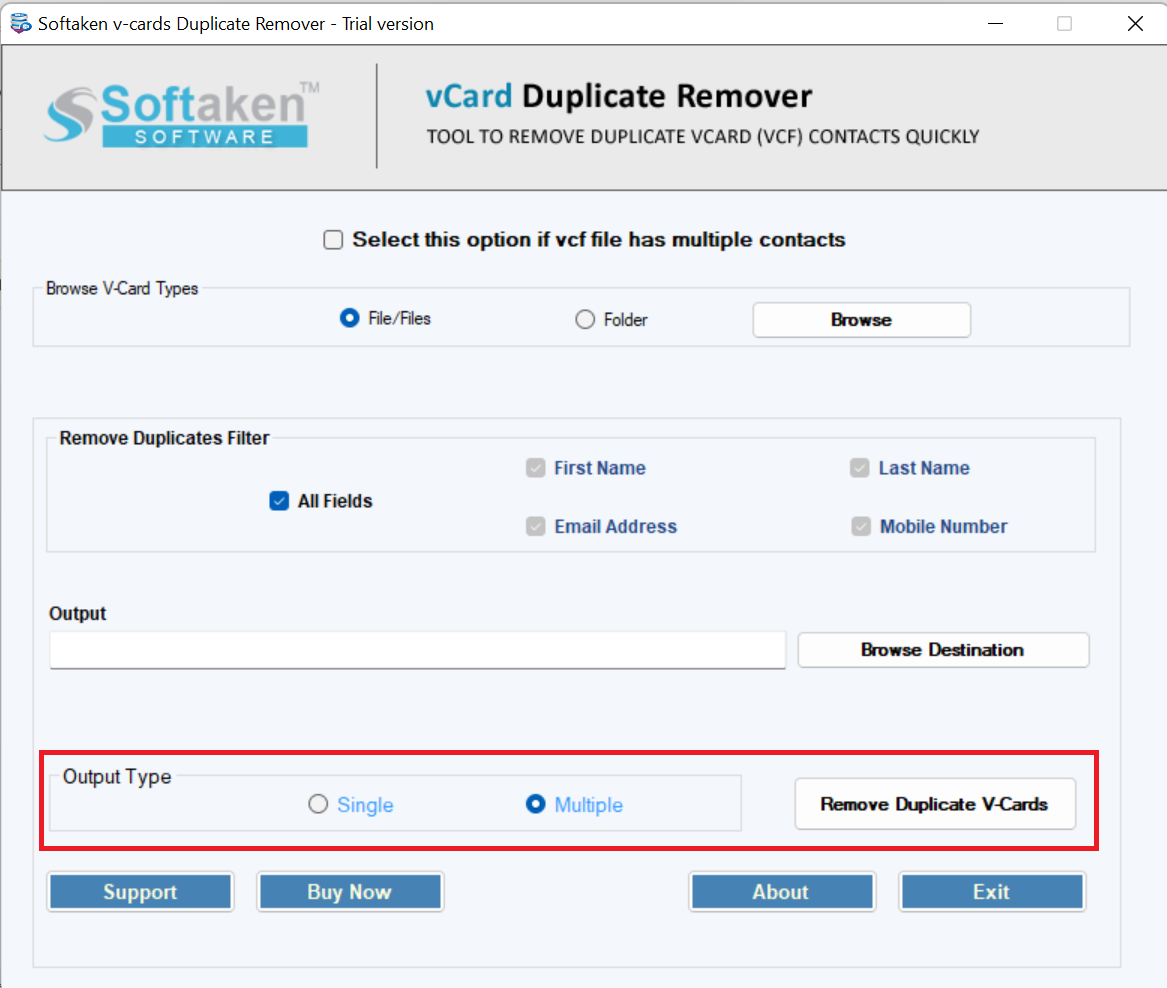
If you have hundreds or thousands of duplicate contacts scattered across multiple backup files, manual merging or Google Contacts can take hours. For power users, business profiles, or anyone managing large contacts. Automated Desktop solutions can fix this within a few minutes and without much effort. Softaken vCard Duplicate Remover is one of the best automated duplicate contact removal tools. This advanced application can remove duplicates from a single or multiple vCard files. You will get a custom duplicate filtering feature.
Remove Duplicate Contacts Using a Professional Tool
Here are the steps to follow to remove duplicates.
- Install and run the application on your system.
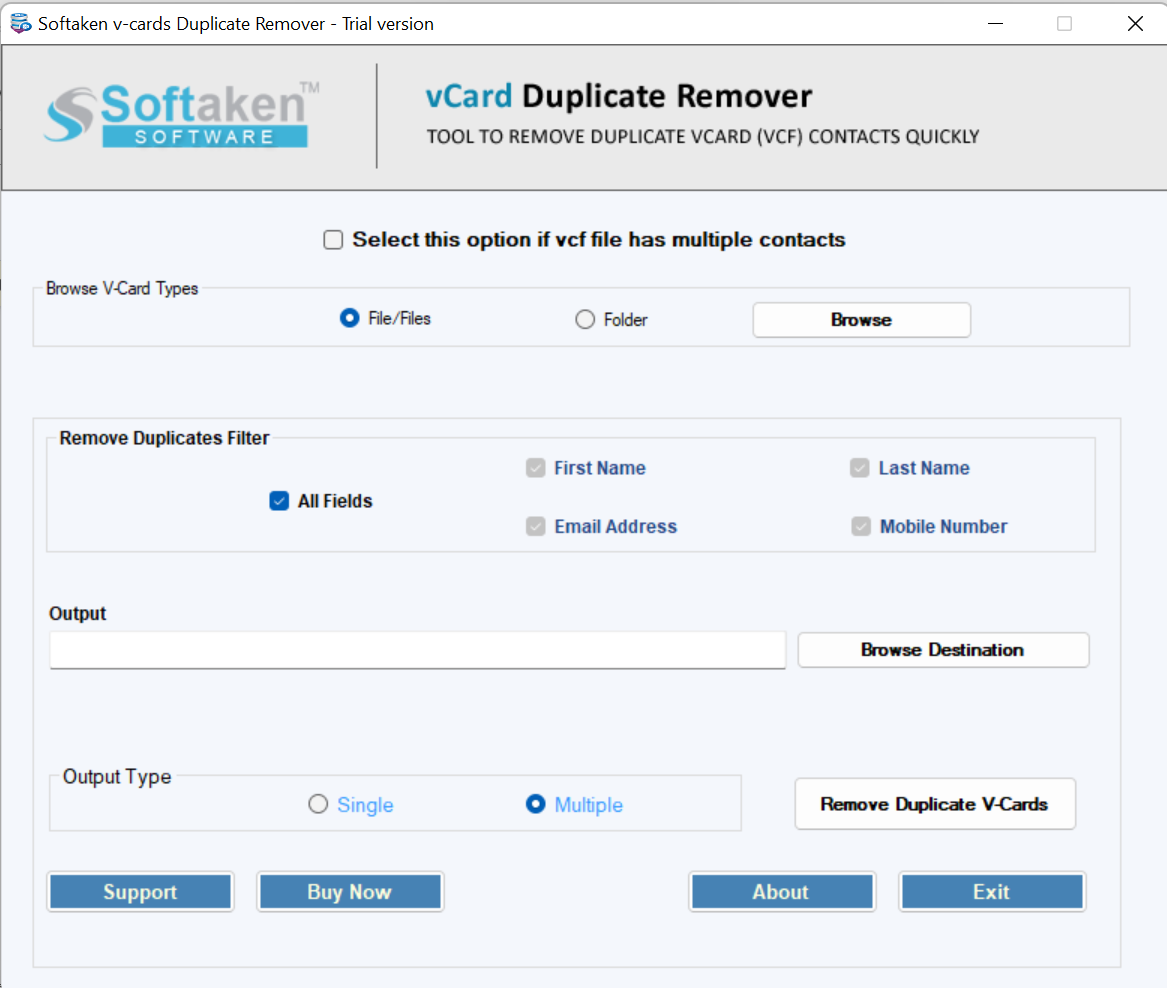
- Choose the vCard types, such as files or folders, and then click the “Browse” button.
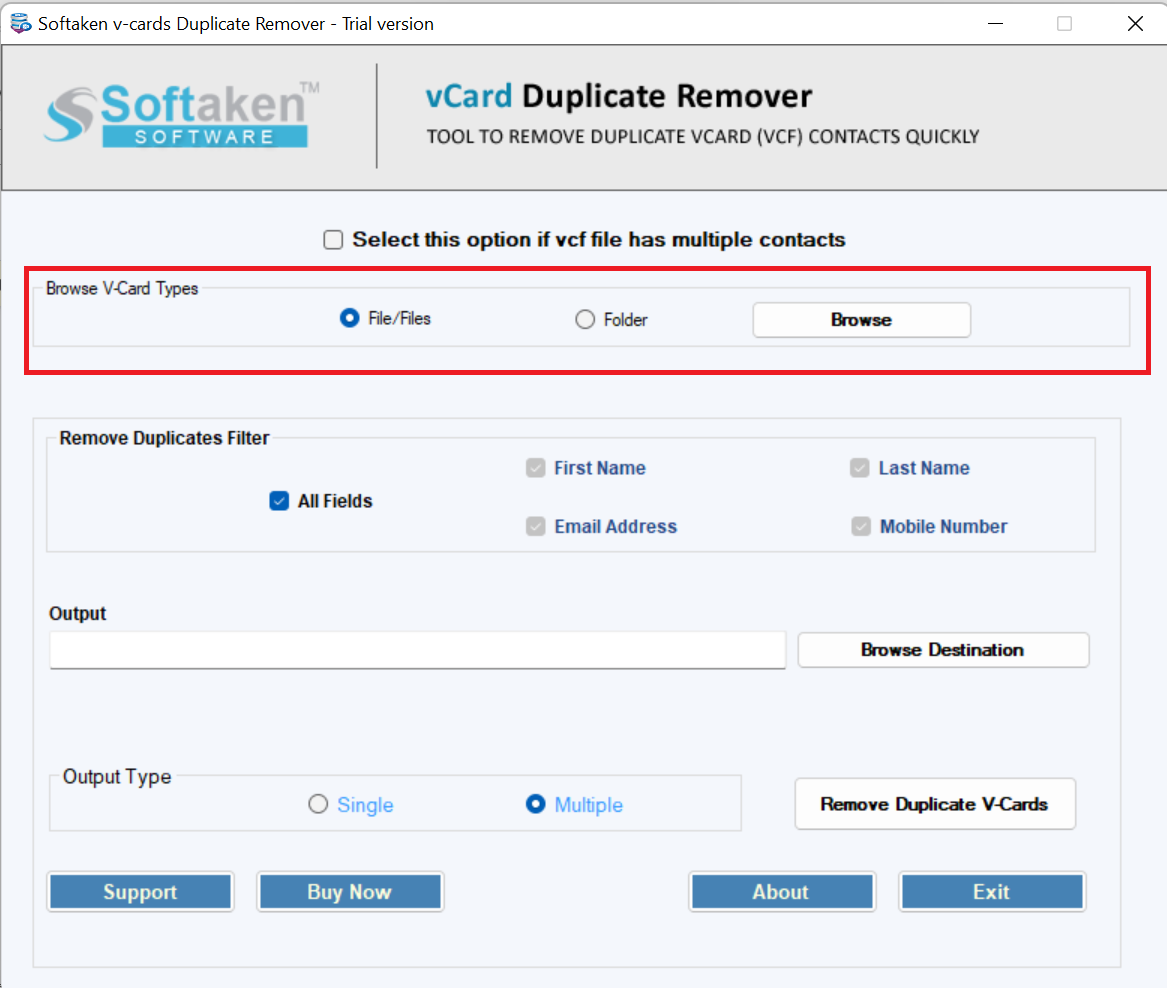
- Select the filtering criteria; you can choose all fields or select specific ones according to your desire.
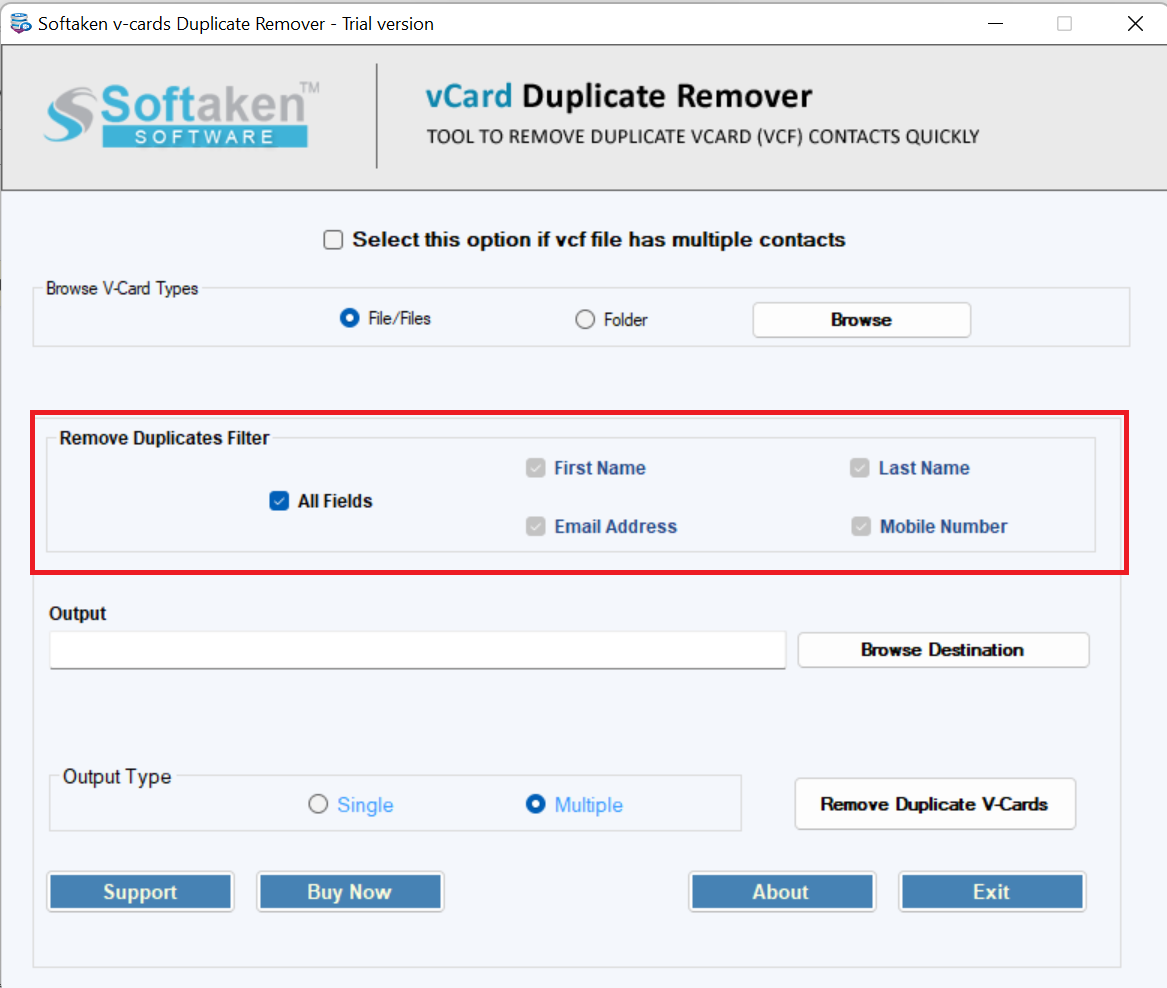
- Next, select a local folder to save the exported data by clicking on the Browse Destination
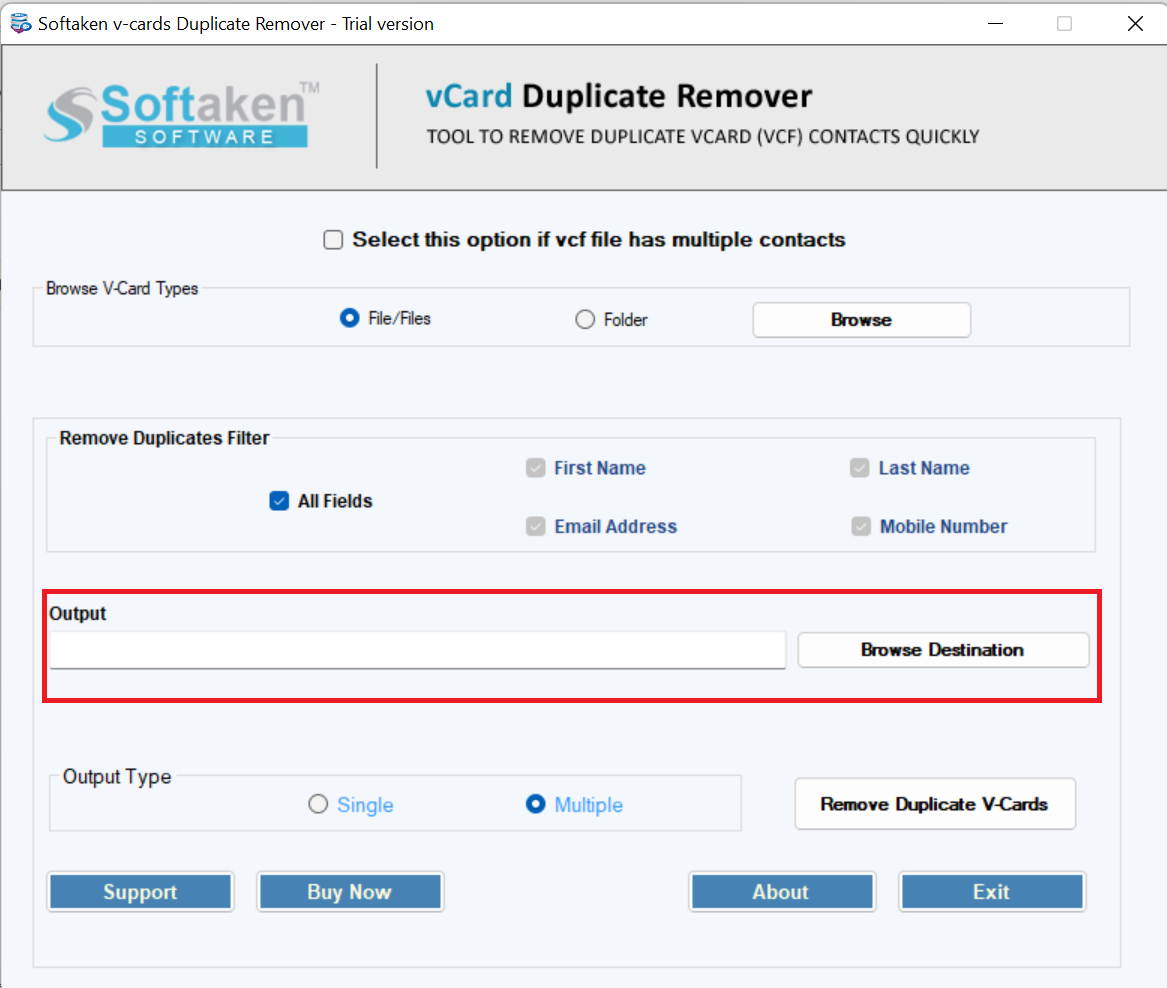
- Next, choose the output type single or multiple and then click the Remove Duplicates button.
Advantages of the Professional Tool
- This is a single-window application which is highly interactive. In other words, beginners can install and run the application without technical assistance.
- The batch duplicate removal feature saves time and effort.
- The data filtration feature is excellent, as it allows you to filter the duplicate removal task using a name, mobile number, or email address. You can choose all fields or select the specific ones.
- After removing duplicates, it can store data in a single vCard file or create multiple vCard files.
- A free trial of this app lets you examine its features closely.
- Its licensed version is available for unlimited use.
Comparison of Top 3 Methods
| Feature | Samsung Manage Contacts | Google Contacts | Automated Duplicate Remover |
| Ease to Use | Easy | Easy | Very easy |
| Cost | Free | Free | Free trial / Paid version |
| Need of installation | Free trial / Paid version | Available in Most Devices | Installation mandatory |
| Suitable for Samsung contacts | Installation mandatory | Suitable if use Google Contacts | Suitable when contacts are in vCard files |
| Detect Duplicates Automatically | Depend on the Version | Automatic detection | Automatic detection |
| Remove Duplicate in Batch | Doesn’t support | Yes, in many cases | One of the most prominent features |
| Custom duplicate filtering | Not possible or limited | Limited | Advanced duplicate filtration support |
| Suitable for All vCard Versions | No | No | Yes |
| Technical Skills | Basic | Basic | No |
| Suggested for | Suitable when limited Contacts | Only Google-synced contacts | Design to detect duplicates from small to large files |
Overall: By comparing the suggested features of the three methods, you can decide which one is an excellent option.
How to Prevent Duplication of Contacts on Samsung
- It is annoying to manage duplicate contacts. However, some best practices from experts can prevent contact duplication on your smart devices.
- First of all, decide on a primary account where you want to manage your contacts. It could be your Samsung account, Google account, or any preferred account. The key is to create contacts in one account only rather than multiple accounts.
- When you store a new contact on your phone, it lets you save the contact only on your phone, SIM card, or Google/Samsung account. As a smart user, choose only one location to save your contacts.
- Keep in mind which accounts are syncing contacts with your Samsung mobile phone.
- While importing contacts from a SIM card or Samsung/Google account, confirm whether the number already exists.
- As a user, ensure that you save a contact only once.
- Don’t hesitate to use Samsung Contacts, Google Contacts, or an automated contact merge tool periodically to get rid of duplicates.
- While saving a number, keep the contact name consistent. In this situation, your phone may warn you if you are saving the number twice.
Conclusion
If you closely monitor all three methods to merge duplicate contacts or get rid of duplicate contacts, the automated solution can be the best choice, especially when you are a businessperson who has to manage several contacts. A free trial of the suggested application is available to give it a try.
FAQs (Frequently Asked Questions)
Why do My Contacts keep Duplicating Automatically on my Samsung Phone?
Automatic duplication typically happens when your Samsung device syncs the same address book across multiple overlapping accounts simultaneously (such as Google, WhatsApp, Samsung Cloud, and your SIM card). When these accounts restore backups or merge data, they create duplicate copies. To fix this, restrict your device to sync contacts from only one primary account.
How do I Delete Multiple Contacts from Samsung?
The best method depends on where your contacts are stored and how many you have:
- For Cloud-Synced Lists: Use Google Contacts and its built-in Merge & Fix utility.
- For Phone-Only Lists: Use Samsung’s built-in contact manager (though it can be time-consuming for large databases).
- For Massive Address Books / VCF Files: Use a dedicated desktop duplicate removal tool to strip redundant entries in bulk.
How to Eliminate Duplicate Contacts from Galaxy S23+
You can quickly eliminate duplicate contacts on your Galaxy S23+ by using the built-in Samsung Contacts app.
- Open Phone and tap on the Contacts app
- Tap the (horizontal three lines or dot) menu icon
- Choose Merge contacts
- Tap Merge
- Review the list of duplicates grouped by number, email or name
- Choose the Select All option or manually pick
- Tap Merge to combine into a single entry.