Let’s Get Started
Microsoft Outlook is one of the most commonly used email applications for both personal and professional use. People use it every day to manage emails, meetings, contacts, and important office work. But sometimes it fails to open properly and shows the Outlook.exe Entry Point Not Found error that interrupts your work.
Here, we will explain the main causes of this error and share different methods that can help you fix it step-by-step. With that, we will also discuss a professional solution that can help you repair damaged Outlook PST files when manual methods are not enough.
Also Read: Resolve Outlook Stuck at Loading Profile Problem
Why Is The Reason Behind This?
Before jumping into the fixes, knowing the root cause is necessary. Understand the possible reasons behind the Outlook.exe Entry Point Not Found Error.
- Broken DLL Files
Outlook is heavily dependent on DLL files like MAPI32.dll to run properly. If these files get wiped out by a virus, a messy software install, or a computer that shuts down mid-update, Outlook loses its roadmap and throws an error.
- A Glitchy Installation
Sometimes, the Outlook installation remains incomplete or interrupted. When this happens, some files or data will be missing. This can happen because of slow internet, storage issues, system crashes, and more. Because of that, Outlook may start successfully, but some important parts are not properly registered, which leads to the Outlook.exe Entry Point Not Found Error
- Faulty or Incompatible Add-ins
Add-ins like Zoom plugin, Grammarly, and CRM tools will increase the functionality of Outlook. It also creates problems sometimes, such as old add-ins not being compatible with Outlook’s new versions, add-ins corrupting the DLL system, and conflicts with multiple add-ins. Open Outlook in Safe mode. Press Win+R, type outlook.exe /safe, and hit Enter. If Outlook opens successfully in Safe Mode, it confirms that a faulty add-in is causing the conflict. You will then need to disable your add-ins one by one to find the specific problem.
- Bloated Data Files
Outlook stores its data in PST and OST files. Large or corrupted PST/OST files can prevent Outlook from opening correctly. While this often leads to loading failures, resolving data corruption is a key step in restoring stability after a system error occurs.”
- Version Mismatches
Outlook must be compatible with your specific versions of Windows and Office. A mismatch, such as using outdated 32-bit components on a newer 64-bit system, often triggers version conflicts and entry point errors. For example, a 32-bit version of Outlook might be installed on a 64-bit Windows system that was recently updated. It’s the same story with Office 2016; DLLs might still be present while Outlook 2019 is trying to use them. Other Microsoft products, such as Teams and OneDrive, are different versions, and Recent Office updates replaced old files. Outlook starts looking for a tool or entry point in a DLL that does not exist in that version, so as a result, an error occurs.
How to Fix the “Outlook.exe Entry Point Not Found” Problem
Method 1: The Classic Restart
Sometimes, the error may be the fallout of temporary system conflicts or background processes.
By refreshing system resources and clearing transient system states, restarting the computer can resolve such issues.
Restarting helps with clearing temporary memory conflicts. Reset the background services. Properly implement any outstanding updates.
Steps:
- Close all applications that you have open.
- Restart your device.
- Attempt to reopen Outlook after the system has resumed.
- Outlook functions routinely if the problem was the result of a temporary system conflict.
Method 2: Open Outlook in Safe Mode.
The application can be launched without the need to install add-ins by operating Outlook in Safe Mode. This assists in determining whether the problem is associated with a third-party extension.
Steps:
- To access the Run dialog box, press the Windows key and the R key.
- Enter the subsequent command:
- exe /safe
- Press the Enter key.
- The conflict may be caused by one of the installed add-ins if Outlook opens successfully in Safe Mode. The issue can be resolved by disabling superfluous add-ins.
Method 3: Repair the Microsoft Office Installation
The necessary components can be restored by repairing the Office installation if the Outlook program files are damaged or absent.
Steps:
- Access the Control Panel.
- Choose the desired programs and features.
- Navigate to the program list and locate Microsoft Office.
- Select the Change button.
- Select either Online Repair or Quick Repair.
- The program files that are missing or corrupted will be automatically restored during the repair procedure.
Method 4: Utilize the Outlook built-in PST repair utility.
ScanPST.exe is a diagnostic utility that is integrated into Outlook. It is capable of scanning PST files and resolving minor corruption issues.
Steps:
- Locate the ScanPST.exe utility depending on your version. Office16 (Outlook 365/2021/2019/2016): C:\Program Files\Microsoft Office\root\Office16, Office15 (Outlook 2013): C:\Program Files\Microsoft Office\Office15, Office14 (Outlook 2010): C:\Program Files\Microsoft Office\Office14
- Choose the PST file that is affected.
- Commence the scanning procedure.
- Select the “Repair” option if errors are identified.
- Minor PST corruption issues can be resolved by this tool.
Drawbacks
- Time-Consuming Process
- No Guaranteed Solution
- Ineffective for PST files larger than 2GB and Not Effective for Large or Complex Issues
- Risk of Data Loss
- Limited Repair Capability
- Multiple Steps Required
- Cannot repair severe structural damage
An Expert Way to Resolve Outlook Corruption.
If you are still unsatisfied with using a different method, and are still searching for an expert way to resolve the Outlook.exe Entry Point Not Found Error. If the ‘Entry Point’ error has led to severe PST file corruption that manual tools cannot fix, using a professional solution like Softaken Outlook PST Repair is the best way to safely recover your emails, contacts, and metadata. This tool is specially designed to repair corrupted PST files or recover Outlook data. It deeply recovers all the corrupted items like emails, contacts, calendar, and other metadata. It provides a modern interface so that users can easily understand it without any guidance. This application provides a free demo version of the tool so that users can have a real-time experience before buying it. It is available 24/7 for its users. Here are the steps to repair the Outlook PST file given below.
Steps to Repair Outlook PST file
Follow the steps to recover the Outlook PST data
Install Application
Download and set up the application on your system
Launch Software
Launch the application on your PC
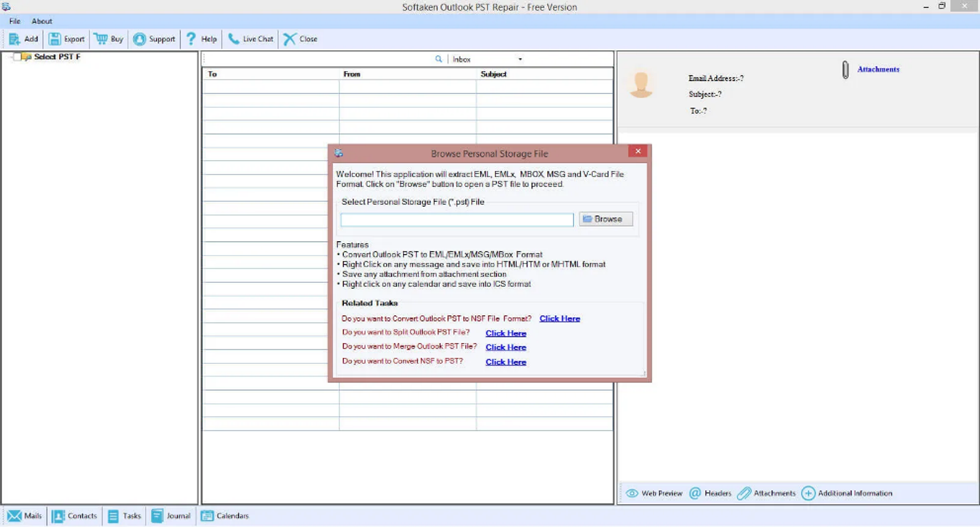
Add File
Browse the corrupted or damaged PST data that you want to fix.
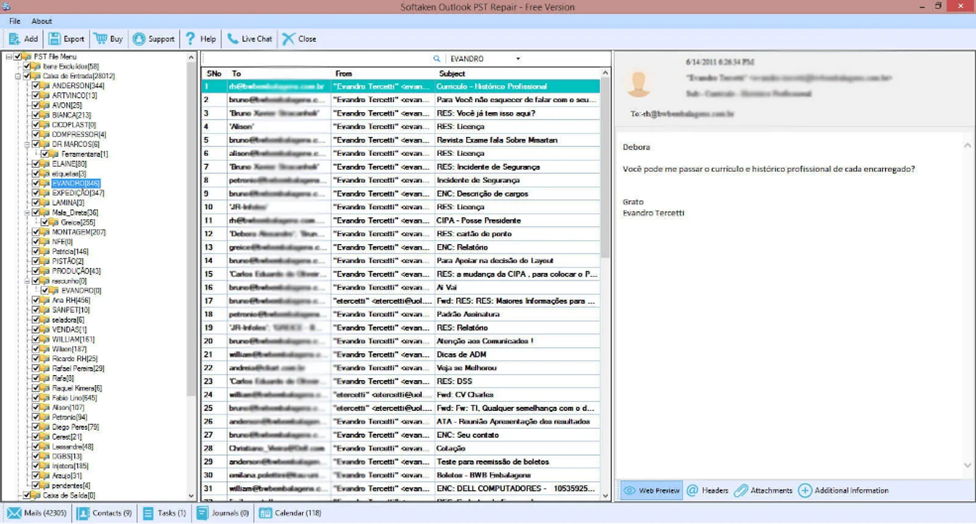
Start the scanning process.
After scanning the PST data, click on Recover PST and Save as a new file option.
Preview Data
Take a preview of the data before saving it
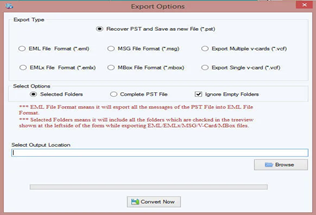
Choose a location
Select the location of the PST data where you want to store it
Prevention Tips
To keep your PST files healthy and avoid future errors, try using these simple tips:
- Maintain Regular Backups
Regular backup of data will help you to protect your important mailbox data even if unexpected issues occur.
- Install Updates Regularly
For improving compatibility, security, and software stability, make sure your Windows and other office software are up to date.
- Install Trusted Add-ins Only
Installing add-ins from reliable sources will help minimize software conflicts.
- Manage PST File Size
Very large PST files may increase the risk of performance issues and data corruption.
- Shut Down the System Properly
Improper System shutdown can lead to application errors and damage Outlook data files.
Final Thoughts
The Outlook.exe Entry Point Not Found Error can cause difficulties in launching Microsoft Outlook. This issue usually happens because of a damaged mailbox, incomplete Outlook setup, unsupported add-ins, software version conflicts, or problems within the Outlook data file. The good news? You can usually fix this by applying simple troubleshooting steps. However, in the event that the error is linked to severe PST file corruption and the built-in repair utility is unable to completely fix the problem, users should consider utilizing a reliable repair solution to safely recover mailbox data.
FAQs
What does the “Entry Point Not Found” error mean?
This error indicates that Outlook cannot locate a required system function or library during the application startup process.
Does this tool fix this Entry Point Error?
This tool specifically repairs the data corruption that often follows software errors, ensuring your mailbox is fully accessible once the application issue is resolved.
Does the tool recover all the items of the files?
Yes, this tool recovers all the items like emails, contacts, attachments, and other metadata of the files.
Does it offer a demo version?
Yes, it can offer a free demo version for testing its product.