Summary: Is your Outlook mailbox full and you are not getting new emails? Then, this post has been specially made for you. This article will showcase various methods to resolve the ‘Outlook storage full’ issue quickly. We will also learn the reasons behind this problem and the perfect ways to troubleshoot it.
Outlook is one of the finest applications that is mostly used by businesses and individuals. Though Outlook has various benefits, users generally face one common issue with a large mailbox i.e. ‘Outlook mailbox full.’ This error appears generally due to oversized data.
Users try to resolve it by deleting unwanted data items but it still appears and for smooth workflow, it becomes necessary to troubleshoot it.
Why is Outlook Mailbox Full? Find reasons
There are various reasons that Outlook storage is full and some common ones are explained below:
Large attachments: Attachments with documents, videos, images, etc. can occupy mailbox space and are a common reason for the full mailbox.
Ignoring regular clean-up: Users need to delete unwanted emails from the Outlook mailbox daily. Also, junk and cache files must be cleaned. They also give birth to the full storage mailbox issue in Outlook.
Sync problems: Due to improper sync settings, Outlook begins downloading emails repeatedly. Therefore, make sure to use the correct sync settings and follow the instructions to remove duplicate emails in Outlook PST.
Third-party plug-ins: Third-party plugins are beneficial but they may affect Outlook storage. So, it is necessary to choose the trusted third-party add-ins.
Exceeding maximum size limit: Once Outlook exceeds its permissible limit which is different as per versions. Users face issues in sending & receiving emails and thus face Outlook mailbox full error.
Also Read: Divide Oversized Outlook PST File of Outlook Mailbox
Troubleshooting ways for ‘Outlook mailbox full’ error
Below, we will share the troubleshooting ways to fix the issue.
1. Delete Large Files
Large emails and attachments in Outlook accounts consume a lot of space. Therefore, to make storage, you must delete large and unwanted files from Outlook with these steps:
- Open MS Outlook on your system.
- Go to ‘Search folders’
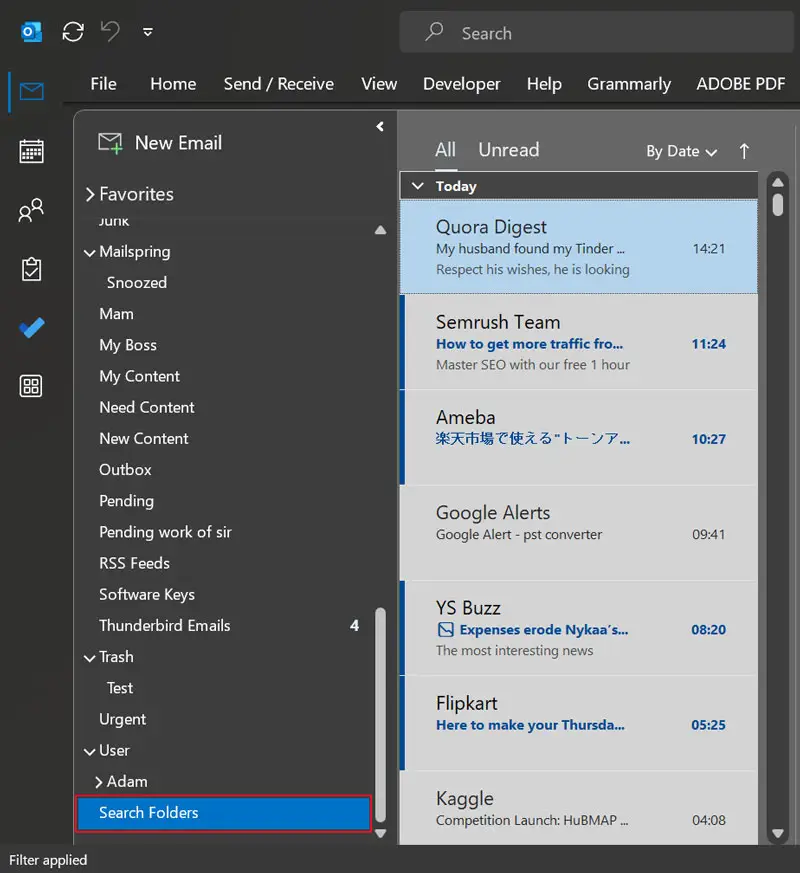
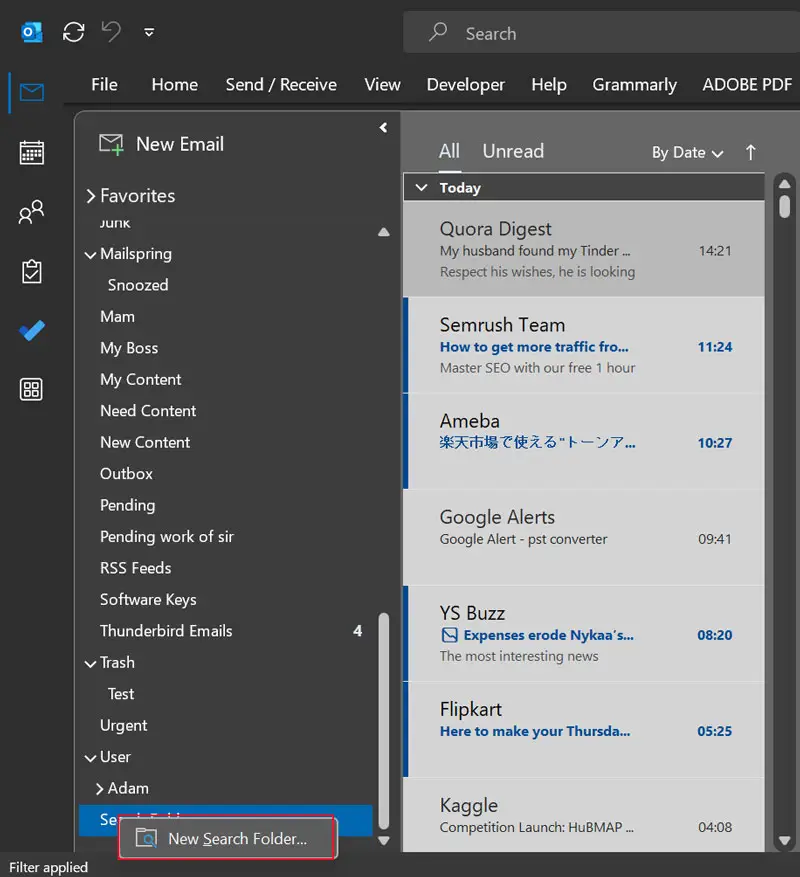
- Click on ‘New search folder’
- Pick the ‘Large Mail’ option from organizing mail.
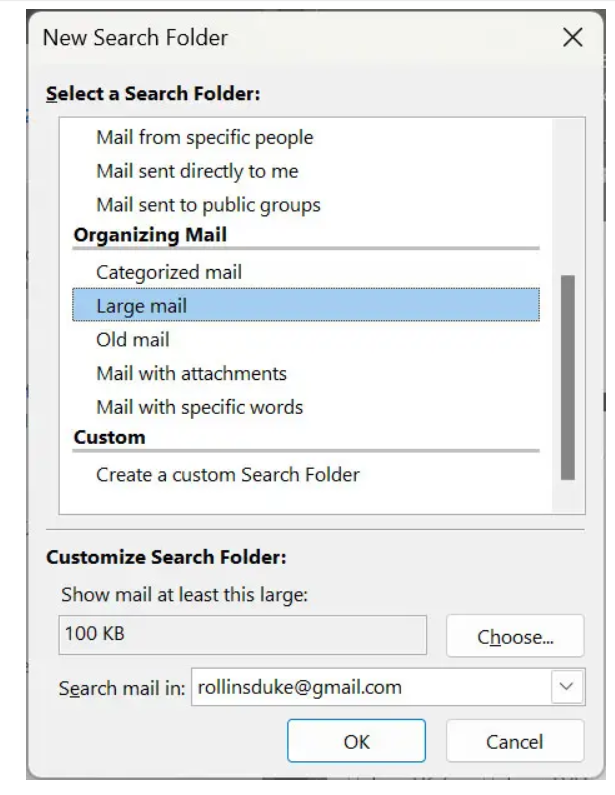
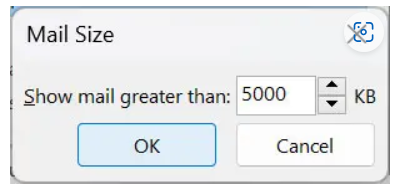
- Hit on ‘Choose’ and mention the size rather than the desired limit to delete.
- Input mail size and press ‘OK’
- Open those folders and delete unwanted large items.
2. Empty folder option
Another solution is deleting the undesired folders. This helps in creating space for further emails. The steps for this are:
- Launch Microsoft Outlook
- Pick the Deleted Items/Junk Email folder.
- On the selected folder, right-click and pick ‘Empty folder’
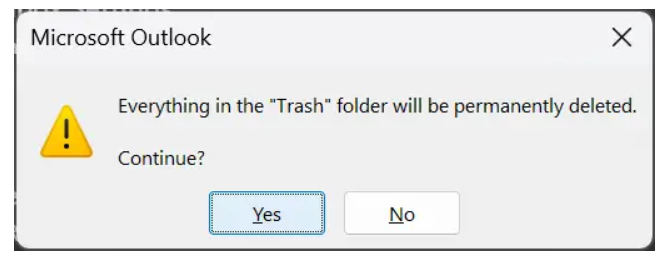
- The data from the selective folder is deleted permanently. Press ‘Yes’ to continue.
3. Compact Option
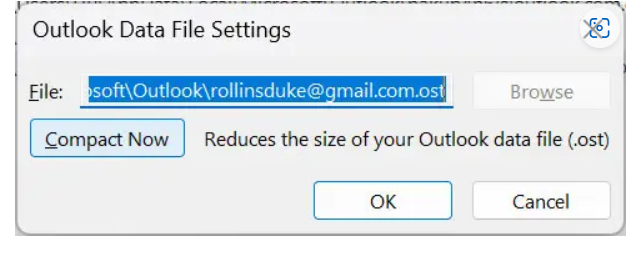
With the Compact option, users can eliminate unused space as well as the holding space of Outlook. Here are the steps to use the compact option:
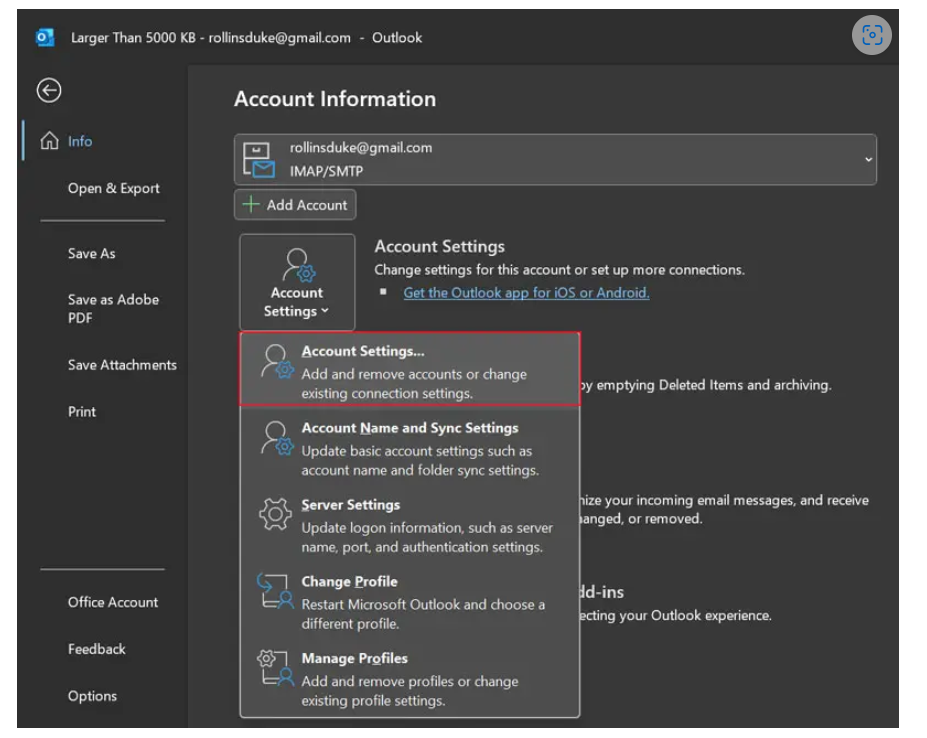
- Initially, go to ‘Account settings’ in the ‘File’ tab.
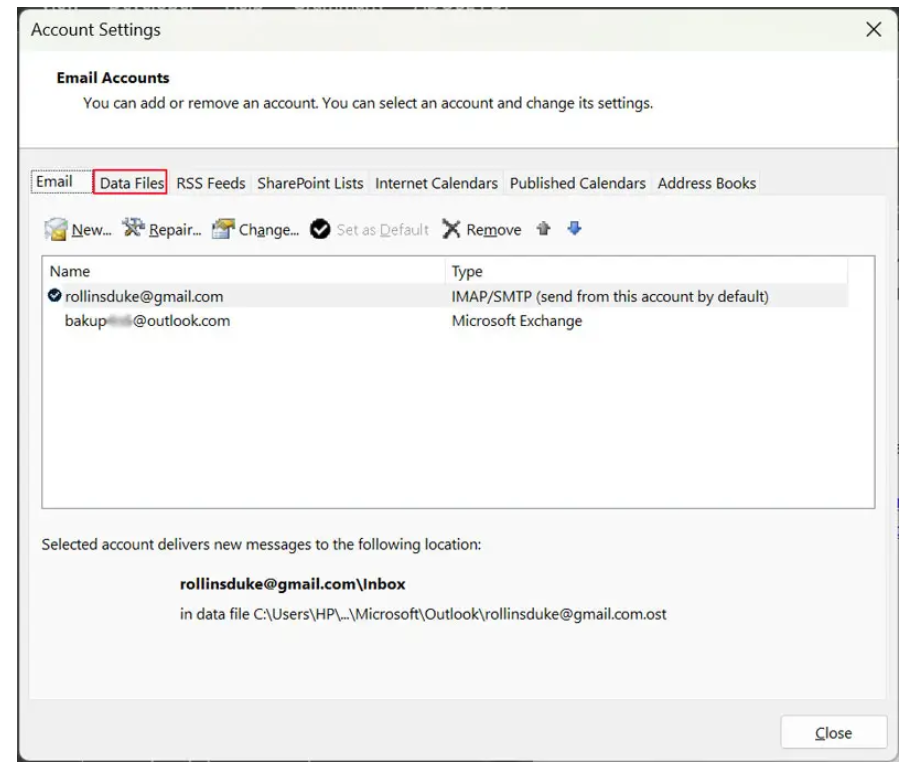
- See the configured email accounts and hit the ‘Data files’ tab.
- Pick the Outlook file that you need to compress and then go to ‘Settings’
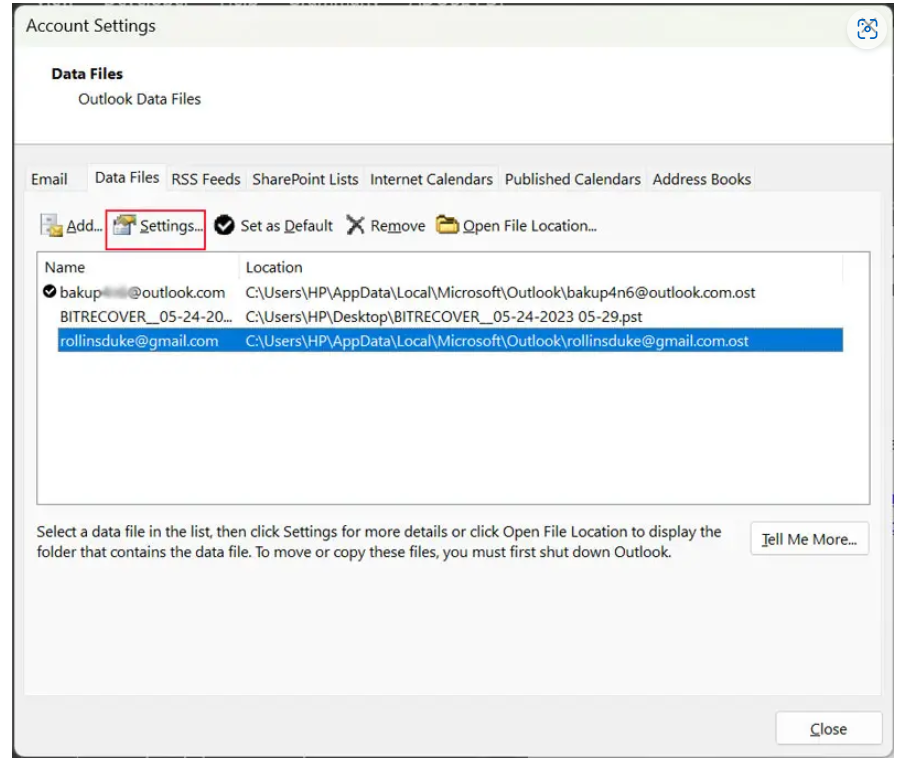
- Pick the ‘Compact Now’ option to fix the Outlook storage full error.
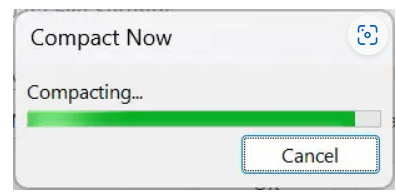
- This starts the compacting process and now wait for its completion.
4. Old Outlook emails archiving
If you have Outlook emails that you find not important but you need them in the future then archiving is the best solution. This will move emails to another folder and free up some space in your mailbox. Here are the steps for freeing up by archiving old emails from MS Outlook:
- In Outlook, go to Files.
- Go to Info and pick ‘Tools’
- Now, click on ‘Clean up old items’
- Then, go with ‘Archive this folder and subfolders’
- Click on all labels that you wish to archive.
- Now, type a date range from the section ‘Archive items older than’ to archive only those emails that come under that range.
- Next, hit on ‘Include items with do not AutoArchive’
- Now, tap on the ‘OK’ button to free up Outlook space.
5. Mail Cleanup tool
This tool is available by default in Outlook. This has various options to free up space by eliminating unnecessary emails. The steps of this method are:
- Start the Outlook program and hit on ‘File’
- Now, go to ‘Info’ and then pick ‘Cleanup Tools’
- Select ‘Mailbox cleanup’
- From various cleaning options: ‘find items larger than’, ‘empty deleted items’, ‘view deleted item size’, etc. Pick the desired one and this will perform the task of freeing Outlook storage.
Shortcomings of using manual methods
Of course, these manual solutions help resolve the query ‘Outlook mailbox is full.’ However, each of them has some shortcomings that can create trouble for users. Therefore, manual solutions are just to clean up Outlook storage.
- These methods need technical knowledge to effortlessly complete the process.
- There is a high data loss risk using manual ways.
- These methods are very time-consuming.
- These solutions are not effective in compressing emails to provide space in Outlook.
Expert Recommended Solution to Resolve Outlook Mailbox full issue
If you don’t want to go with manual solutions then go for the expert-recommended Softaken Split PST Pro Software. This is an effective tool with friendly steps to resolve Outlook mailbox storage full error. This utility smartly reduces Outlook PST file size and allows splitting Outlook PST files with ease.
This utility completely supports all Outlook files and works on all Windows editions. With the free version of this software, you can evaluate it before its purchase.
Steps to free up Outlook storage with expert solution:
- Install the software to reduce Outlook PST file size.
- Add the desired Outlook PST file.
- Preview its data and choose a split option.
- Set the desired location to save the resultant PST file.
- Press the ‘Split Now’ button and this reduces the PST file size and resolves the error.
This is how you can cut down Outlook mailbox size in a few steps without any hassle.
Why it is necessary to immediately troubleshoot Outlook mailbox full error?
There are various reasons why users need to immediately fix Outlook’s full storage issue even after deleting everything as possible as you can. Some are listed here:
- The performance of Outlook will slow down because of oversized files. After dividing the large PST file into smaller parts, Outlook works smoothly and does not hang anymore.
- Large Outlook PST files increase the size of corruption so it’s better to reduce the size of a large Outlook mailbox.
Conclusion
Through this post, we briefly answered one of the highly searched queries ‘how to troubleshoot Outlook mailbox issue’. To successfully resolve it, we have discussed manual workarounds and an expert solution. Manual solutions are not sufficient in many cases, so use the discussed professional program that surely reduces Outlook data file size and resolves this error.