Many Windows users frequently ask questions on how to recover accidentally deleted files on Windows. It is one of the most panic-inducing situations if the deleted data is precious. However, deleting a file doesn’t mean that you cannot recover it. Several solutions are available to get back such files.
Here is a detailed guide on how to recover accidentally deleted files on Windows 10. We start with the simplest solution and wind up with the advanced solutions, in the hope that you will find the best solution. Here, we discuss searching for missing data in the Recycle Bin and using cloud storage recovery options such as OneDrive, Google Drive, and Dropbox. You will get familiar with Windows’ built-in recovery options, including Previous Versions, File History, and Microsoft’s Windows File Recovery tool. We also recommend a professional tool and discuss the role of TRIM technology.
The Real Culprit: Why Human Error Causes Most Data Loss
Sometimes, many of us accidentally delete important files. The deleted file goes to the Recycle Bin. If the Recycle Bin gets emptied without checking its contents, it becomes difficult to get the important files back.
- Instead of deleting files normally, many of us press
Shift+Delete, which bypasses the Recycle Bin, resulting in the data being permanently deleted. - Formatting a USB drive or SD card without backing up documents can also be a reason for data loss.
- Some users replace the old version of a document with a new one and later need the original.
- Here, the stress is that human errors can happen even when the storage device and system are working smoothly.
Also Read: 10 Warning Signs Before Hard Drive Failure
The Golden Rule: Stop Using Your System Immediately
As a file is deleted, Windows may mark the space occupied by the deleted file as available for new data. So, the original data may still remain on the storage device until the space is occupied by new data or overwritten. If you want to get back the deleted file, the best approach is to stop using your system immediately after deleting the file to enhance the chances of recovery. Activities like copying large amounts of data, installing software, creating a new file, or formatting the drive can reduce the chances of recovery.
The best practices include immediately checking the Recycle Bin, backups, or cloud storage. If you run a recovery app, ensure that you use it from another drive and recover the files to a different storage device. Let’s break down all the recovery methods you can use.
The First Line of Defence: The Recycle Bin
After accidentally deleting a file in Windows 10, the first place you should check is the Recycle Bin. In most cases, deleted files are moved to the Recycle Bin instead of being completely deleted from the system. You can easily restore the file.
How to Restore Standard Deleted Files
Here are the steps you can follow:
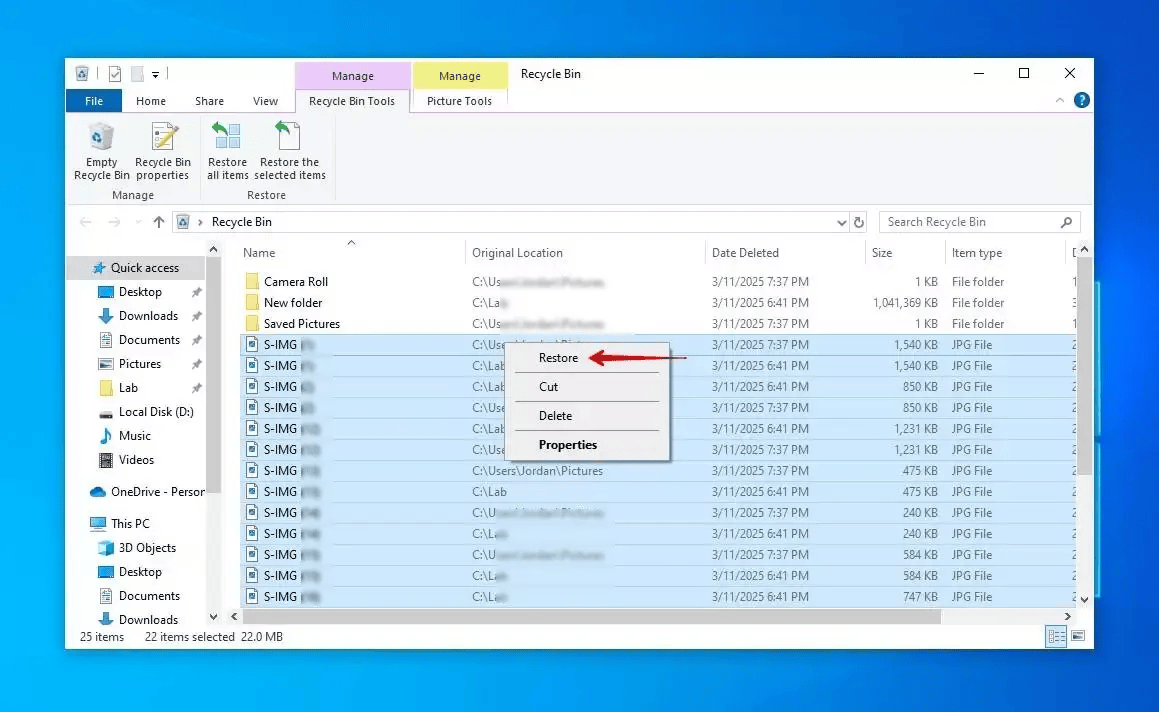
- Access the Recycle Bin on your system. If you don’t see the icon, use the Windows search box.
- Carefully check the folder to locate the file or folder you want to recover.
- Right-click the file and select Restore.
- Windows will restore the particular file in its original location.
- Here, you can restore multiple files by selecting them and then right-clicking one of them to choose Restore.
Recover Accidentally Deleted Files Using a Data Recovery Tool
After checking the Recycle Bin and not finding the deleted files, the best solution to recover files accidentally or permanently deleted is a professional tool known as Softaken Data Recovery Software. You just need to do a few simple clicks, and it scans the device, drive or bin and shows you the list of found data that you can review and restore to a chosen path. This advanced application can recover Word files, photos, PDFs, and several types of files you have deleted accidentally.
Steps to Recover Accidentally or Permanently Deleted Files
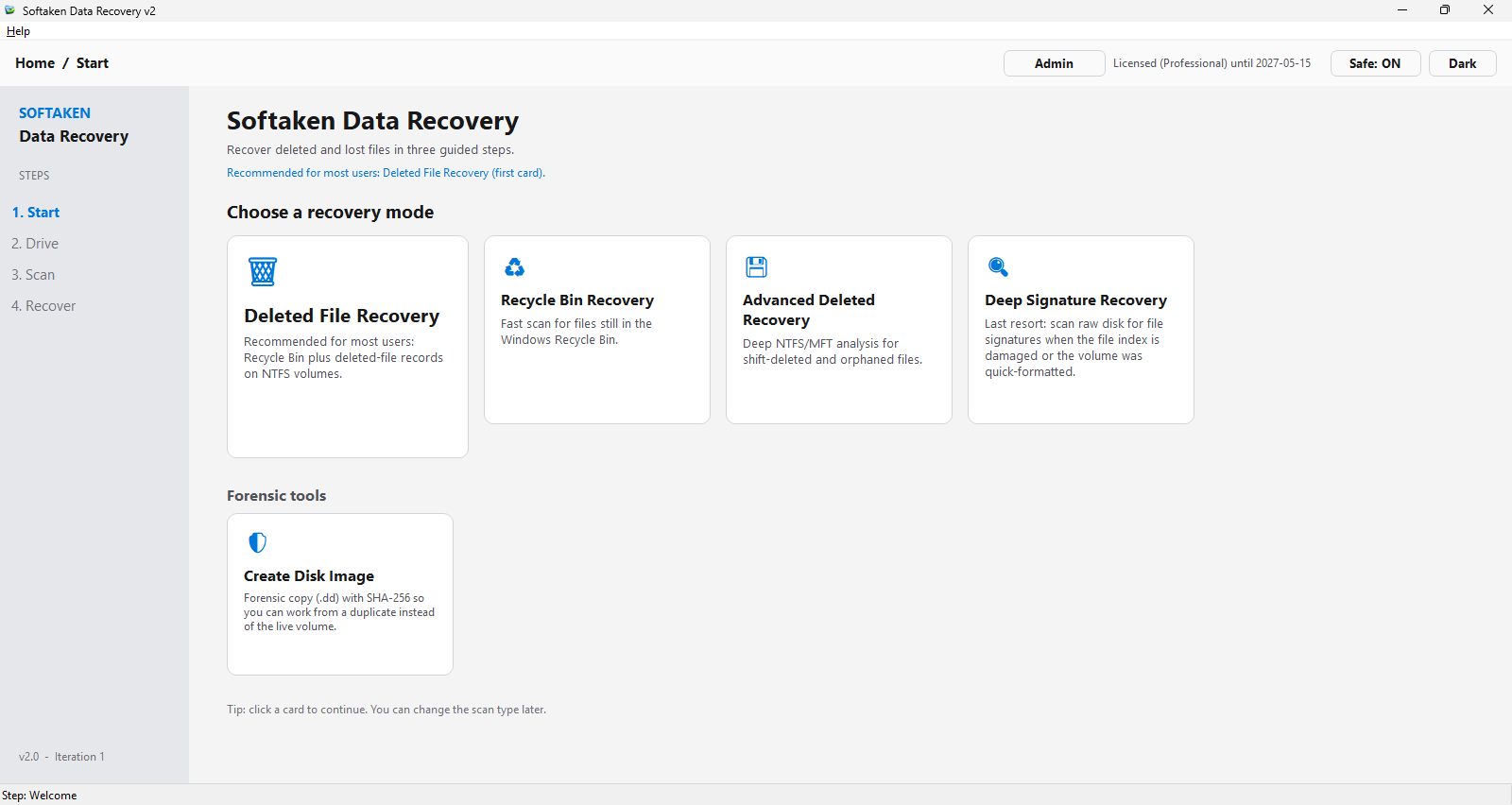
- Launch the application on your Windows system and choose from various options like deleted file recovery, Recycle Bin recovery, advanced deleted recovery, deep signature recovery, or create a disk image. Choose Deleted File Recovery Option.
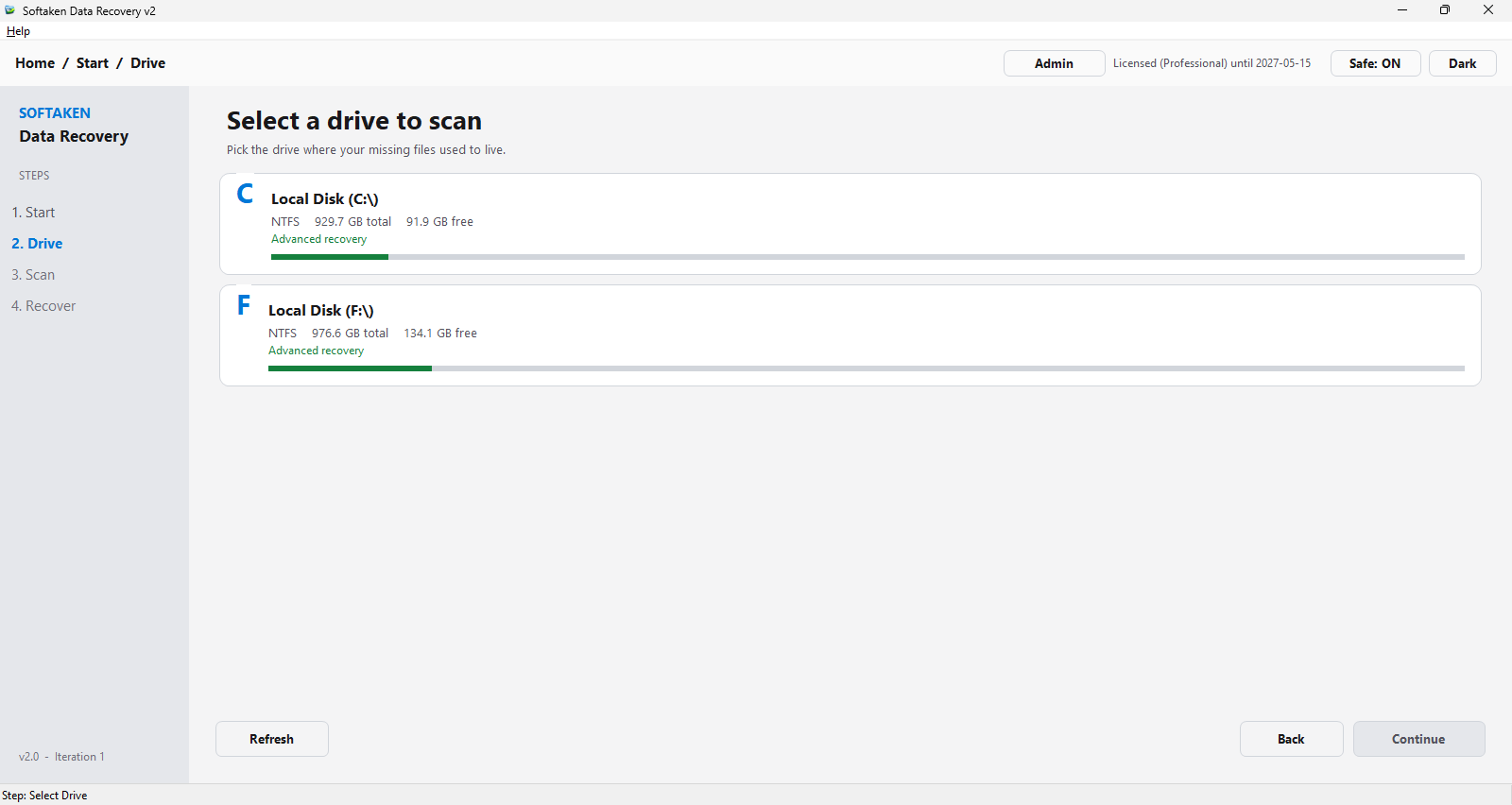
- Now, select the drive from which your data was deleted (C: Drive or D: Drive).
- Get a preview of the images the tool has recovered. It displays how many images and other files it has recovered.
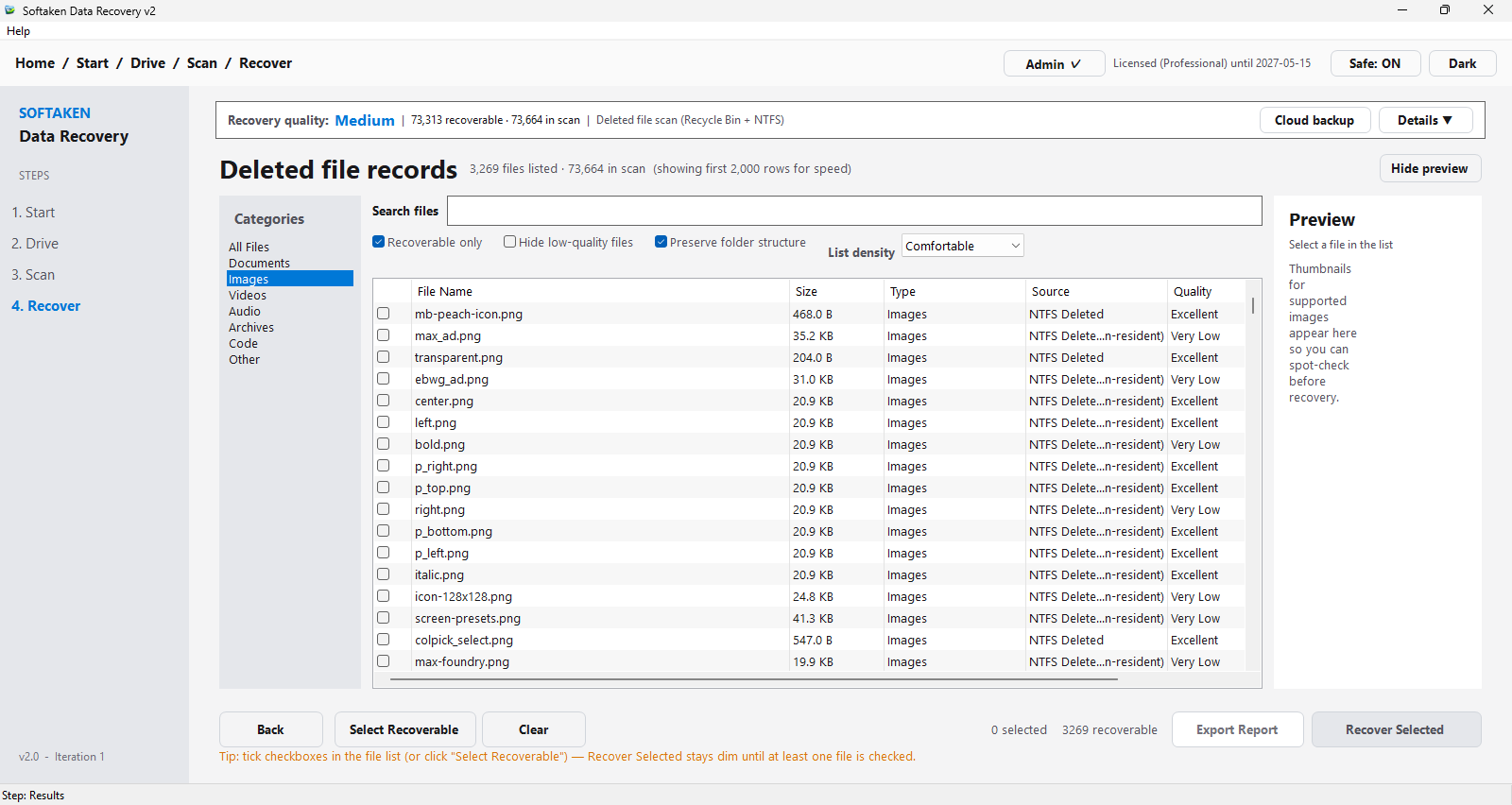
- Now, check and select the recovered files that you actually want to recover and save them to the chosen path.
Advantages of Softaken Data Recovery Software
- The tool can recover accidentally deleted files that are not in the Recycle Bin.
- It can scan and recover all types of files, including documents, photos, audio files, videos and PDFs.
- It supports different storage media, including hard drives, SSDs, USB drives, and memory cards.
- The tool can recover single or multiple deleted files at once.
- It has preview support to display all recovered items.
- The interface of this application is highly interactive and requires a little technical skill.
The Crucial Technical Warning: HDD vs. SSD (TRIM Technology)
Before you use the recommended third-party solution, we recommend you confirm what type of storage device your Windows system is using. It may be using a traditional HDD (Hard Disk Drive) or a modern SSD (Solid-State Drive). Both handle deleted data differently, which can affect recovery.
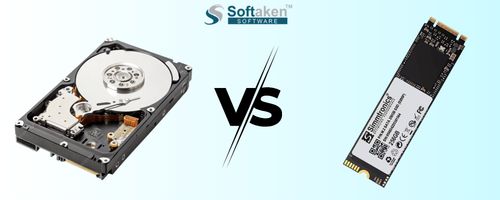
HDD: Recovery of Deleted Files May Be Possible
This is all because an HDD marks the space occupied by a deleted file as available for reuse. The deleted file data may remain on the drive until new information overwrites it. In this situation, you can use data recovery software to recover the data.
SSD: TRIM Can Make Data Recovery Tough
SSDs, or modern storage drives, support the TRIM feature. As you delete a file, Windows can send a signal to the SSD that the blocks used by the deleted file are no longer needed. The SSD can then prepare those blocks for future use. This practice helps maintain the performance and longevity of the drive, but data recovery can become difficult or nearly impossible.
The Modern Standard: Checking Cloud Recycling Bins
If the deleted file is not in the Recycle Bin, check your cloud storage account. Do you know that several cloud services, including OneDrive, Google Drive, and Dropbox, maintain their own trash or recycle folders?
This method will work only when the data is stored in a cloud-synced folder. It means even if the file is deleted permanently from the system, a copy may still be available in the cloud trash.
Recovering Files via OneDrive Online Trash
If the deleted file is in OneDrive, here are the steps to check the OneDrive Recycle Bin online.
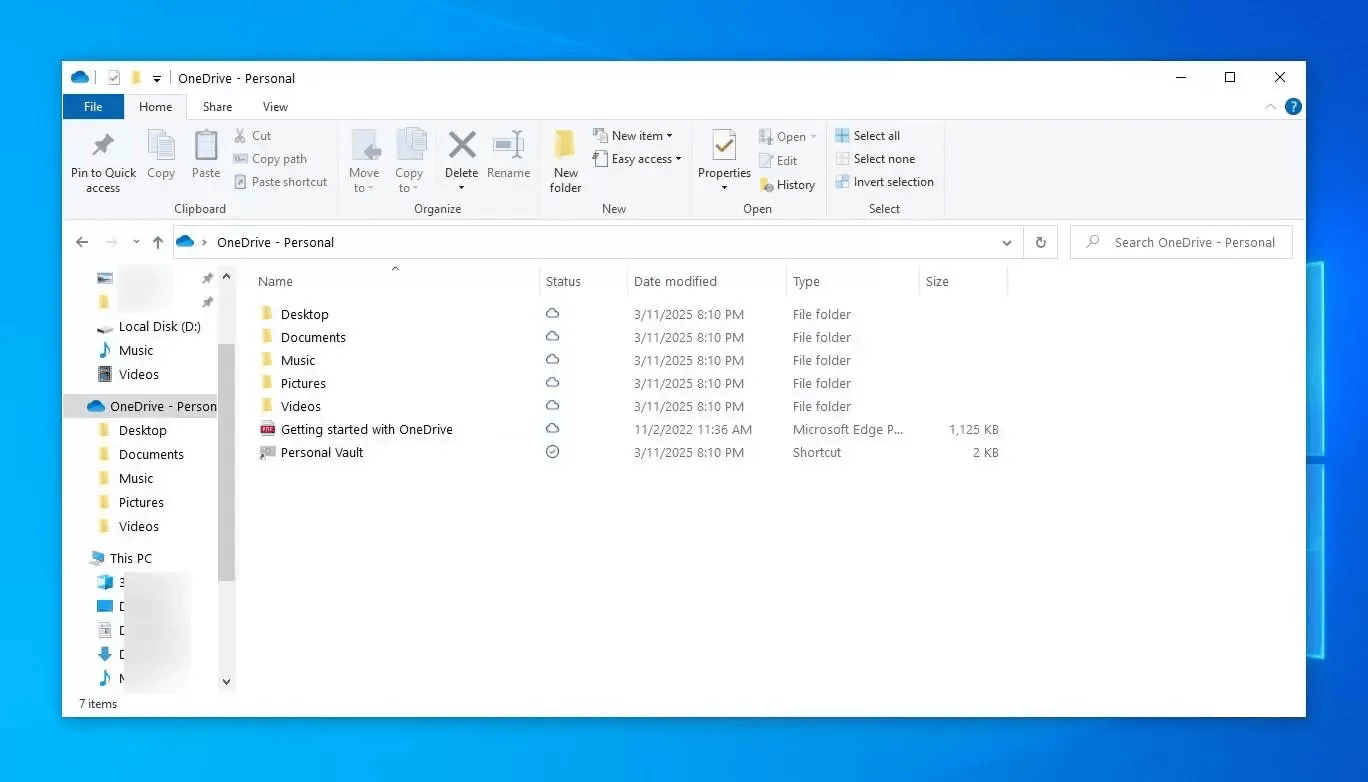
- Access OneDrive on the web and sign in using the Microsoft account associated with your files.
- Choose Recycle Bin and use the search option to locate deleted files.
- Browse the deleted files or use the search option to locate the target file.
- Select it and click Restore.
- OneDrive will restore it to the original location.
(Note: The Recycle Bin keeps the deleted items for 30 days before deleting them permanently).
Checking Google Drive
It may be possible that the deleted file is in Google Drive’s Trash folder. Like OneDrive, Google Drive stores deleted files temporarily.
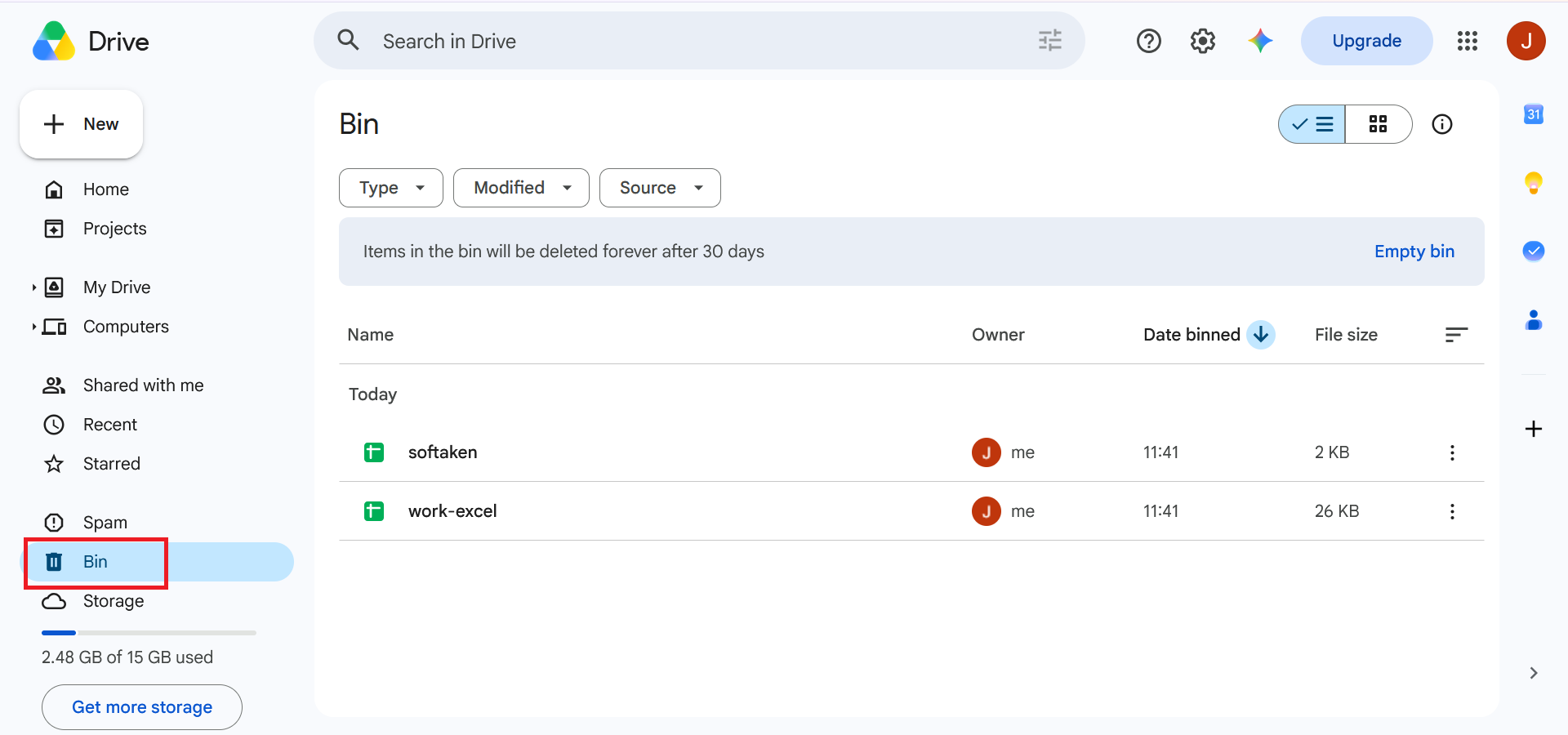
- Access Google Drive by providing your account credentials.
- On the left menu, click Trash or Bin.
- Now, locate the target file.
- Once you find the file, select it and right-click to choose Restore.
- In this way, you can get back the deleted item in its previous location.
Checking Dropbox
In Dropbox, you can restore deleted files from the Deleted files section.
- From a web browser, sign in to Dropbox.
- Now, access the Deleted files.
- Locate the deleted files.
- Select them and press Restore.
Note: In the Deleted folder, Dropbox stores data for a temporary period. The time frame basically depends on the Dropbox plan.
Don’t Forget Other Cloud Services
Check the cloud services you use to sync data. As per your setup, the deleted item can be in iCloud Drive, Google Photos, or a company-managed cloud storage account. Never miss checking the recycle bin in your cloud account.
Native Windows Recovery Tools (No Software Needed)
When you notice that the deleted file is neither in the Recycle Bin nor in a cloud service’s trash, you can use a native Windows recovery tool. This could be one of the best ways to avoid using a third-party application. Fortunately, Windows 10 offers several built-in data recovery options.
However, these methods are effective when you already had File History, System Protection/Shadow Copies, or another Windows backup feature enabled before the file was deleted.
Using “Previous Versions” (Shadow Copies)
If you have deleted files or folders, you can use the Shadow Copies feature to recover the deleted file. This is an effective built-in feature. If it is available, give it first priority to recover data.
Here are the steps to follow:
- Locate the folder where the deleted file existed.
- Now, right-click the folder to choose Properties.
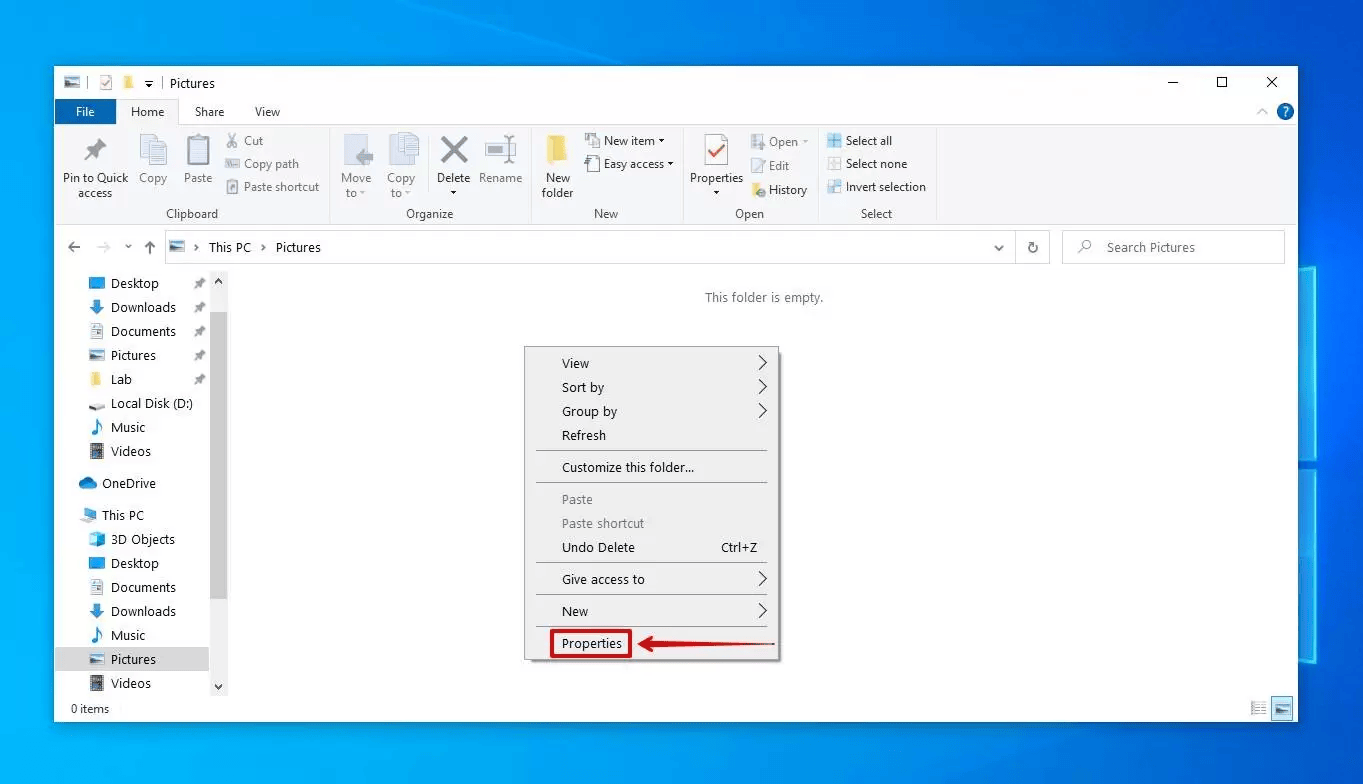
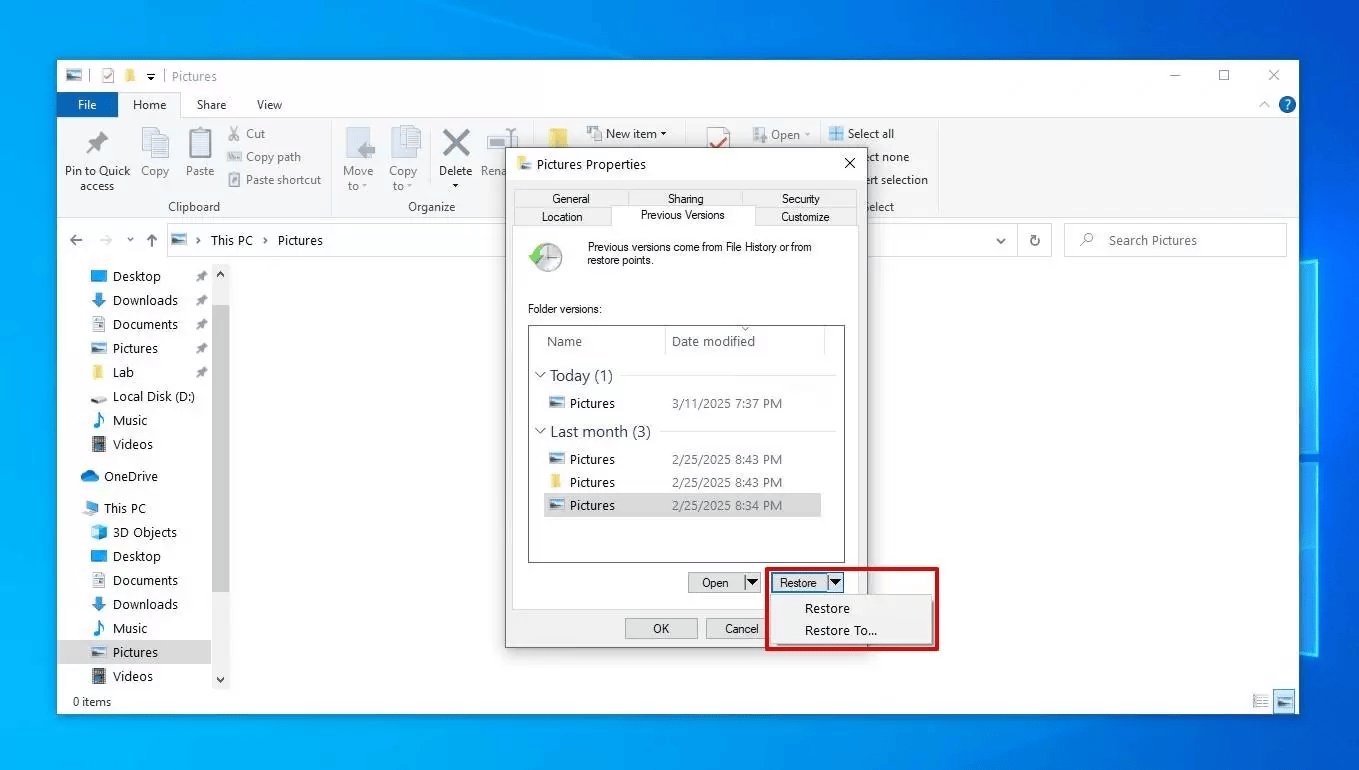
- Access the Previous Versions tab.
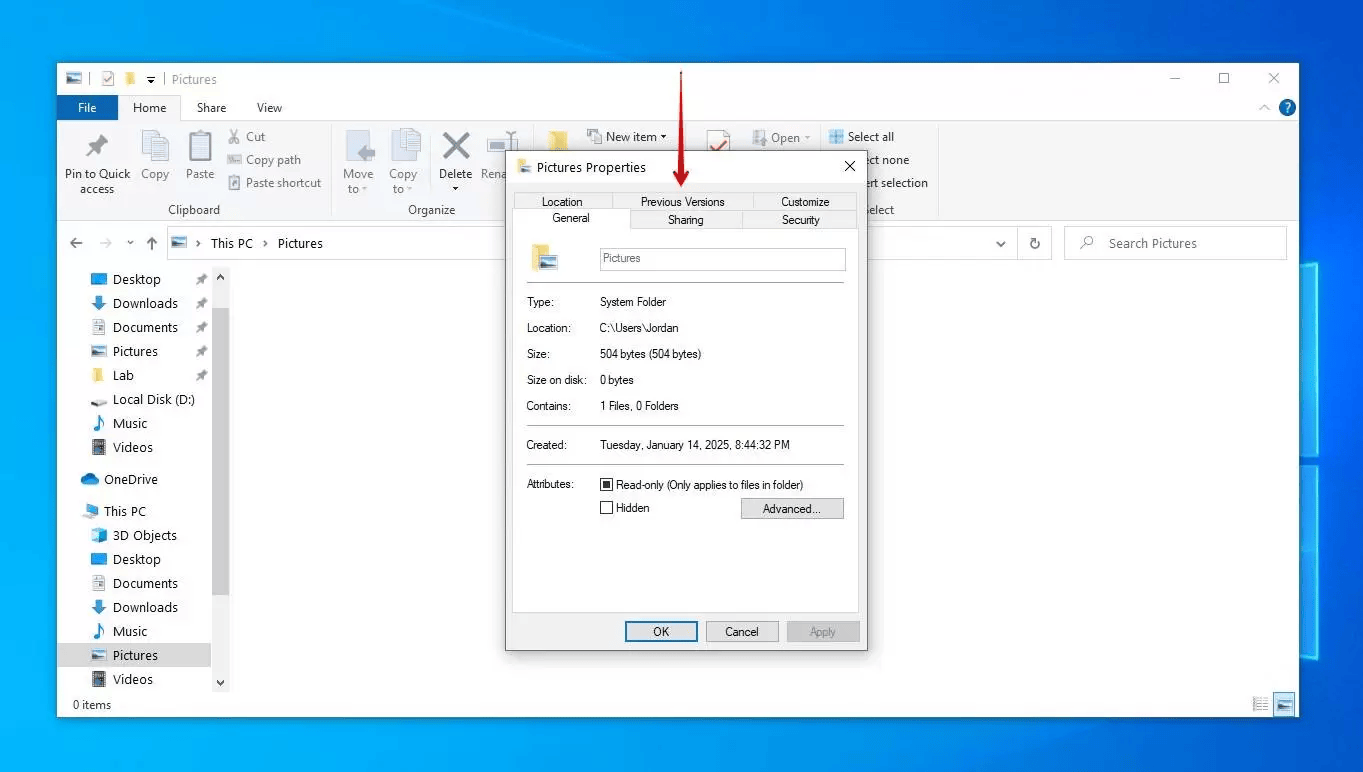
- Now, search for the previous version of the folder.
- Select a version and press Open to evaluate its content.
- If you see the deleted file, copy it or select it and click Restore.
Restoring from File History Backups
It is another very famous backup feature on Windows 10. It stores copies of files. If this feature has been activated before, there are chances of recovering the deleted file.
Here are the steps to follow:
- Access Control Panel and choose System and Security.
- Then, select File History and Restore personal files.
- Browse through the available folders and previous versions.
- Choose the target file and click Restore.
This built-in recovery feature works very well when you have deleted a file accidentally or modified a file, as it contains an earlier copy of the deleted file.
Using Microsoft’s Official Command-Line Tool: Windows File Recovery
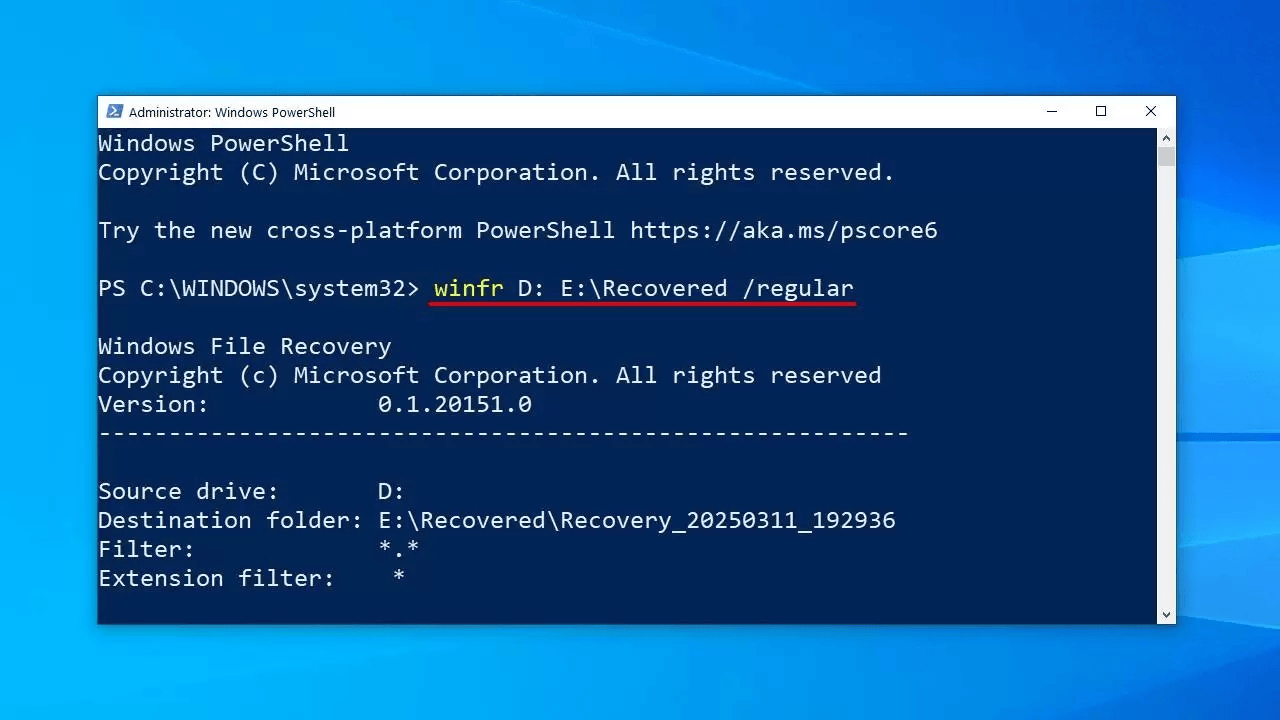
For permanently deleted file recovery, Microsoft offers the Windows File Recovery app, which is a command-line recovery tool that you can install from its official website.
It recovers files from a storage device. After you install the app, use its commands to recover data from a source drive. The basic command follows this structure:
winfr D: E:\Recovered /regular- winfr – Invokes the Windows File Recovery Tool.
- D: – The drive letter being scanned. Replace according to yours.
- E:\Recovered – Destination where the recovered data will be stored. Change according to yours.
- /regular – Perform a regular scan, the standard option for NTFS drives. You can change/extensive for a more thorough search.
Comparison of Windows 10 File Recovery Methods
| Recovery Method | Best Used When | How It Works | Ease of Use | Can Recover Permanently Deleted Files? | Requires Earlier Setup? |
| Recycle Bin | Works well for recently deleted files | Stores deleted files by restoring them to their location | An Easy Method | No, it doesn’t recover permanently deleted files | No |
| Softaken Data Recovery | Recover data from Recycle Bin and drive | Scans the storage device for recoverable data and displays a preview to choose the recovered files | Easy | Recover some permanently deleted data if the data has not been overwritten | No |
| Cloud Storage | Useful when Data is synced to OneDrive or another cloud service | Allows you to recover data from the cloud’s Recycle Bin within a specific period | Very easy | Designed to recover data from the cloud’s Recycle Bin only | Yes |
| Native Windows Backups | It works when you have activated it beforehand | Restores files from an existing backup or certain local-storage cases | Moderate | It works depending on the recovery method | Usually yes |
Best Practices to Prevent Future Data Loss
- It is always good to keep copies of important videos, images, or other files on an external drive or cloud.
- If you don’t want to lose data, it is a good idea to take advantage of a Windows backup tool like File History.
- Follow the 3-2-1 backup rule. In other words, keep three copies of important data.
- Don’t store data in one drive.
- While you are deleting a file permanently, take your time to analyse the file.
- Use a high-quality security application to keep your computer safe from malware.
Conclusion
Data loss is one of the most frightening experiences. However, recovery of deleted files can be possible if you take quick action, like stopping using the system for work and using a built-in recovery tool or a third-party app. The suggested Softaken solution free trial is available to evaluate the app features closely.
FAQs (Frequently Asked Questions)
How do I Recover Permanently Deleted files in Windows 10 & 11?
The first approach is to check the Recycle Bin, then any available cloud backup or Windows backup. If you have not seen the particular file in these locations, you can use Windows File Recovery, Microsoft’s built-in command-line recovery tool, or a third-party data recovery program.
Can I Still Recover Permanently Deleted files?
Sometimes, yes. A permanently deleted file may still be recoverable if its data has not been overwritten or otherwise made inaccessible by the storage device. It depends on the type of storage device, file system, how long ago the file was deleted, and how much the drive has been used since deletion.
Are Permanently Deleted files Gone Forever on Windows 10?
Not necessarily. It doesn’t mean the data has been immediately erased. Sometimes, data can be recovered.