Many Outlook users sometimes see the Outlook error: “This Message Can’t Be Sent Right Now. Please try again later”. These issues happen for several reasons, such as a weak internet connection, a large attachment stuck in the Outbox or corrupted OST/PST files.
In this article, we’ll walk you through the common causes of the issue and show you how to fix it permanently, step by step.
User Query
“Whenever I am trying to send a message in Outlook, a ‘message cannot be sent right now’ error appears. Why does this happen, and how do I fix it?”
Why does Outlook say “Message Cannot be Sent Right Now”?
It is important to know the exact cause of this error to take appropriate action. Let’s discover the reasons.
- If the internet connection is weak, Outlook’s communication with the server will be interrupted. Outlook may display an error message whenever you try to send messages.
- Another common reason is incorrect SMTP settings. If the email account requires reauthentication, the error may occur.
- It may also cause uploading issues. Temporary server maintenance or service disruptions may also be the reason for this error.
- These issues can interfere with Outlook’s normal functioning during email composition, synchronisation, and sending.
- There could also be a version-related issue. You may be using an outdated version of Outlook, which can lead to compatibility issues.
- Sometimes, antivirus tools can obstruct the smooth functioning of Outlook.
- Sometimes, emails with large attachments get stuck in Outlook’s Outbox. In this situation, when you try to send other emails, the error message may appear.
“This Message Can’t be Sent Right Now: Please Try Again Later” Outlook Error – Quick Fixes
Let’s find some effective solutions to deal with this error as a dedicated Outlook user.
Method 1: Check Your Internet Connection
Steps to follow:
- Open a web browser and visit a website to check the internet connection,
- If the loading time is longer than expected or it is not loading, restart your router.
- Access Outlook to check whether it is in Work Offline mode.
- In classic Outlook, go to the Send/Receive tab and click Work Offline if it is enabled; it means the internet connection has issues.
- Fix the connection and try to send the email again.
Method 2: Clear the Stuck Outbox
Steps to follow:
- Access Outlook and choose the Outbox folder from the folder pane.
- If Outlook is still unable to send the message, enable Work Offline from the Send/Receive button.
- Now, open the stuck email to see the attachment size.
- If the attachment seems large, you can either remove it or replace it with a cloud-sharing link.
- If you don’t need the message, you can delete it.
- After this, disable Work Offline mode and try to send the current message.
Method 3: Check MS Outlook Account Settings
It often happens when you change the password of Outlook. Steps to follow:
- Access Classic Outlook, go to File, then Account Settings, then Account Settings again to choose your email account and press the Repair or Change button
- Verify the incoming and outgoing server details.
- Confirm the outgoing server authentication settings if required.
- If prompted, provide the current password.
- Restart Outlook to send emails.
Note: The method of server names, ports, encryption settings, and authentication may vary depending on the provider.
Method 4: Disable Faulty Add-ins in Outlook
Outlook add-ins such as antivirus integration, email tracking, or productivity tools can interfere with Outlook performance and need to be checked and disabled.
Steps to follow:
- First, turn off Outlook and press Windows + R to access the Run dialogue box.
- Enter outlook.exe /safe, then hit Enter.
- Now, in Safe Mode, send an email.
- If you can send emails in Safe Mode, a faulty add-in or extension is likely causing the issue.
- Go to File → Options → Add-ins.
- Beside Manage, choose COM Add-ins and press Go.
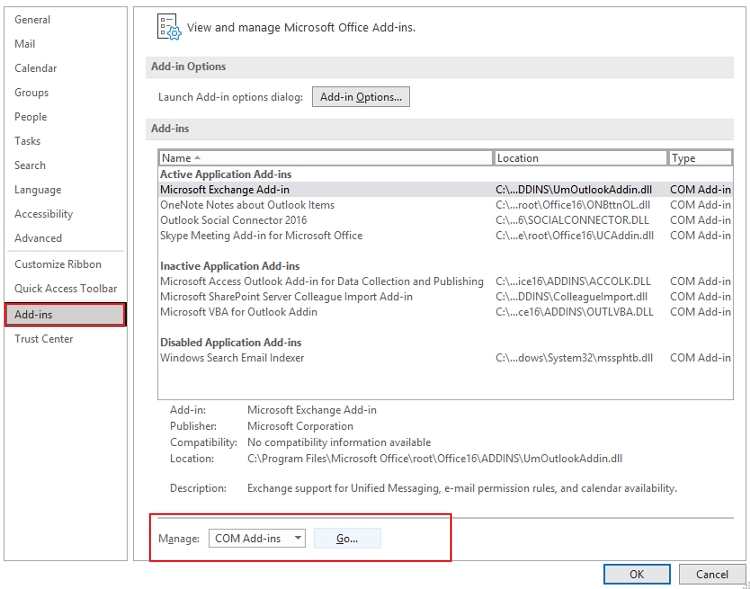
- Uncheck the add-ins and press OK.
- Now, restart Outlook to try to send emails.
- If the issue is resolved, enable the add-ins one at a time to identify the problematic one.
Note: If you are using Outlook Classic, the outlook.exe /safe command applies.
Method 5: Check Outlook Configuration
- In Outlook, click File, then → Account Settings → Account Settings.
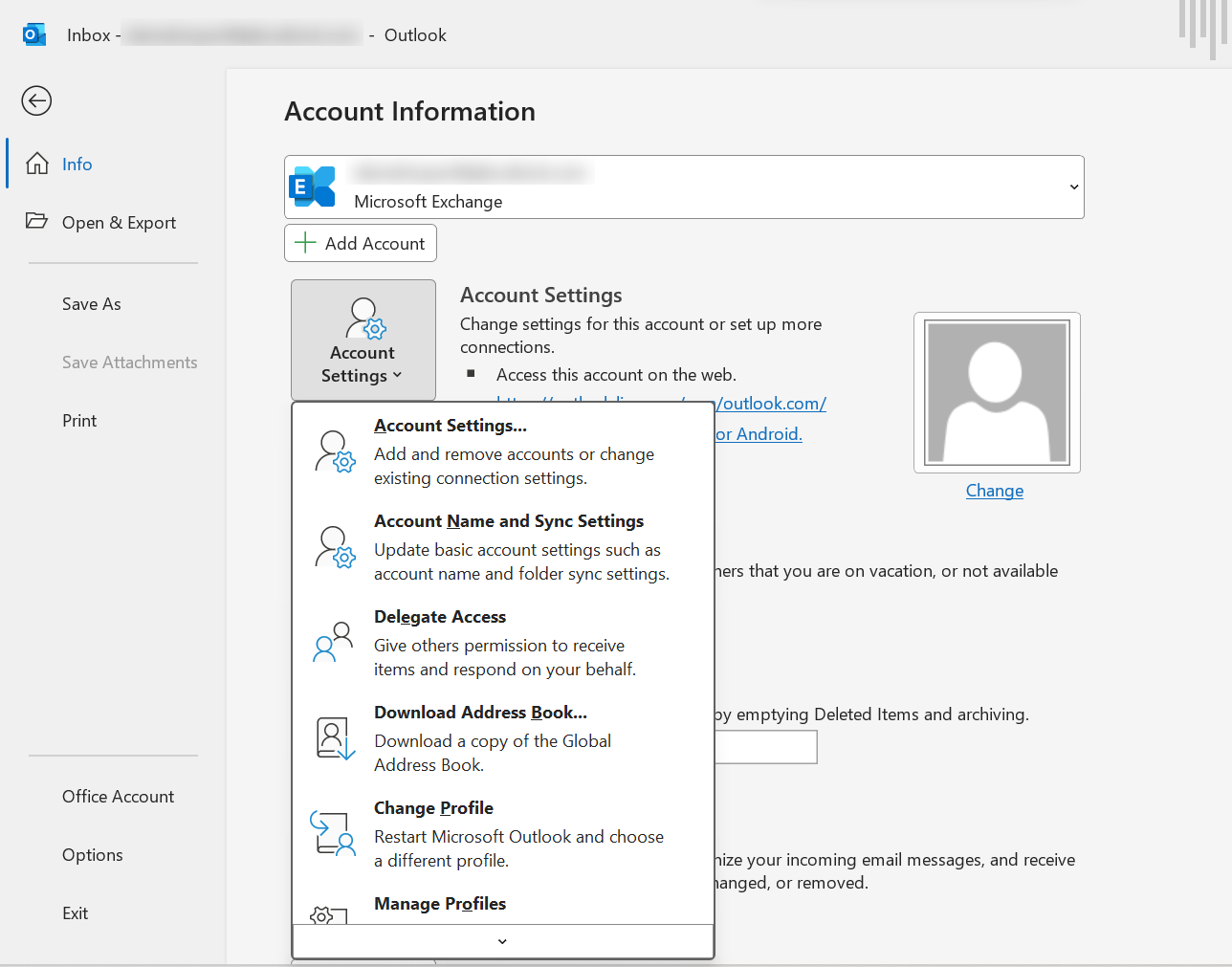
- Under the Email tab, verify your email account connection.
- If you use more than one account, select the target account as the default account.
- If Outlook often asks for the password, check the authentication settings and verify your account.
- If the Outlook configuration issue is not solved, access Control Panel and choose Mail (Microsoft Outlook), then press Show Profiles.
- After that, press the Add tab to create a new Outlook profile to send an email.
- Open Outlook using the new profile and test sending an email.
Important: In case, PST file format is created for Outlook data, before creating a new profile, backup all your data in the PST file.
Method 6: Reduce Outlook PST File Size
Outlook performance can be interrupted if the PST file size is large. Check the size of your PST file to avoid enlarged file size issues.
- Access classic Outlook and in File, click Account Settings → Account Settings.
- Press Data Files to locate the current PST file connected to your Outlook account.
- Turn off the Account Settings window.
- Next, in File, take cursor on Info then Tools → Mailbox Cleanup.
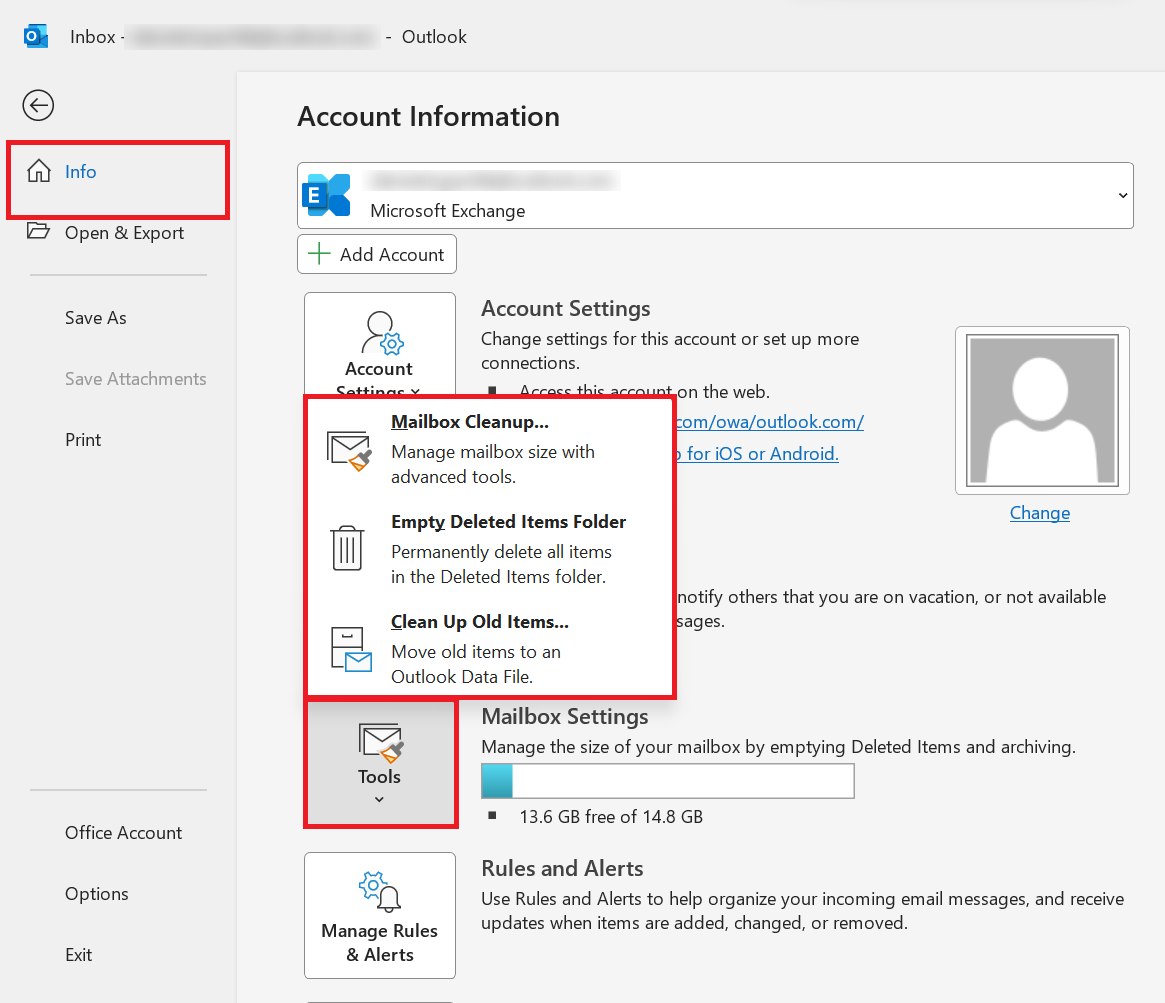
- It cleans old messages.
- Save attachments separately and remove only unnecessary messages.
- If you have a PST archive, you can move older messages to that file.
- To reduce the size, in Account Settings → click Data Files, choose the PST file, and then Settings → Compact Now.
- After that, restart Outlook to test whether you can send emails.
Advanced Troubleshooting: What If the Error Still Persists?
If the Outlook error “Message cannot be sent right now” has not been fixed even after trying the aforementioned troubleshooting steps, it may be because of a damaged Outlook file. This means the OST or PST file is inaccessible.
Repair the PST File
A PST file stores emails, attachments, events, and contacts. PST files can be inaccessible because of oversized issues or any technical error. In this situation, you may encounter a message sending error. Microsoft offers the Inbox Repair Tool (SCANPST.EXE) for minor issues; for heavy corruption, you need to use a PST Repair Tool.
Steps to Follow:
- Close Microsoft Outlook and open File Explorer to locate the SCANPST.EXE file. The location can vary depending on the MS Office version.
- Double-click SCANPST.EXE to launch this built-in tool.
- Press Browse to choose the damaged PST file.
- Then, press Start to find out the issues.
- If the tool detects errors, choose the option to back up the data before repairing.
- Press the Repair tab and wait until it finishes repairing. Now, you can access Outlook to check whether you can send emails.
Recreate the OST File in the System
Because of poor synchronisation, OST files can be inaccessible. It is a file format of Outlook created when you connect Outlook with an Exchange Server. It is more prone to corruption than the PST file extension. Corrupted OST files can be fixed by recreating an OST file.
Steps to Follow-
- Turn off Outlook completely.
- Go to Control Panel and choose Mail.
- Press Email Accounts, then your account, and choose Change or Repair. Remember, the settings may vary depending on the Outlook version.
- In File, click Account Settings → Data Files.
- Close all Outlook windows again.
- Go to File Explorer to locate the location of the OST file. A common location is: %LOCALAPPDATA%\Microsoft\Outlook
- Select the file and rename it. Do not delete the file.
- Reopen Outlook. As you reopen it, Outlook will create a new OST file.
- Wait for synchronization to finish, then try to send an email.
If re-creating the OST file fails because the file is severely corrupted or orphaned, rebuilding it won’t help you recover emails trapped in a broken local sync queue. In these situations, you can use Softaken OST to PST Converter Software. It deeply scans the OST file and shows the complete details of the file, and after that, you can smoothly convert the OST file into PST format. All resulting PST files are easily opened in Office 365 or any Unicode edition of MS Outlook.
Steps to Use This Software
- Launch the OST Converter Tool.
- Click Browse, select the OST file, and preview its contents.
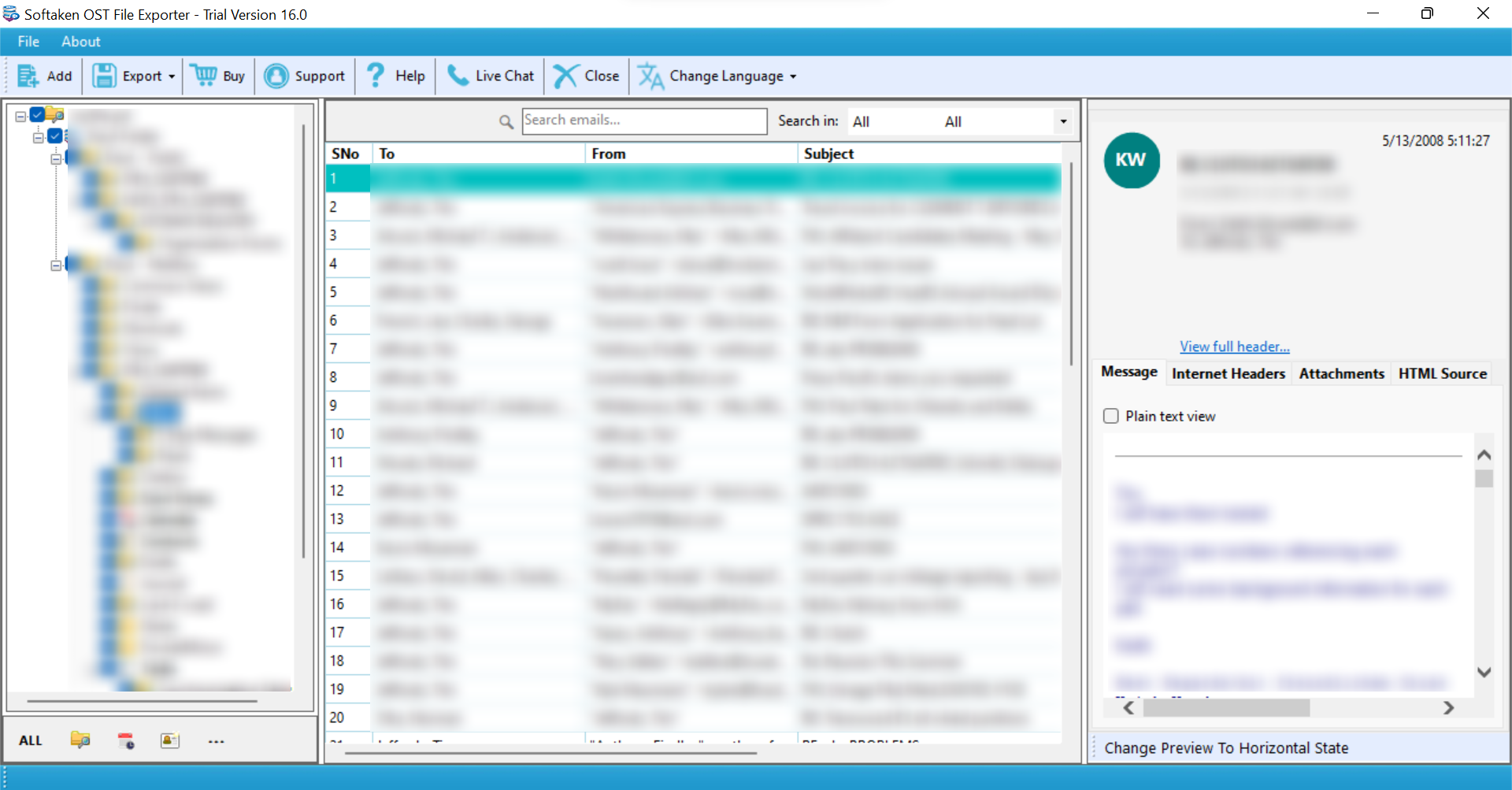
- Select PST as the output format.
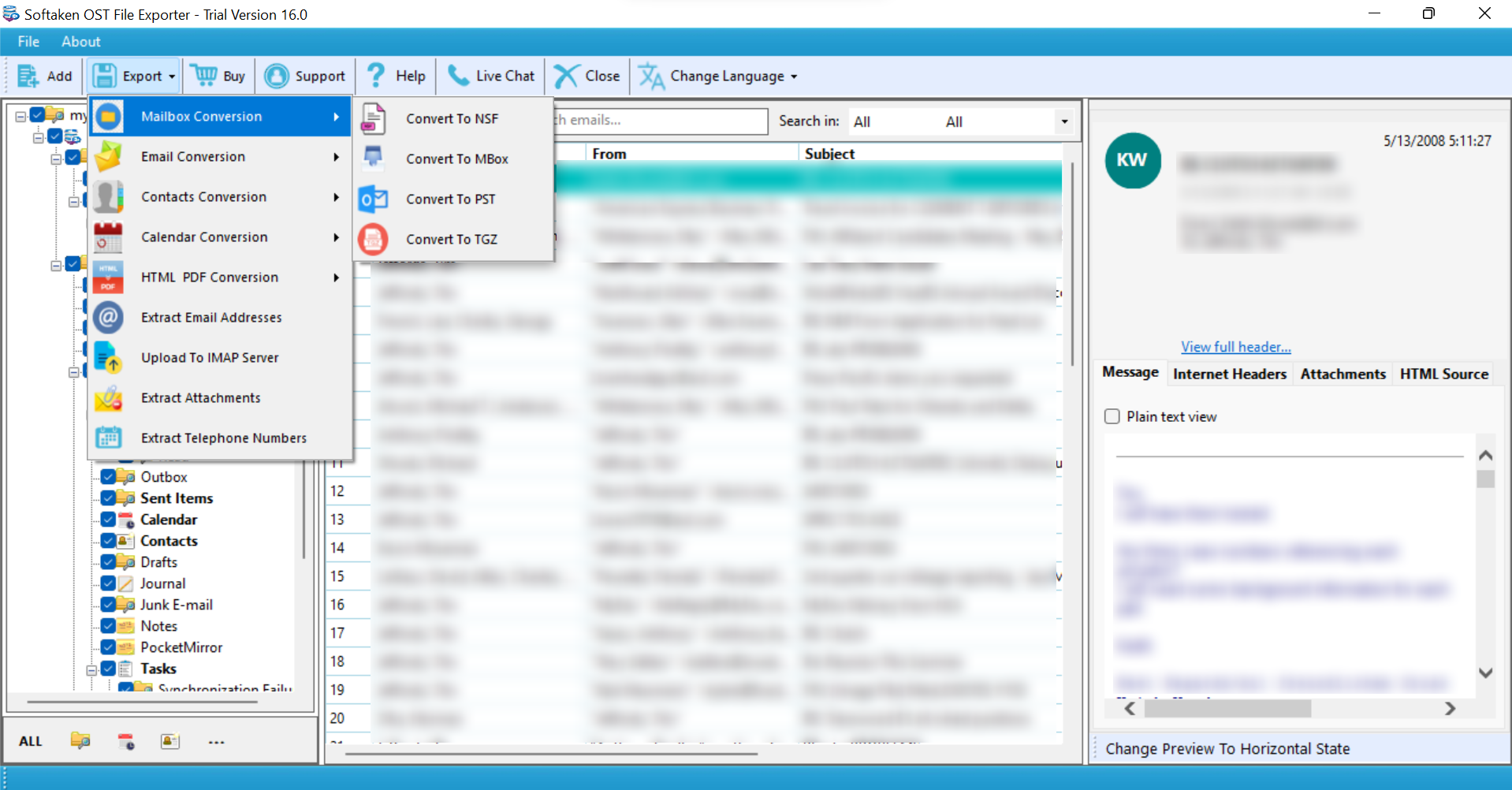
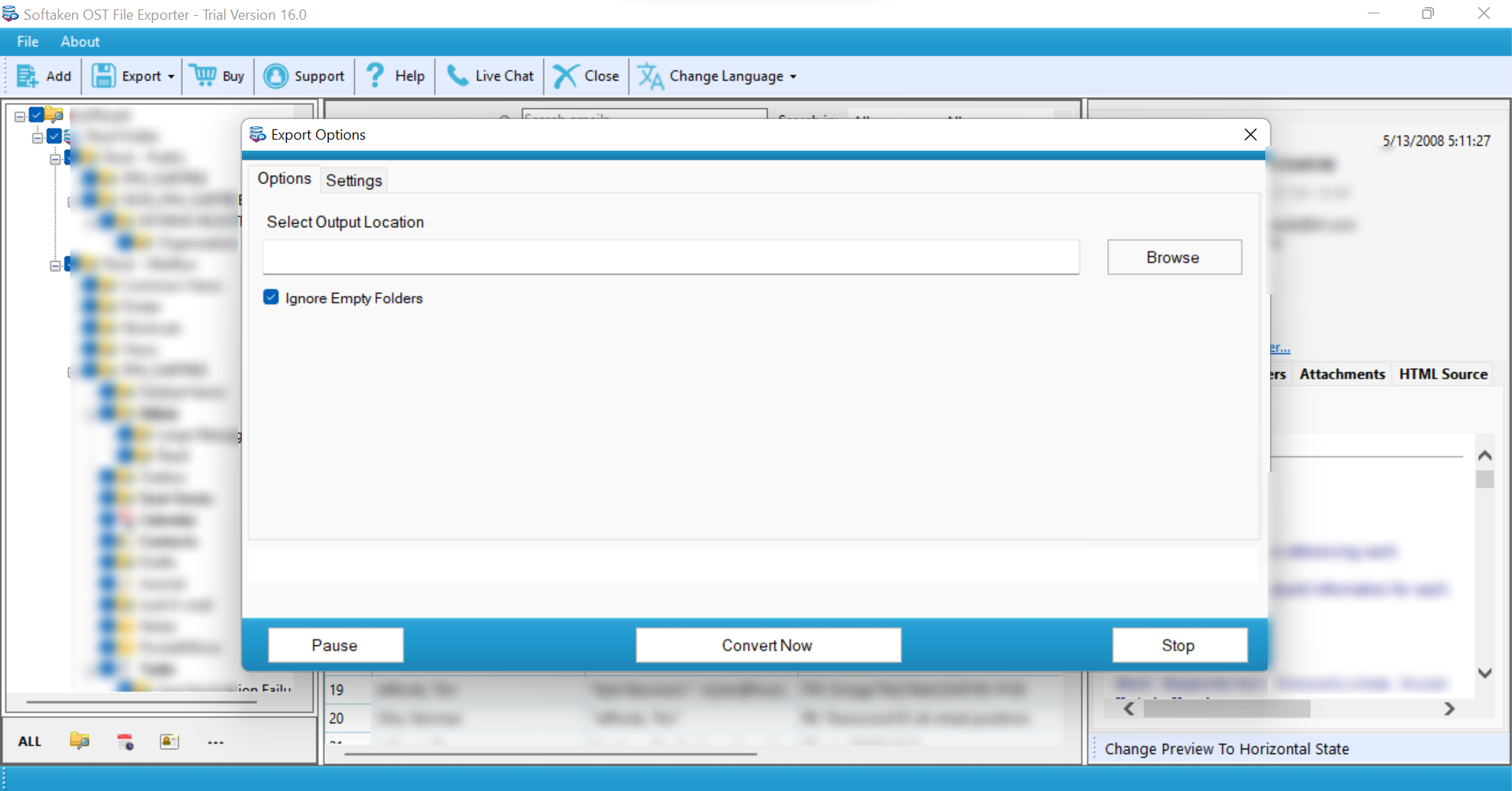
- Click Browse to choose the output location.
- Click Convert to begin the conversion process.
Advantages of Using Tool
The tool converts OST files to PST format and exports data, including metadata and attachments, while preserving the folder hierarchy.
- The program supports the export of single and multiple OST files.
- 21+ Languages Interface Option.
- The tool is available for Windows, Mac & Linux.
- The program supports exporting data files of different sizes.
- It can export orphaned OST files that are no longer connected to their original Outlook profile.
Conclusion
We have discussed multiple solutions to fix the “This Message Can’t Be Sent Right Now: Please Try Again Later” error in Outlook. Start by checking your internet connection before trying other troubleshooting methods. If the error persists, check your account settings, Outbox, add-ins, Outlook profile, and data files. If manual troubleshooting fails, using a dedicated tool is required to safely recover and restore files.