Many users misunderstand Outlook Web App and MS Outlook as one platform. They are two different platforms with the same purpose. The Outlook Web App allows users to access emails, calendars, tasks, and contacts through a web browser. Organizations and users using MS Exchange Server or Office 365 like to use Outlook Web App. This article is about exporting emails from Outlook Web App to PST easily.
MS Outlook doesn’t need an introduction. With over a million downloads, it is one of the best-recommended email clients to manage emails, contacts, calendars, tasks, and other properties.
Why Export Emails of Outlook Web App to MS Outlook?
Various reasons could trigger the conversion of emails from the Outlook web app to MS Outlook. Let’s discover some common reasons.
- Backup of the Outlook Web app in PST offers real-time access to data because PST files can be opened on any MS Outlook account.
- Data safety is another reason that encourages users to switch Outlook Web app data to PST. The file format is password-protective. Hence, a PST file protects unwanted access.
- MS Outlook offers data integration support if you switch from the Outlook Web app to Outlook because the Outlook PST file format can hold up to 50 GB of data.
Understanding the Difference between Outlook Web App and MS Outlook
| Basis | Outlook Web App | MS Outlook |
| Email address | Create an email address before using this | Require an email address to use it |
| Features | Spam filtration, Scanning viruses, Maintaining user’s privacy, Numerous address support | Email address auto-completion, Desktop alert, Support for hyperlinks in the email subject lines, Scalable vector graphics |
| Time Zone | Show only one-time zone | Show two time zones |
| Graphical interface | Complex to understand | User-friendly and self-descriptive |
| Encryption protocol | SSL | SSL, TLS, and S/MIME |
Solutions to Export OWA Emails to MS Outlook
There are two methods to achieve this goal. One is a manual solution and the other is a professional backup tool.
Also read: Export Outlook Emails of Specific Date Range
Use Import/Export Facility to Transfer Data- A Manual Solution
- In this method, create an Outlook profile for the target account
- Press the “File” button and then the “Open & Export” tab
- Next, press the “Import/Export” tab
- Now, choose the “Export to a File” option and then “Next”
- Select the PST file extension and then “Next”
- Choose the desired folder and then “Next”
- Now, press the “Browse” tab to choose an appropriate place to save the file
- Finally, press the “Finish” button to complete the process
Disadvantages of the Manual Solution
The manual method may seem easy and attractive but has some downsides.
- The manual process is a convenient and reliable method, especially if you have a limited number of emails to export. It’s a straightforward approach that can be easily managed. However, if you have a large number of emails to move, it could be time-consuming. You may face issues like incomplete conversion and missing data.
- You have no control over the size of your PST file. If the email size is large, the PST file can become large. Remember that oversized PST files are prone to corruption.
A Professional Solution to Backup MS Outlook Web App to MS Outlook
Among several third-party solutions, one of the most recommended tools is the Softaken IMAP Mail Backup. It is a simple tool with multiple features. Professionals and users of Softaken tools recommend this application to create backups of IMAP and SSL databases.
Here are the dominant features of this application.
- It supports any IMAP or SSL account backup without losing data accuracy.
- The tool automatically connects with the target IMAP/SSL account as users provide the correct credentials.
- It supports the backup of IMAP account data to PST, EML, EMLX, MSG, and MBOX file formats with the backup of attachments in PDF or HTML file formats.
- It is a lightweight, reliable application that can be used on your Windows system without hampering its speed.
- The application provides users with a high level of control. It can back up entire emails to PST or specific mailboxes to PST, giving users the power to decide the scope of their backup.
- The tool is independent. To perform conversion, it doesn’t need the installation of MS Outlook or any other tools.
Steps to Move Outlook Web App Data to MS Outlook Using this Program
- Download and launch this application on your system
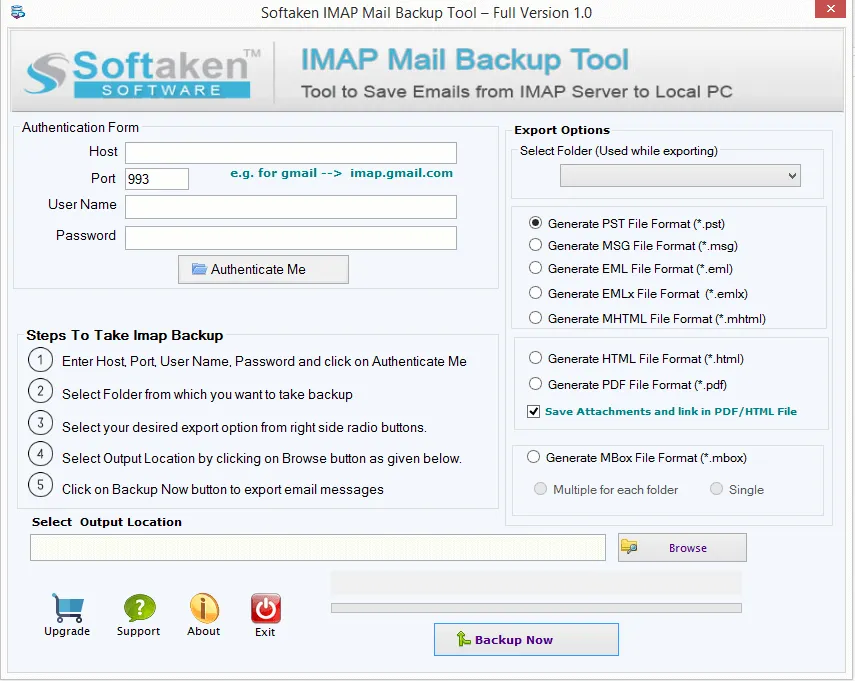
- Enter the credentials of your Outlook Web App account and press the “Authenticate Me” tab
- Now, select the mailbox that you want to export
- After this, choose the “PST file extension” to export data
- Choose “HTML” file extension for attachment (optional feature)
- Finally, press the “Backup” button to complete the process
Conclusion
Whatever your reason for backing up Outlook Web App to MS Outlook, solutions are available both manually and automatically. It’s crucial to carefully choose a suitable option after understanding your goals, data sensitivity, and the time you want to give to complete the task.