Overview
Migrating your emails from AOL to Microsoft 365 (Office 365) is one of the smartest moves you can make for security and productivity. But moving from AOL to Office 365 isn’t just a simple “log in and move” operation—it means bridging two distinct IMAP environments. Whether you choose a manual setup or an automated tool, a successful migration requires the right approach. Let’s first look at the key reasons to move from AOL to Office 365.
Why Do AOL Users Move from AOL to Office 365?
- AOL is excellent for small businesses and personal use. Microsoft 365 is a suitable choice for growing businesses because it is more than an email service provider. It lets you establish a professional brand identity.
- AOL will work just like Yahoo and Gmail. Office 365 offers advanced cloud support by integrating email management with applications such as Word, Excel, Teams, and OneDrive.
- Office 365 supports work collaboration features by offering shared calendars, contacts, and other Microsoft 365 services.
- With Office 365, it becomes easy to centralize email management.
- The data security features of Office 365 are advanced. It helps keep your data secure and private.
Important Points Before AOL to Office 365 Migration
Regardless of the method you choose to import AOL to Office 365, you need to follow some important points.
- The foremost is creating an app password for AOL because your regular AOL password will not work.
- It is always wise to keep a backup of all important emails because data can be missing or lose its quality.
- It is better to separate large attachments and move them slowly.
- Keep your internet connection active and fast. If it is unstable, data can be lost.
Also Read: How to Migrate AOL Mail to Gmail
AOL IMAP & SMTP Server Settings
As you have decided to move data from AOL to MS Office 365, the first step is the IMAP server settings.
Incoming Mail (IMAP)
| Setting | Value |
| IMAP Server | imap.aol.com |
| Port | 993 |
| Security | SSL/TLS |
| Username | Full AOL email address |
| Password | AOL app password |
Outgoing Mail (SMTP)
| Setting | Value |
| SMTP Server | smtp.aol.com |
| Port | 465 |
| Alternative Port | 587 (STARTTLS) |
| Security | SSL/TLS |
| Username | Full AOL email address |
| Password | AOL app password |
Note: It is an important step because AOL will not allow you to use your regular password while connecting with a conversion software.
Create an AOL App Password – Step by Step
This is an important step when you have a plan to move AOL to Office 365 successfully.
- With your regular password, access your AOL account and then open Account Security by clicking the icon.

- Next, click on the Account Security Option.
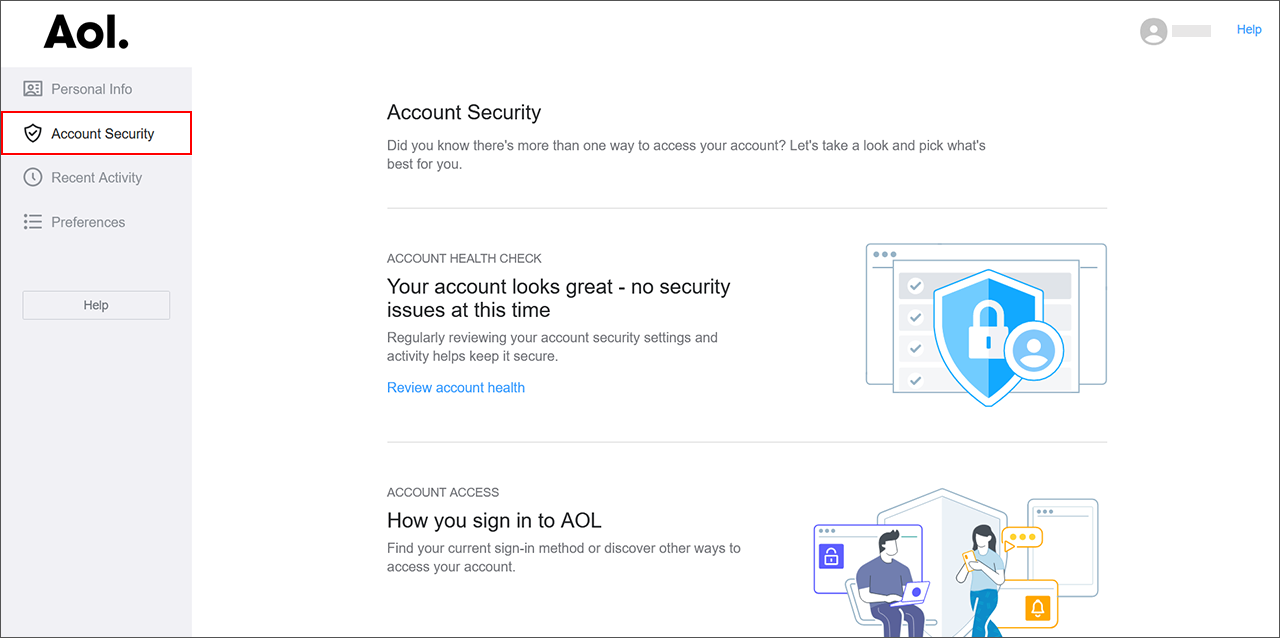
- Once there, locate the App Password section, press Generate app password and then the Get Started If Prompted button.
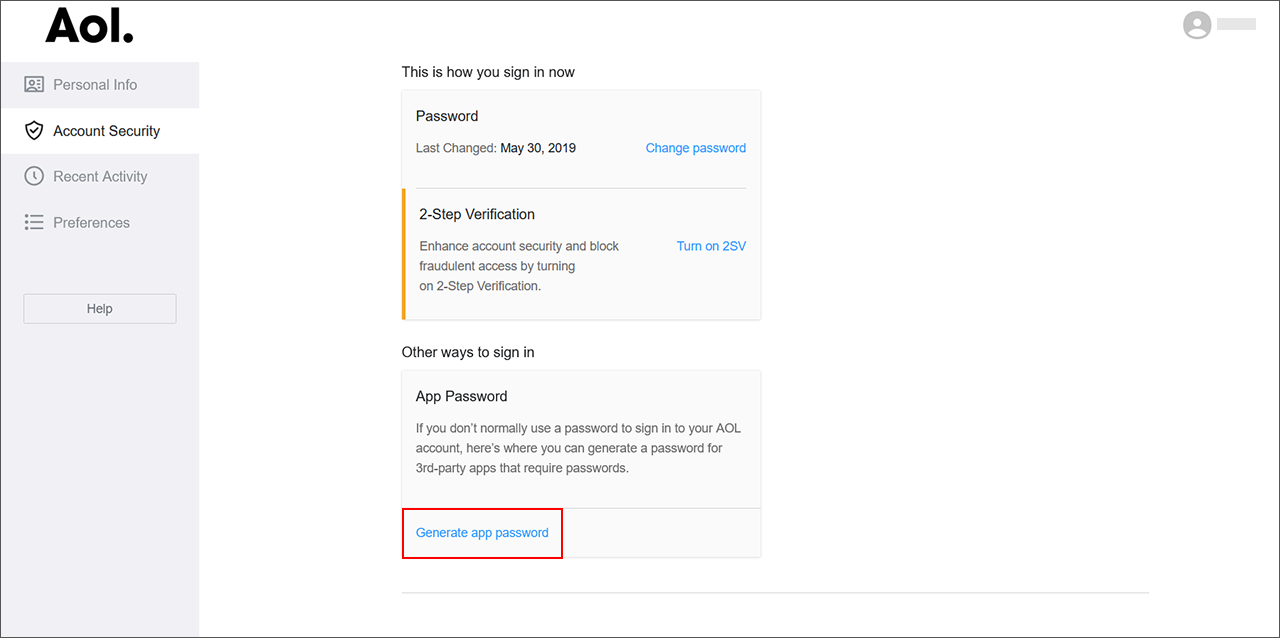
- Provide an app name; we name it Test to easily identify it.

- Then, click Generate Password. AOL will automatically create a code password. Copy that password into Notepad.

Migrate AOL to Office 365 Account – Using Desktop Outlook- A Manual Solution
Since AOL is a web-based application, you require the Desktop Outlook app to transfer your data. Follow the given steps:
- Open the Microsoft Outlook Desktop App on your system.
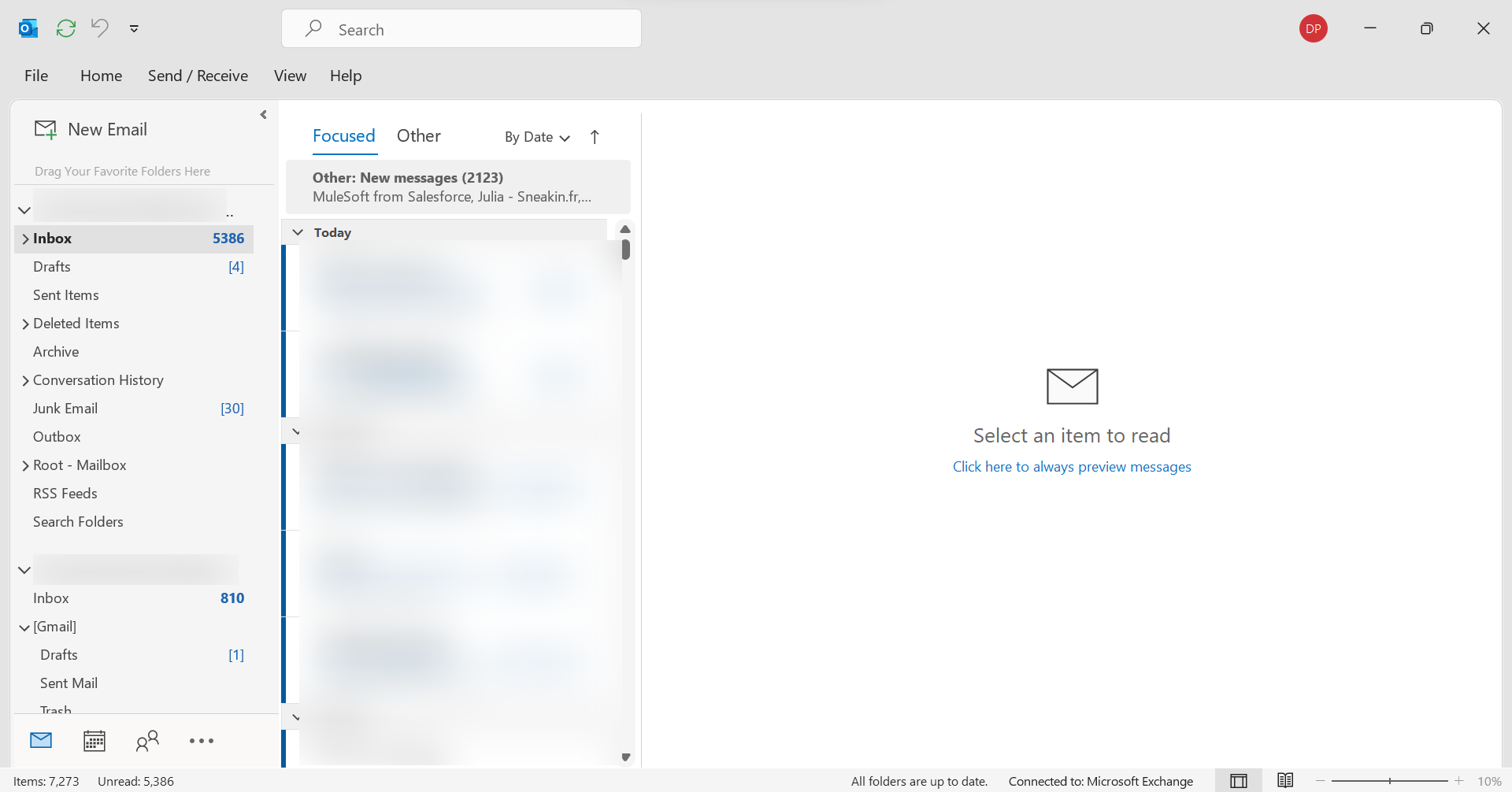
- Click on File in the top-left corner, and then select Add Account.
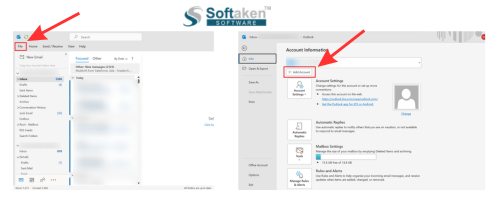
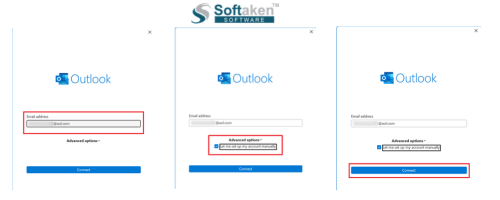
- Enter your full AOL email address, click on Advanced options, check the box for “Let me set up my account manually”, and click Connect.
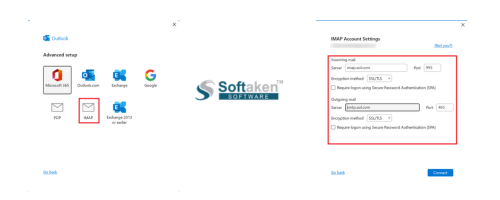
- Choose IMAP as the account type, and enter the correct server settings (Incoming: imap.aol.com on port 993; Outgoing: smtp.aol.com on port 465).
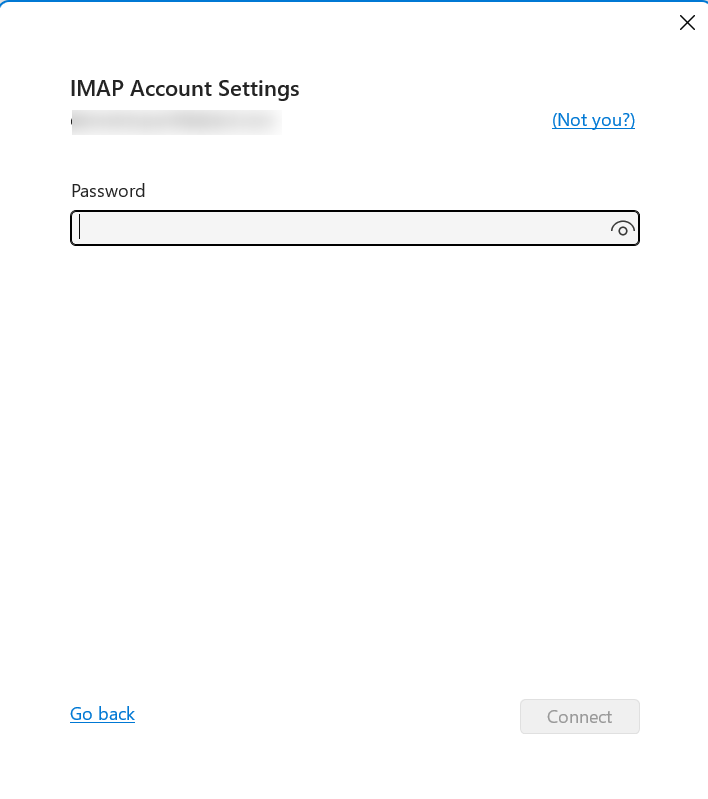
- Enter your AOL App Password (the 16-character password generated from your AOL account security settings) and click Connect.
- Once your AOL account is listed in the left-hand panel, add your Office 365 account to the same Outlook app using the same File > Add Account method
This allows you to view both mailboxes simultaneously inside the Desktop Outlook app, enabling you to easily drag and drop your AOL mail folders directly into your Office 365 account.
Limitation of Manual Method
If you are using the Desktop Outlook app manual method to move or migrate AOL emails to Microsoft 365/Office 365, The recommended manual solution is popular mainly because it is a cost-effective method. However, there are some disadvantages of this solution as well that one must be aware of:
- Remember, this is not an automated server-to-server migration. You need the Desktop Outlook app assistance to transfer data locally.
- If you have a requirement to export data in bulk, we strongly recommend finding a reliable automated solution instead of this manual method because dragging and dropping massive archives can take time. Hence, it can be a time-consuming process.
- While data usually moves accurately, large folder trees may occasionally require reorganisation. There can sometimes be minor data mismanagement if not monitored closely.
- If you run an organisation where migration of several AOL accounts is required, this manual method is a poor choice. This is because of manual oversight, potential missing data, and the time-consuming individual setup.
- Last but not least, this manual method will not provide you with detailed automated audit logs and error reports. It means you have to manually verify your folders to check for any skipped or missing data.
Direct Solution to Migrate AOL to Office 365/M365 Account
When it comes to direct solutions, you have a range of options to choose from. One of them is the Softaken IMAP to Offic 365 Migration Tool. This server-to-server converter allows unlimited conversion of AOL data into an Office 365 account. This professional solution enables you to connect any two IMAP accounts if you know their credentials. This is a single, independent program, so you don’t need any additional tools. During conversion, you only need to ensure that the internet connection is stable. Individuals and professionals can find this program a reliable alternative.
Steps to Migrate Data from AOL to O365
- After installing the app, launch it on your Windows laptop.
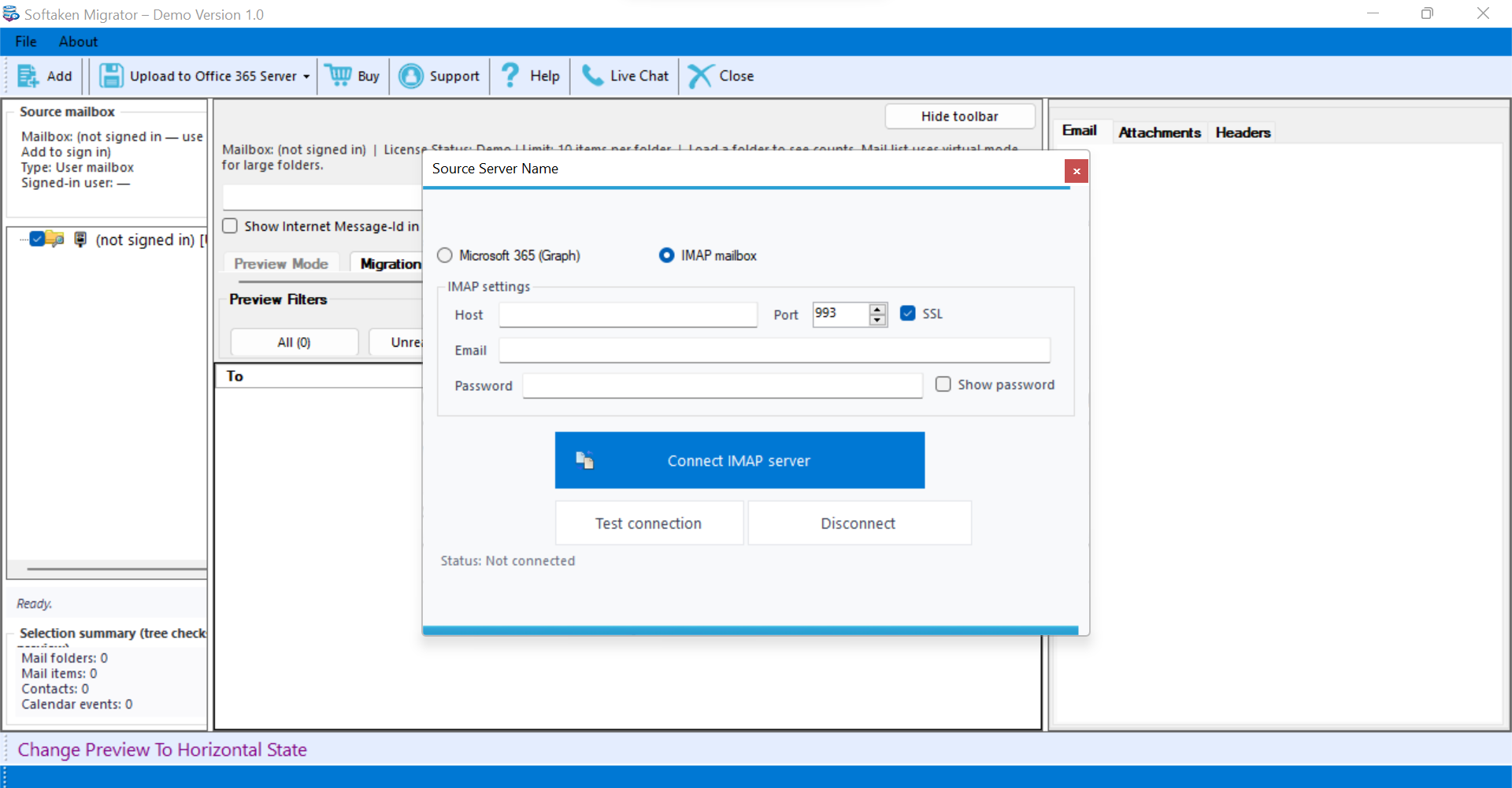
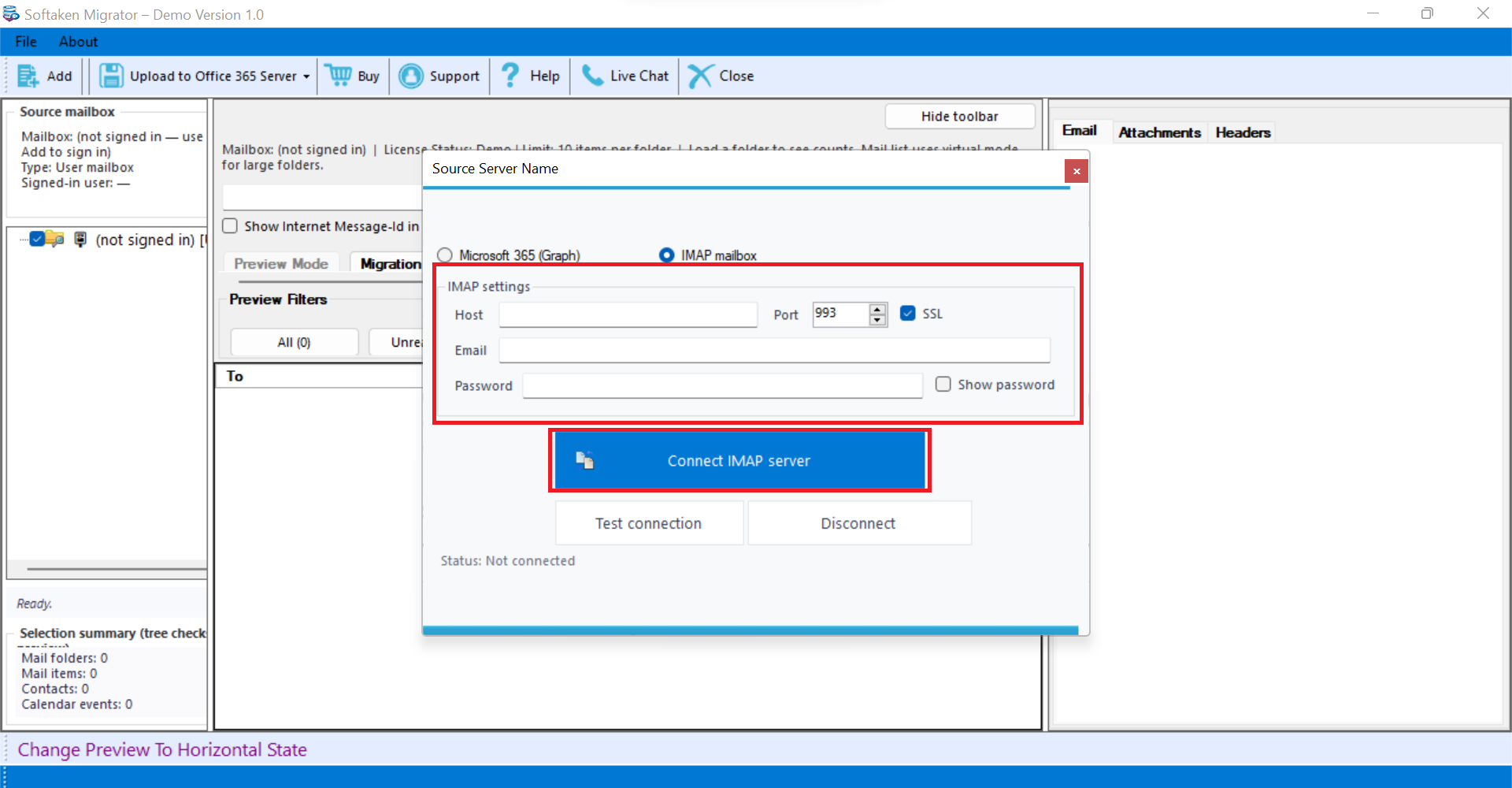
- Provide the target AOL account credentials, including host and port details, and press the “Authenticate Me” button.
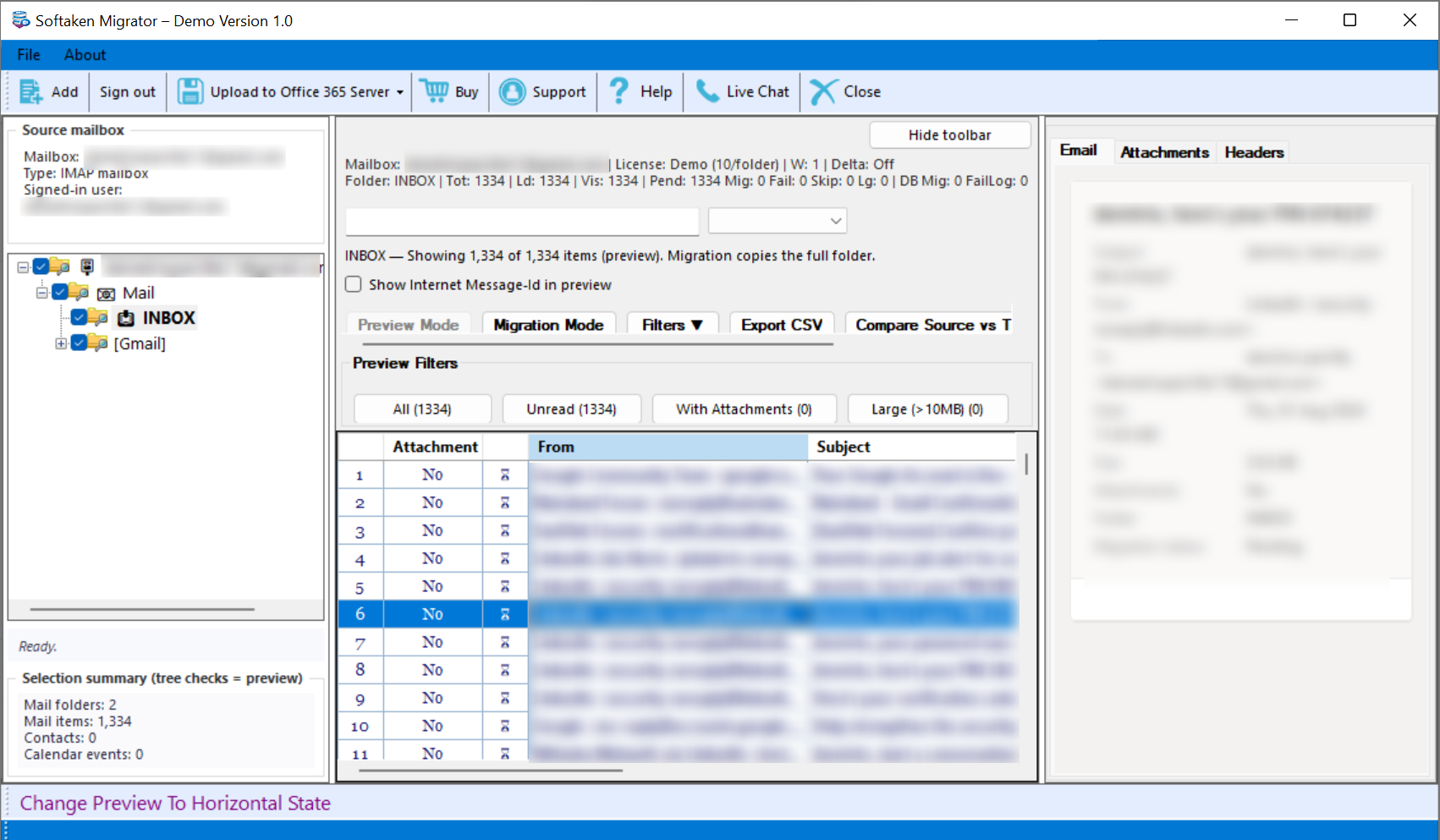
- Get a preview of the uploaded data in its preview box. It displays the source mailbox, emails in tabular format and a separate box to view emails, attachments, and headers.
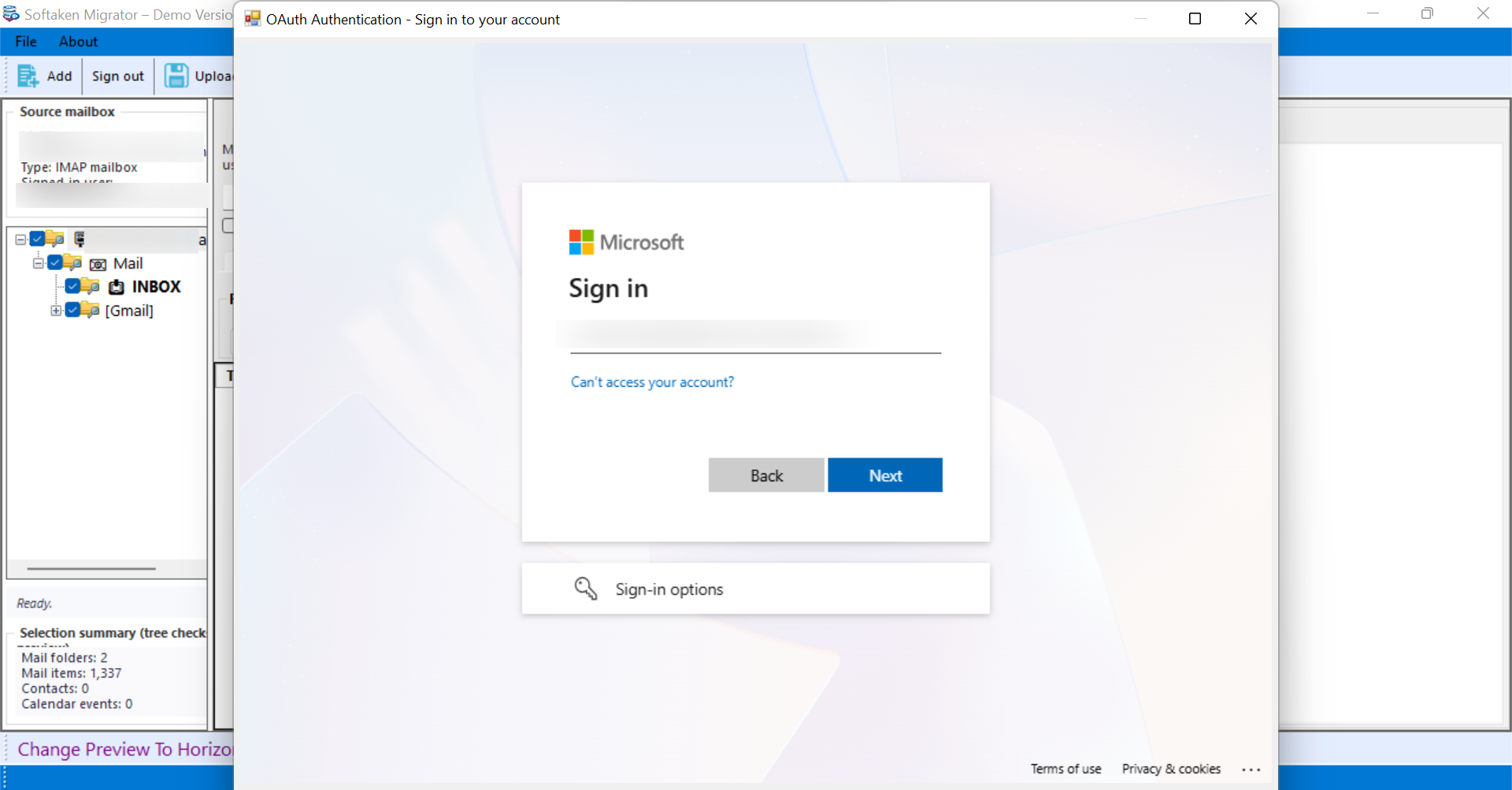
- Provide the target Office 365 AC credentials and then click the “Authenticate Me” tab.
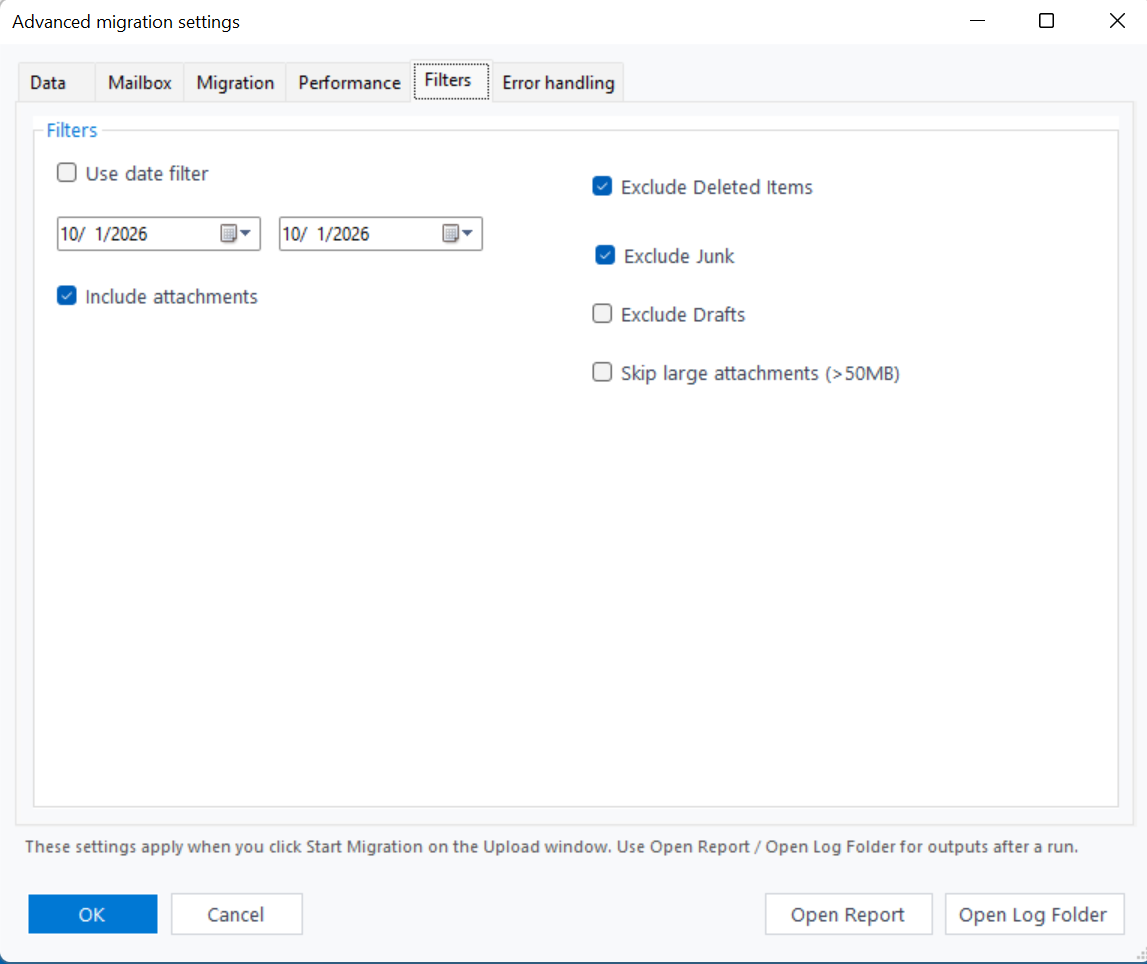
- Filter the data by sender, date, or size. You can also deselect folders that you want to avoid. In the “Advanced Migration Settings,” you can filter data by date and mailbox.
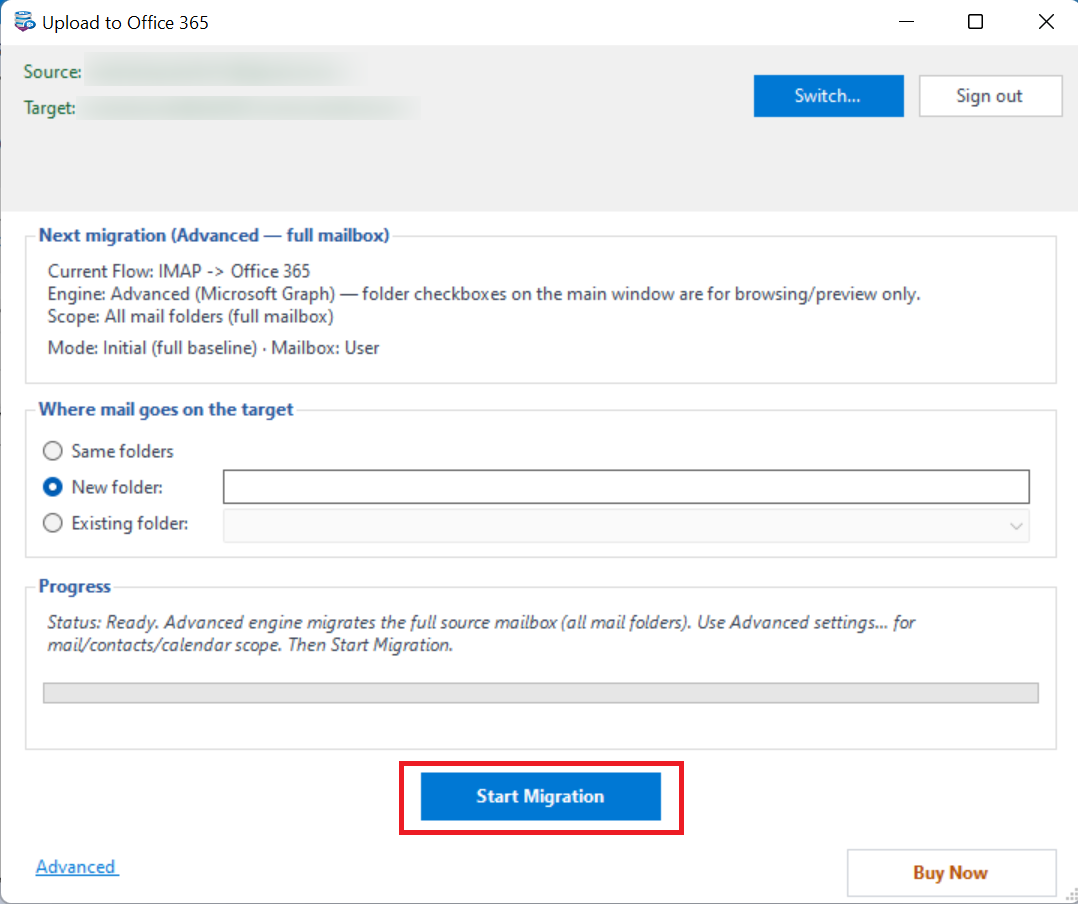
- Choose a folder in the “Office 365 account” to save data or create a new folder to save data. Finally, press the “Migration” tab to start the process.
Desktop Outlook vs. Direct Automated Method
When comparing the manual Desktop Outlook approach with a direct automated solution, several key operational differences become clear:
| Feature | Desktop Outlook (Manual) | Direct Automated Method |
| Speed & Volume | Slow and manual drag-and-drop handles large mailboxes poorly. | Fast and best for bulk and unlimited data transfers. |
| Data Integrity | Prone to folder disorganisation or missing items if interrupted. | Preserves exact folder hierarchy, formatting, and attachments. |
| Advanced Filters | Requires manual sorting after moving. | Built-in filters for date ranges, size, and excluding junk/drafts. |
| Effort Required | Requires constant supervision and manual verification | Automated server-to-server process with status logs. |
| Best Suited For | Personal users with minimal emails. | Businesses and large-scale migrations. |
Conclusion
We have discussed two solutions for AOL to Office 365 conversion. The indirect method is a suitable choice for limited conversions where quality is not an issue. The direct method is the better alternative if batch conversion and accurate conversion are required. The Softaken AOL to Office 365 Converter app has a free trial option. Install it on your Windows system to assess whether the app meets your requirements.
FAQs (Frequently Asked Questions)
Will Migrating my AOL Account to Office 365 Delete My Emails from AOL?
If you use Outlook Desktop, it will not delete the original emails from your AOL account automatically. Similarly, the automated tool will copy/import emails. It will not delete the original emails from AOL.
How Long does it take to Migrate an AOL Account to Office 365?
The manual method can be time-consuming, while the professional tool supports fast migration. However, the direct method takes a certain amount of time depending on how many items you want to export, the size of attachments, and other parameters.
Do I Need an App Password to Migrate from AOL to Office 365?
In both cases (direct and indirect), you need an app password to export data from AOL to Office 365.