Due to many reasons, users may need to transfer address book of Outlook from one system to another system. With this article, we have come with an easy way by which one can transfer all Outlook data from one PC to another PC.
Get the complete process to transfer your Personal Address Book (PAB) from one system to another.
About Outlook Address Book
When Outlook is configured on your system then you have a default Outlook address book. This address book is known as OAB that has sets of Outlook contact folders in it. OAB is just a representation of primary contact folders.
OAB has personalized view of contact folders and therefore, it cannot be operated independently. Another thing about OAB is Outlook does not save any OAB file which is not in your data store.
How to transfer Outlook Address Book from one PC to another PC?
Once you are aware about Outlook Address Book, let us know the process to transfer Outlook address book from one system to another.
- Copy the file to a storage device
To copy the files is the best way of transferring Outlook address book from one system to another. So, in this case, we will copy the contact file with .pab extension. Below are the steps –
- Open MS Outlook
- Go to File menu, choose Open & Export and then Import/Export
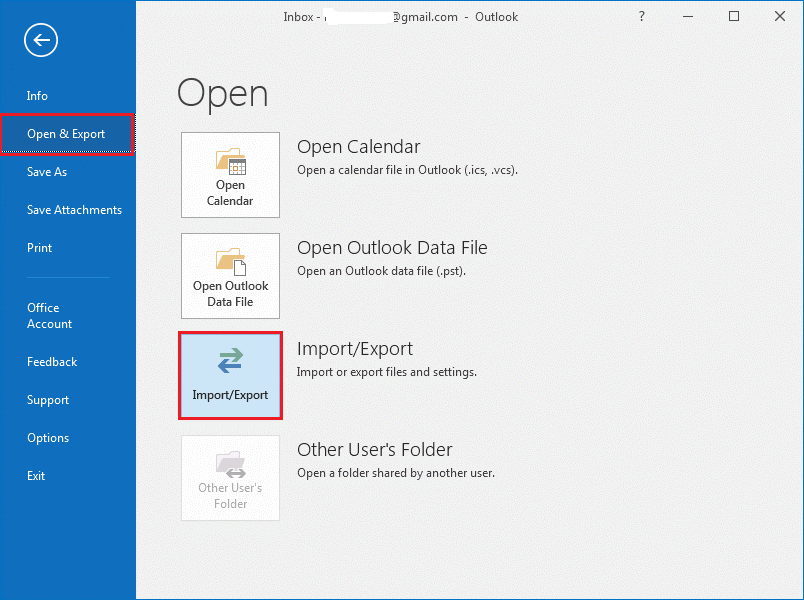
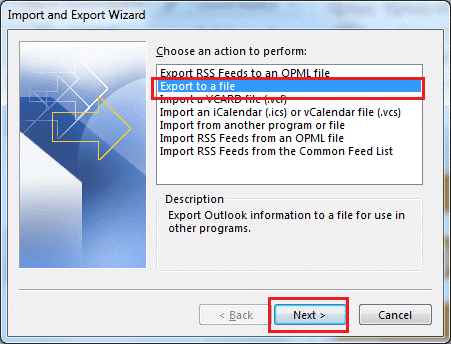
- Click on Export to a file Click Next.
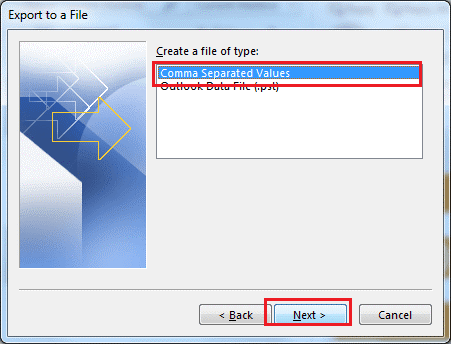
- Choose Comma Separated Values and click
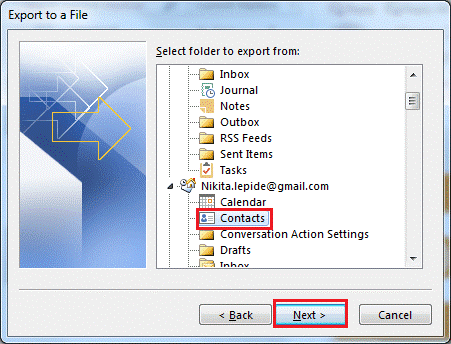
- Select Contacts folder. Click
- Save the file with .csv extension.
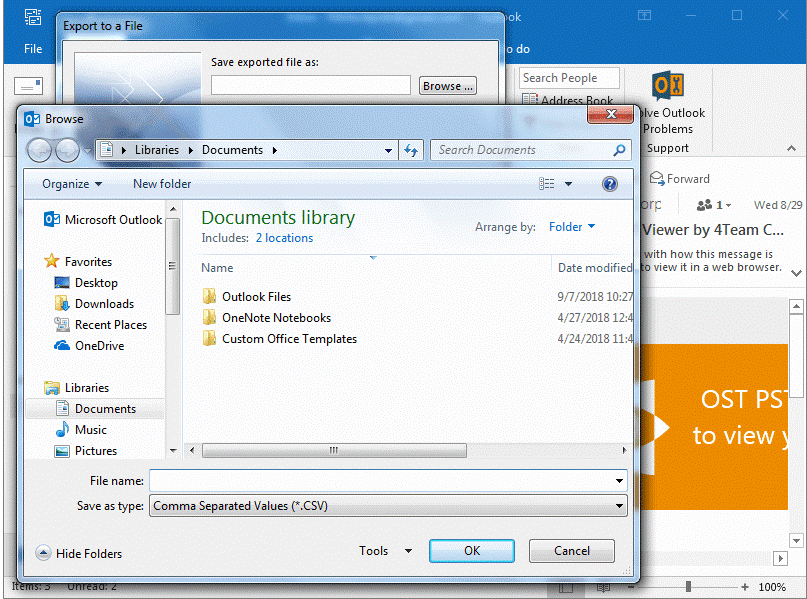
- Copy this CSV file to any external storage device like USB.
Restoring File to another system
Restoring file to another system is another way to transfer OAB file. Follow the given steps –
- On your new system, insert external storage device.
- Open MS Outlook and go to File menu. Select Open & Export and then Import/Export.
- Select Import from another program or file. Click Next.
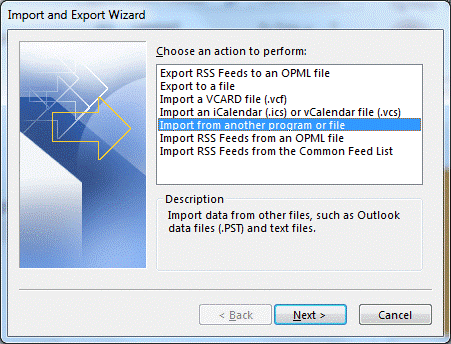
- Select Comma Separated Values. Click Next.
- Select Browse and go to the location of storage device to select the file copied from another system.
- Select Not to import duplicate items. Click Next.
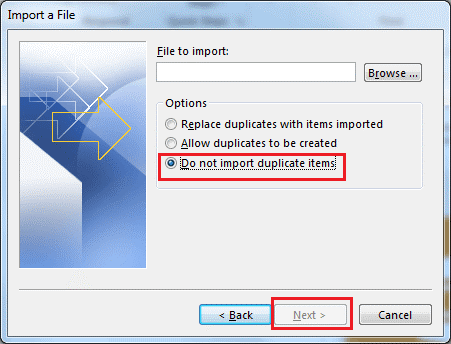
- Highlight Contacts
Once you complete the steps successfully, you will get OAB file on your system. This is all about transferring Outlook OAB file to another system.
Concluding Lines
Transferring address book from one system to another in Outlook is not a tough task. All you need to do is to be careful while using import & export option to transfer the contacts. This pots has completely provided steps for successful transfer of OAB file.