Do you know it is annoying when you try to send an email through Office 365 and it restricts you to send the message? The reason is the message size. By default, Office 365 can accommodate only 25MB. Therefore, a large mail more than 25 MB is difficult to send. But don’t worry. The solution is available. In other words, you can increase the mail attachment size in Office 365 Exchange online with the help of the Office365 Admin Center or PowerShell. Here are the most effective ways to increase mail attachment size in Office365.
Solution 1- Taking Help of a Console to Increase the Office 365 Attachment Size
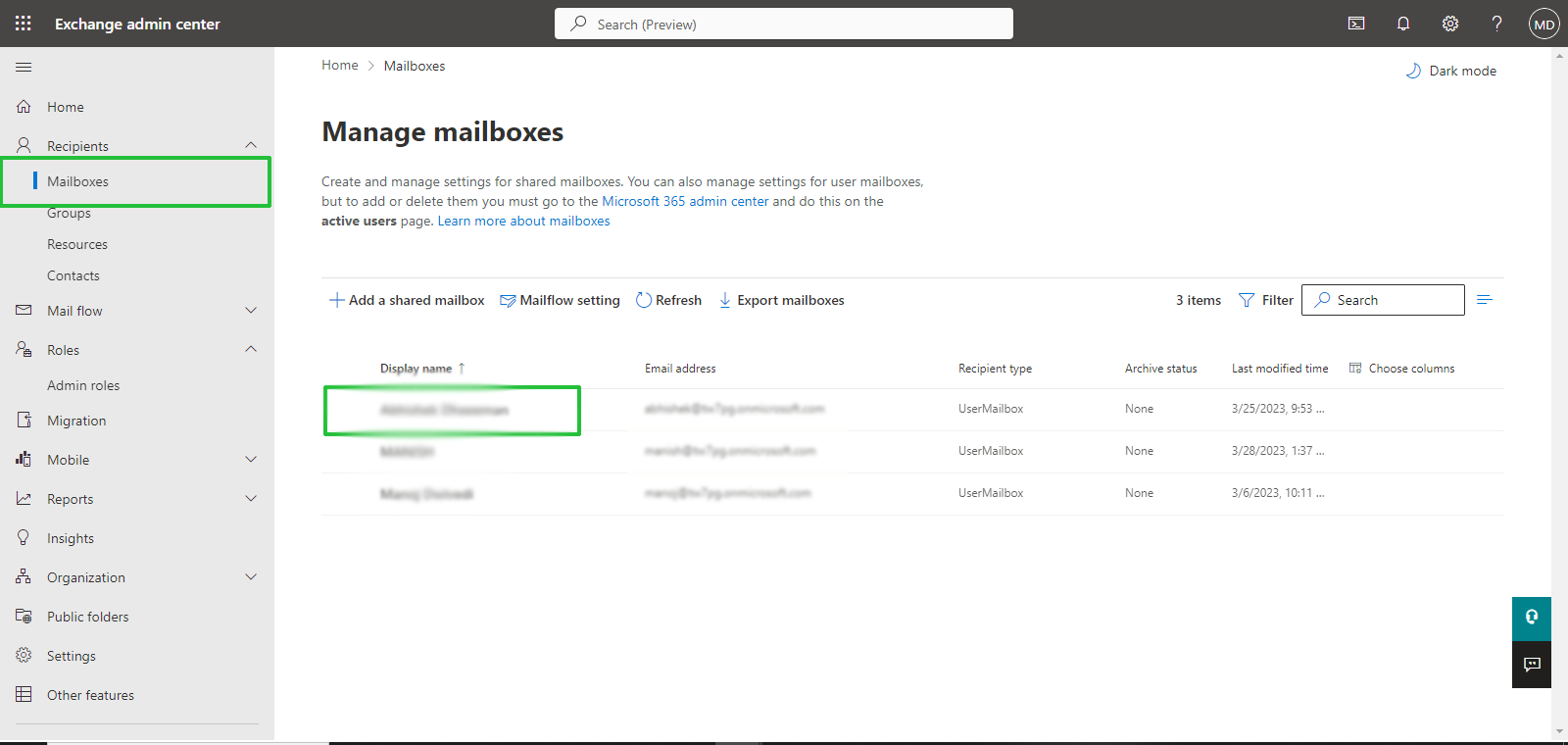
Step 1: Access Office 365 admin account and navigate to the Exchange Admin Console
Step 2: From the scroll down options, click on “Recipients” and then choose the “Mailboxes” option and in the Manage Mailboxes, select the desired user. As shown in the image.
Step 3: In the select user account, press the “Mailbox” and then the “Manage message size restriction” option
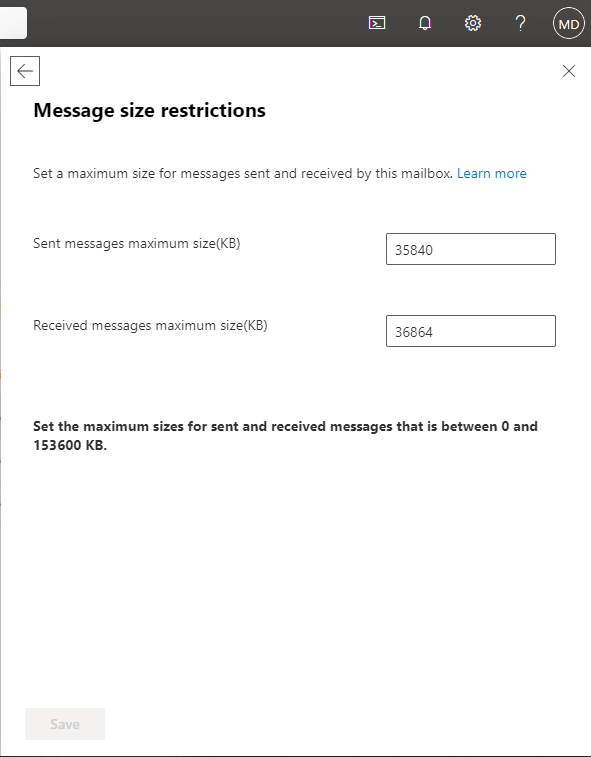
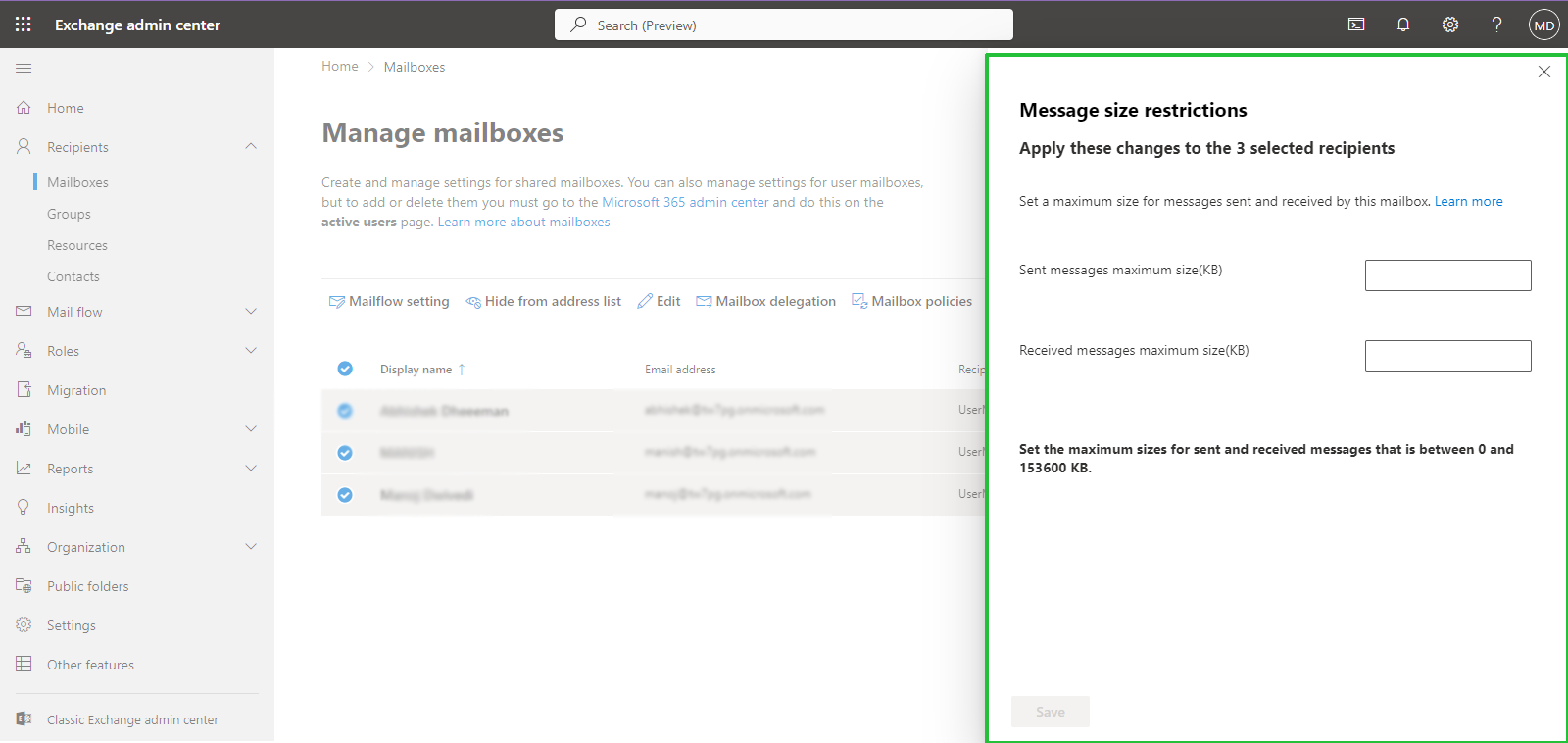
Step 4: A new window “Message size restrictions” will open, asking you to manually enter the size in KB and then press the “Save” button.
Note: Remember, you can give a custom touch to multiple mailbox size restrictions at once.
Enable Multiple Mailbox Size At Once
- For this, you can select all users at once in the Manage Mailbox window.
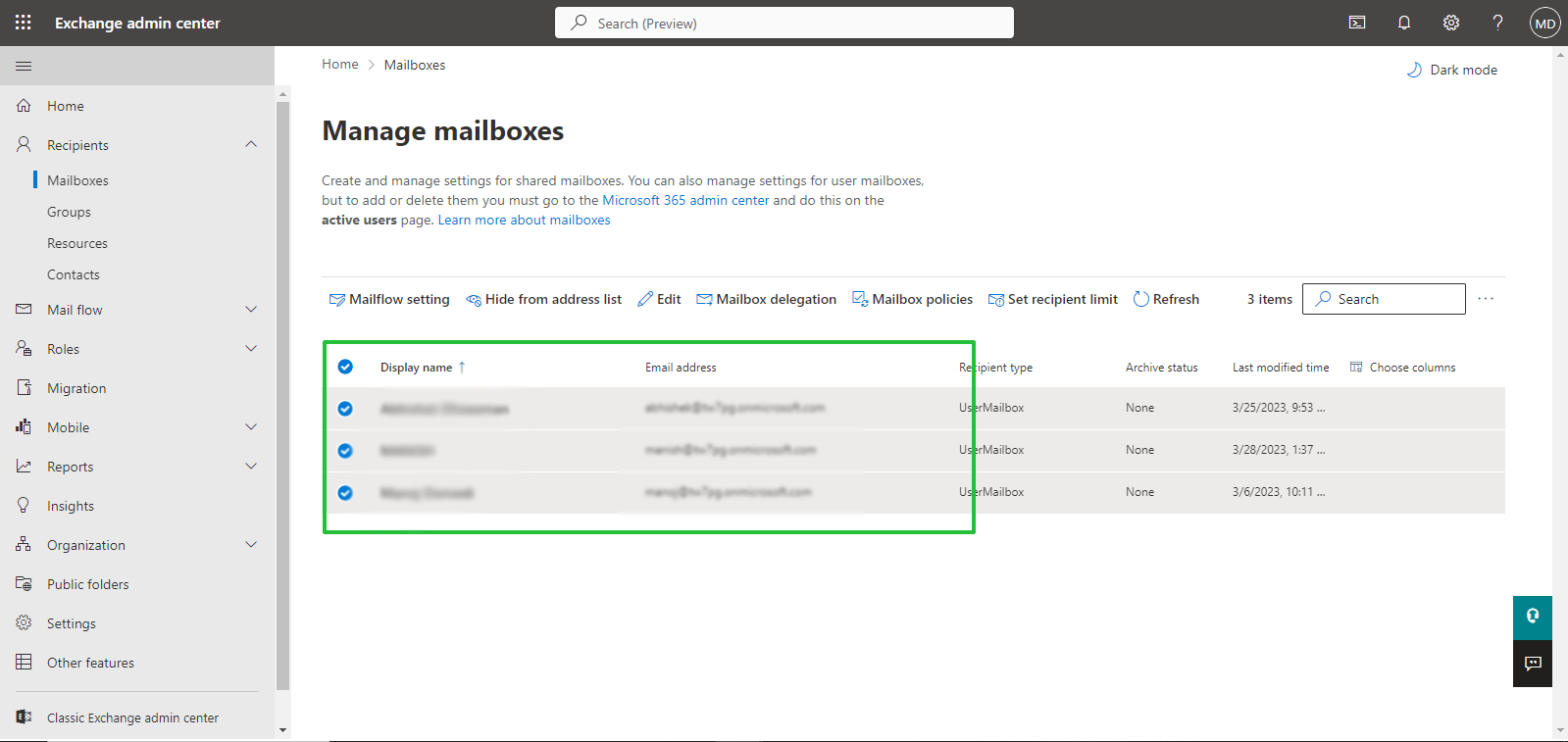
- After this, press the “Mailflow setting” button and then the “Message size restriction“
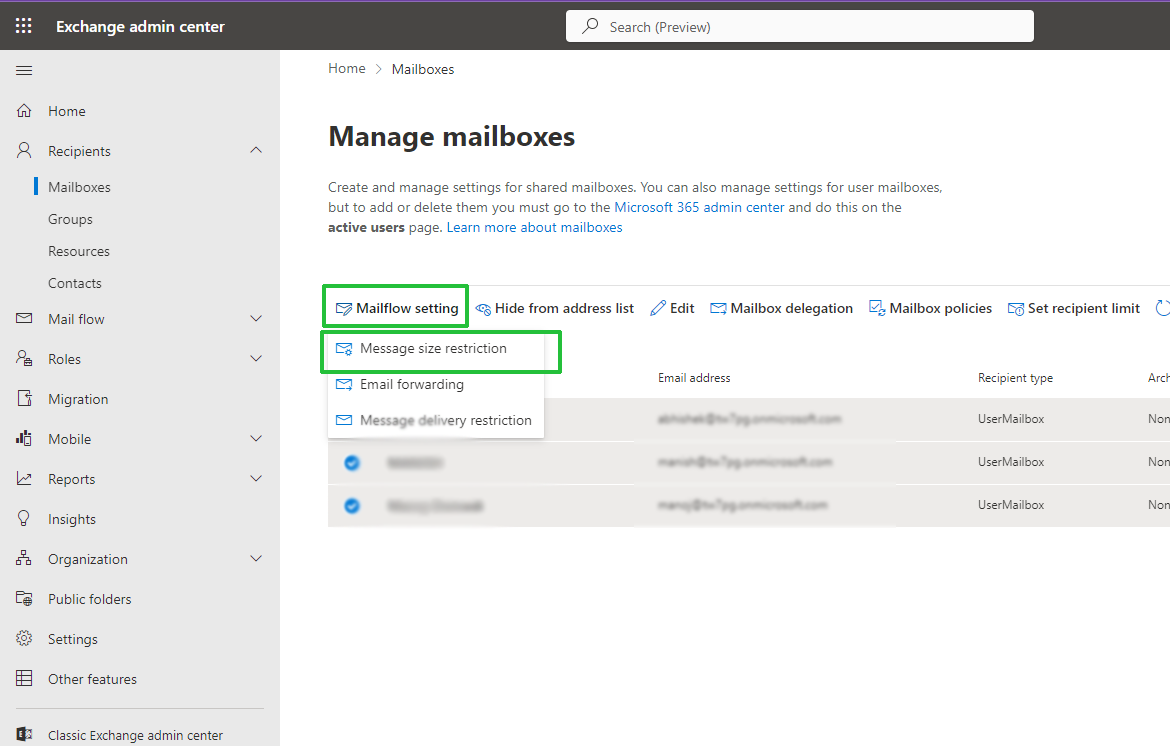
- Her you enter the size in KB then save.
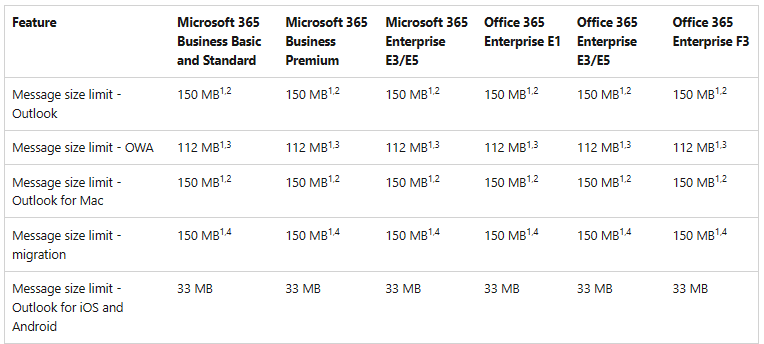
Here is the list to set the maximum size of a message. It depends on the M365 subscription:
Solution 2: Using PowerShell for Recipient Limit in Office 365
The following solution is suitable if you have 1,000 or less than 1000 user mailboxes. Here you use the Exchange Admin Center User Interface to make changes. Use the PowerShell command to set the limit.
Step 1: Initially, access Office 365 using PowerShell.
$Cred = Get-Credential
Step 2: Provide the key and your office 365 username with the correct password. After this, provide the below command.
$Session=New-PSSession –ConfigurationName Microsoft.Exchange –ConnectionUri https://ps.outlook.com/powershell/ -Credential $Cred –Authentication Basic –AllowRedirection
Import-PSSession $Session
Step 3: You can use the general commands to customize settings using remote powerplays. Here are examples.
For Updating an Individual Mailbox
Set-Mailbox –Identity [email protected] –MaxSendSize 75MB – MaxReceiveSize 75MB
- For Updating Multiple Mailboxes
(“sale”,”sale2”,”sale3”)|%{Set-Mailbox –Identity $_-MaxSendSize 75MB-MaxReceiveSize 75}
- For Updating Entire Mailboxes
Get-Mailbox | Set-Mailbox –MaxSendSize 75 MB –MaxReceiveSize 75 MB
- For Updating The Automate Settings
It is for your future accounts-
Get-MailboxPlan | Set-MailboxPlan –MaxSendSize 75MB –MaxReceiveSize 75MB
Final Words
As you can see, there are two ways to increase the size limit of attachment of mailboxes of Office 365. You have one more way to increase the size limit. It is a third-party application. You can use Softaken IMAP Mail Backup Tool to increase the size limit of Office 365 attachments. The tool extracts IMAP data to save in PDF, PST, or other famous email extensions. Try the free trial of this app to know whether it is worthy to get.