With Lycos Email undergoing service restructuring and closures, legacy users face limited access to their mailboxes. If you can still sign in to your Lycos account, the most proactive step you can take is to export your data to a secure, modern service like Gmail or Google Workspace. In this guide, we discuss effective ways to migrate emails from Lycos to Gmail/Google Workspace, along with essential precautions to take before you begin.
User Query
Many users have questions and doubts, and many are desperately looking for a solution to retrieve their old emails from Lycos. Having tried multiple times to access their legacy accounts, many users are growing increasingly worried about losing important emails and historical data.
This has quickly become one of the most common concerns faced by Lycos users as the service undergoes changes and shutdowns.
Also Read: Transfer COX Business Email to Gmail Account
Why Migrate Lycos Emails to Gmail or Google Workspace (G Suite)?
Below, we mention some common reasons to migrate Lycos emails to Gmail or Google Workspace.
- When it comes to advanced email management and getting the benefits of programs like Google Docs, Sheets, and Slides, moving from Lycos to Google Workspace is one of the best ways to increase productivity.
- Gmail is one of the most common platforms for email management compared to Lycos. It is readily available on all types of devices, from smartphones to laptops.
- Gmail’s security features are advanced. Even the free version offers high-quality data security with two-step verification and account security controls. When users switch to Google Workspace, they can benefit from security features across the applications integrated with G Suite.
- Another popular reason to use Gmail over Lycos is its seamless integration with Google services, allowing users to save data in Google Drive, schedule appointments in Google Calendar, and collaborate on documents.
- A custom-domain email address is an identity of a brand that Google offers through G Suite. It helps a brand appear professional and is one of the best indirect ways of branding.
Lycos IMAP & SMTP Settings
Before you proceed to export emails from Lycos Mail to Gmail or Google Workspace, confirm the IMAP and SMTP settings because mistakes in these settings can make the entire migration process unsuccessful. IMAP is used to access and synchronise messages from Lycos to another email service. SMTP is the outgoing mail server used to send emails.
Note: IMAP access for Lycos is only possible for its Lycos Mail Plus members.
| Setting | Incoming (IMAP) | Outgoing (SMTP) |
| Server | imap.lycos.com | smtp.lycos.com |
| Port | 993 | 465 |
| Security | SSL/TLS | SSL/TLS |
| Username | Full Lycos email address | Full Lycos email address |
| Password | Lycos account password | Lycos account |
Note: Lycos Service Change
Before starting migration, confirm that Lycos hasn’t changed its service availability, support for external email applications, or account plans. It is an essential step because:
- You need a paid Lycos plan, as a Mail Plus membership is required for POP or IMAP access.
- Your login access may be restricted. In this situation, a migration tool may not be able to retrieve your emails.
- Confirm the settings, which may differ. Remember that standard Lycos Mail and Lycos Domains email do not have the same server addresses.
Prerequisite Steps – Before You Begin
We have discussed some essential steps to take before migrating data to reduce errors and protect email data.
- Don’t forget to confirm access to your Lycos account. For this, all you need to do is log in to your Lycos account and open both old and recent emails with attachments.
- Confirm your Lycos subscription to know whether you have IMAP access and how long you can use the service.
- Keep your Gmail or Google Workspace account ready for migration.
- Check the Lycos IMAP settings to confirm IMAP connectivity and compatibility with the supported migration tool.
- Create a backup of all important emails and attachments before conversion. You can back up data using an open-source application like Thunderbird.
- Check whether your Gmail or Google Workspace account has enough storage capacity to keep emails and attachments intact.
Method 1: Automatic Email Forwarding (For Moving Forward)
This method works for new incoming messages from a Lycos mailbox to a Gmail or Google Workspace account. Here are the steps to follow.
- Access your Lycos Mail account
- Go to the email settings or the Forward option. The menu you can see in the image may vary depending on the Lycos service and account type.
- Now, in the Forward emails out box, provide the Gmail or Google Workspace account email address and check Yes. Then press Next.
- Now, in the Forwarding box, check ‘Enable Forwarding’ and then ‘Save ‘; you can also check the “Keep a copy of forwarded messages’ option.
- Now, test the forwarding message. If you notice the mail has been sent, you can continue the process.
Method 2: Transfer Lycos to Gmail/Google Workspace Using a Dedicated Tool
Since both Google Workspace/Gmail and Lycos support the IMAP protocol, you can look for a trusted and safe application known as Softaken IMAP to IMAP Migration Tool, which is one of the recommended applications to export emails from Lycos to Google Workspace. You just need to complete a few simple steps to complete the Lycos to Gmail/Goggle Workspace migration process.
Steps to Move Lycos Emails using Dedicated Tool
- Download and run the IMAP Migration Tool on your System.
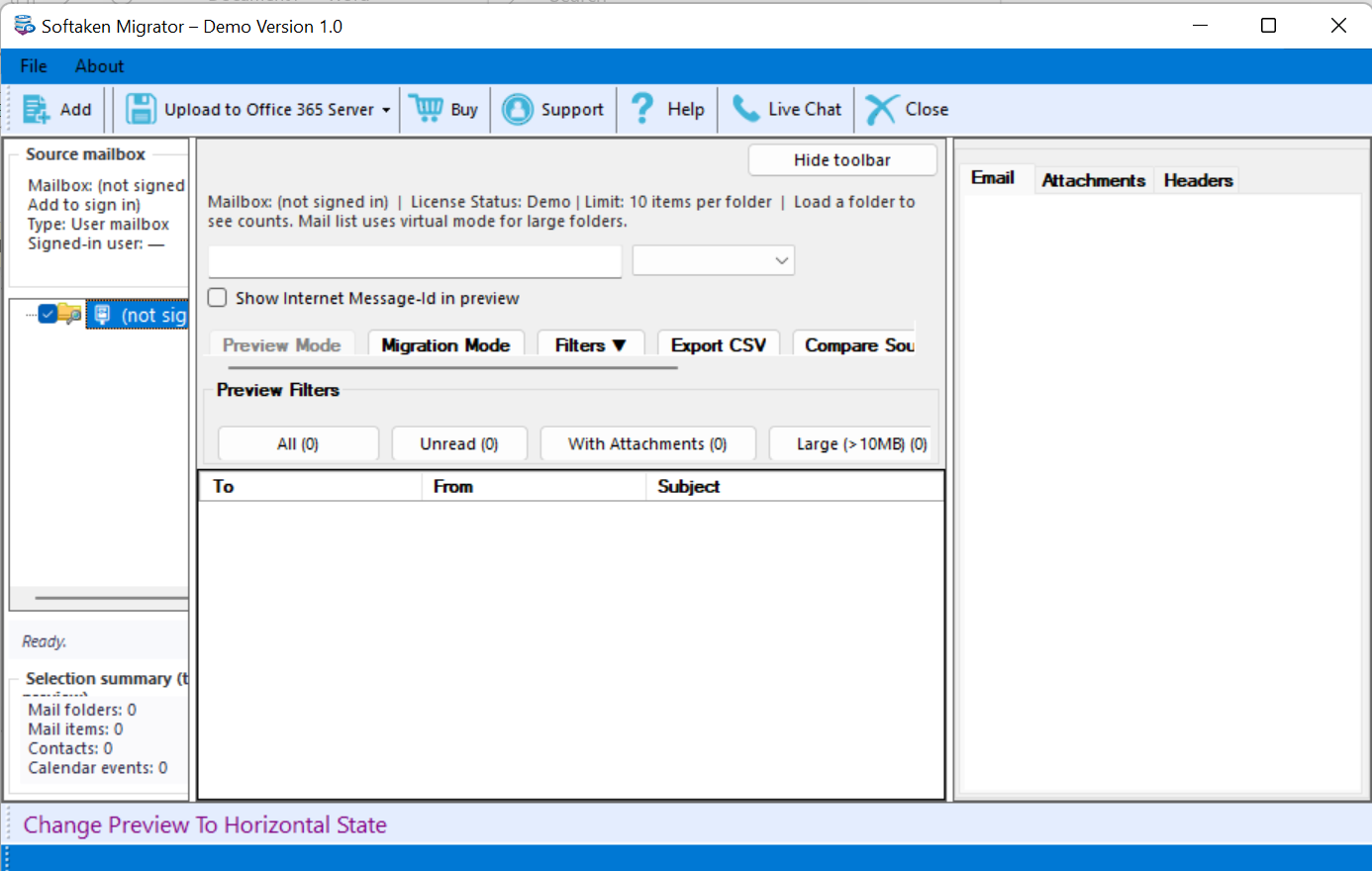
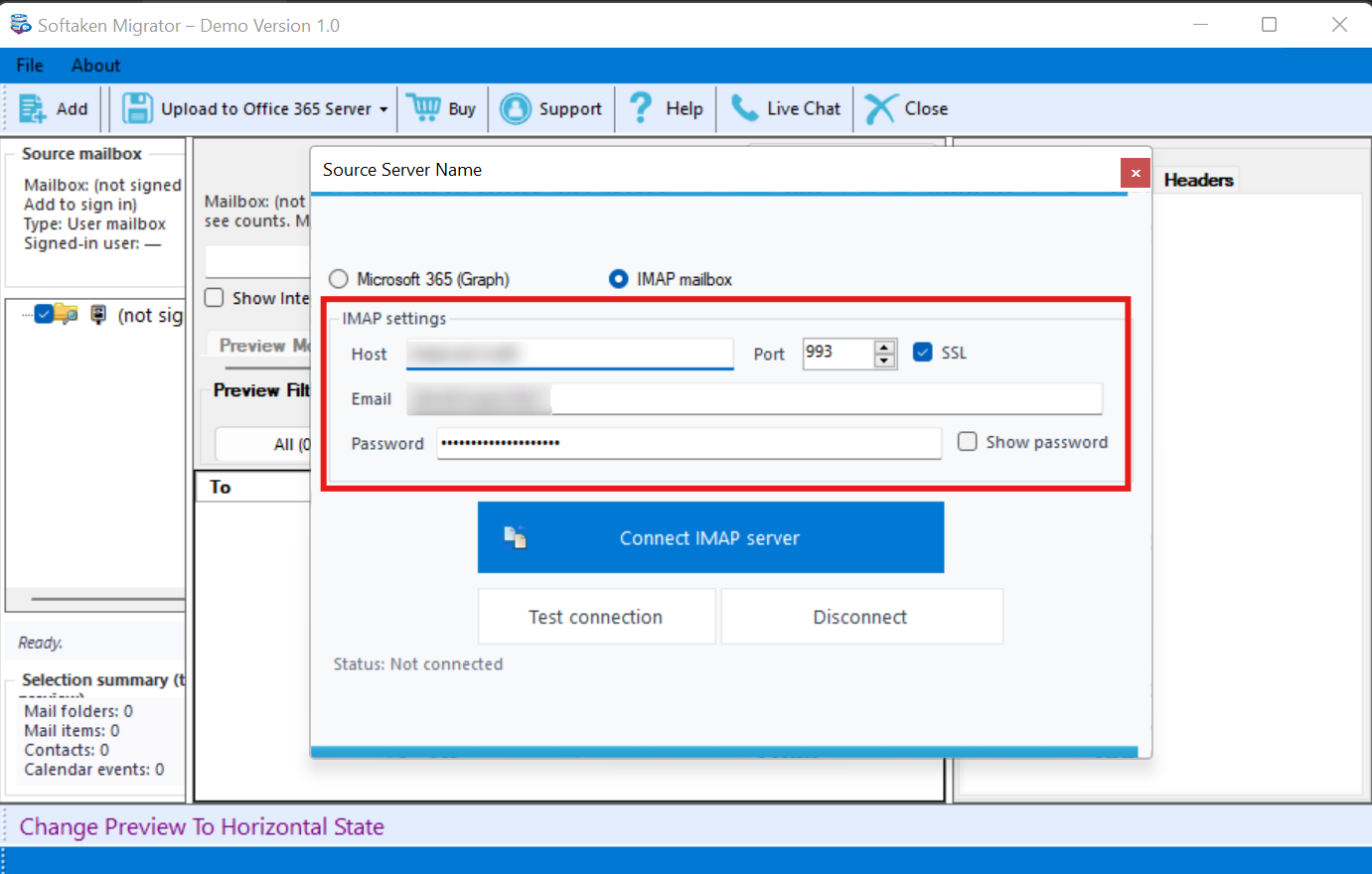
- Next, add the Lycos ID & Password and click Authenticate
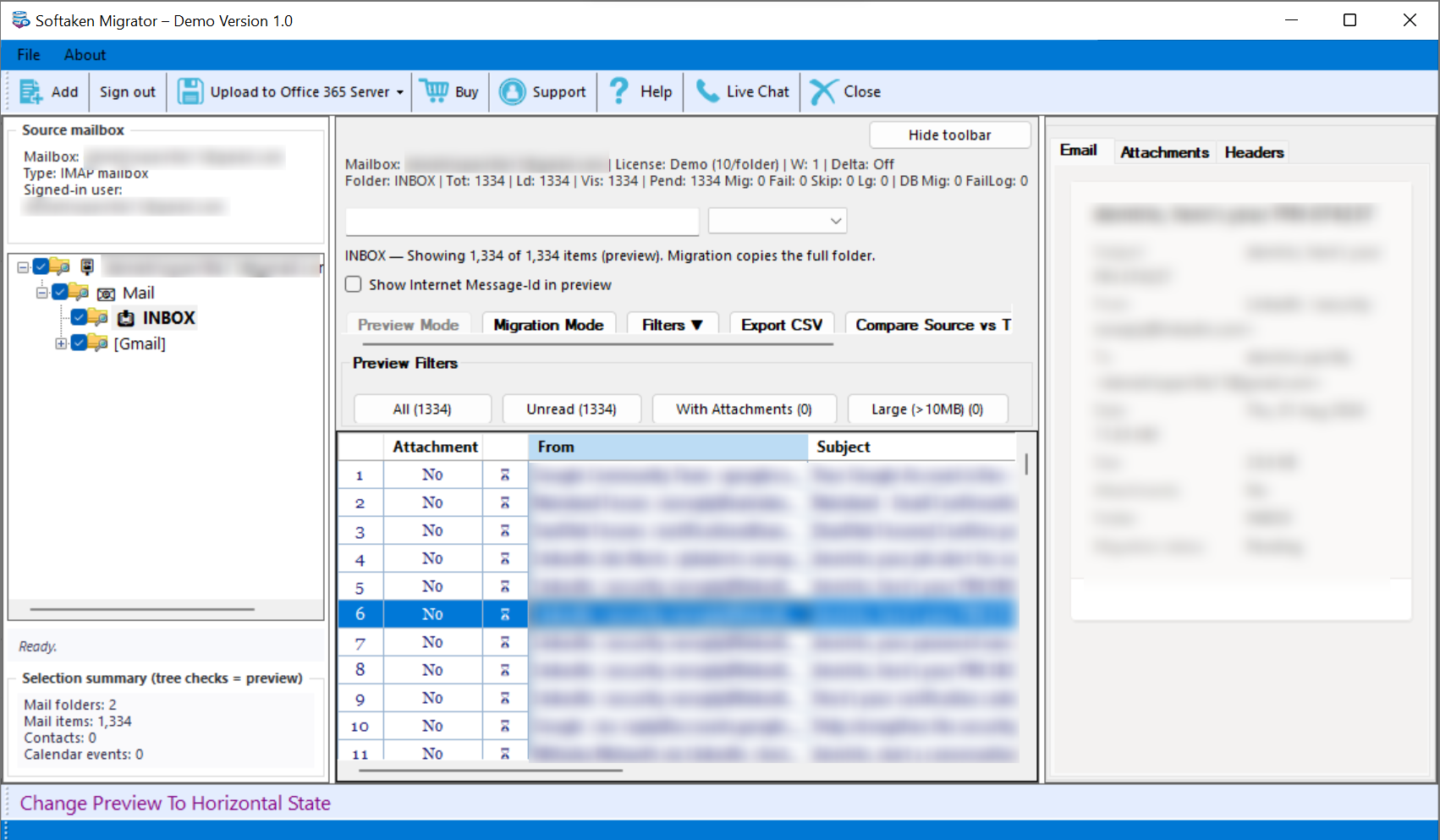
- After authenticating, take a preview of the loaded Lycos mailbox
- Next, add Gmail or Google IMAP login credentials and authenticate them.
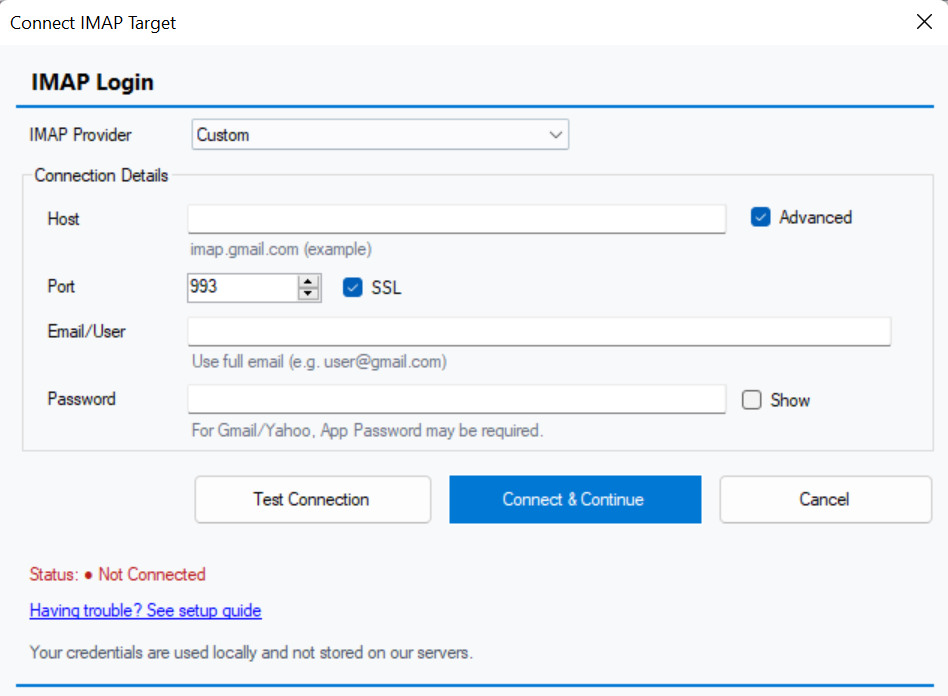
- Lastly, click on the Connect & continue button to start the migration process.
Advantages of the Professional Tool
- The recommended app can export Lycos emails to Gmail without losing data quality. The export ensures the transfer of emails and their attachments.
- The tool connects two accounts seamlessly for migration if the internet connection is smooth and uninterrupted.
- The migration process involves transferring emails from the source Lycos account to the destination Gmail account.
- It allows batch conversion, so both new and old data can be exported at once.
- The tool saves the exported data to an existing mailbox or allows you to create a new folder to save the data.
- It offers a free trial to evaluate its efficacy before getting the licensed version.
- The interface is interactive and needs no in-depth technical skills for migration.
Methods Comparison Table
Comparison of both methods to migrate Lycos emails to Gmail or Google Workspace
| Feature | Method 1: Automatic Email Forwarding | Method 2: IMAP-to-IMAP Migration Tool |
| Aim/Purpose | Forward only new incoming emails | Export both new and old emails |
| Existing Emails | Only new emails | Existing emails and new emails |
| IMAP required | Usually not | Yes, generally required for both accounts |
| Attachments | Yes | Yes |
| Bulk migration | Doesn’t support | Ideal for batch migration |
| Technical skills | Basic technical skills | Basic technical skills |
| Main limitation | Does not migrate historical email archives | Unlimited conversion |
| Best suited for | When you want future Lycos messages | Designed for individuals and commercial users |
Conclusion
By comparing all the recommended methods, you can see that Method 1 is not suitable for migrating archived emails, whereas a third-party tool can support the transfer of existing emails in bulk. Depending on your requirements and the accessibility of your Lycos mailbox, you can choose the most suitable method to migrate emails from Lycos to Gmail.
FAQs
Does Lycos Email Still Exist?
Lycos has been discontinued, but some existing mailboxes are still accessible. However, there is no guarantee that you can access your data. You cannot create a new account.
What are the Alternatives to the Lycos Email Client?
Gmail, Yahoo, Google Workspace, Thunderbird, and Outlook are some popular email clients and email services you can use for personal and professional purposes.
How Long does the Lycos-to-Gmail migration take?
It mainly depends on the mailbox size. If your emails and their attachments are to large, the migration process can be time-consuming.